
Ever stared at a 60-page report or a dense contract and wished you could just ask it questions? Now you can. Learning how to chat with a PDF using AI lets you upload a document, ask anything in plain English, and get an instant, specific answer – no more scrolling and skimming. This 2026 guide shows you exactly how to chat with a PDF using AI, the best free tools, how it works under the hood, and how to keep sensitive files private.
What Does It Mean to Chat With a PDF Using AI?
To chat with a PDF using AI means to upload a document to an AI tool and then ask questions about it conversationally, as if you were talking to someone who has read the whole thing. Instead of using Ctrl+F to hunt for keywords, you ask “What is the refund policy?” or “Summarize the key findings,” and the AI replies with a direct answer drawn from the document. It reads the entire file, understands the meaning behind your question, and responds in seconds – turning a static PDF into something you can actually interrogate.
- Ask real questions in natural language, not keyword searches.
- Get instant summaries of long or complex documents.
- Find specific facts buried deep in the pages.
- Understand hard sections explained in simpler words.
- Save hours you would spend reading manually.
How to Chat With a PDF Using AI (Step by Step)
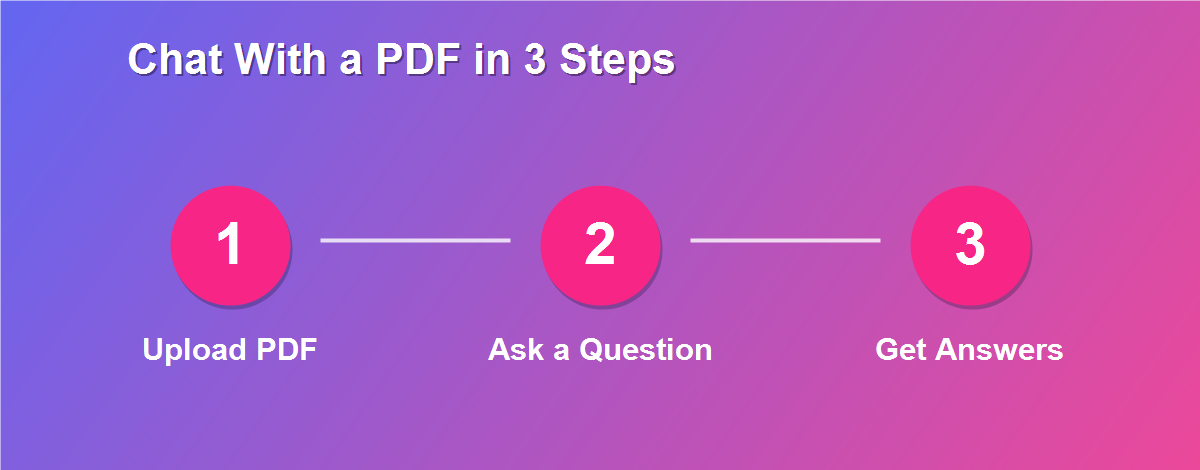
The process is the same across almost every tool, and it takes under a minute:
- Open an AI PDF chat tool such as ChatPDF, ChatGPT, Claude, or NotebookLM.
- Upload your PDF – most tools accept a drag-and-drop or a file picker.
- Wait a moment while the AI reads and indexes the document.
- Ask your question in plain language, or ask for a summary.
- Read the answer, then keep asking follow-up questions to dig deeper.
That is genuinely all there is to it. Once you learn how to chat with a PDF using AI, you will wonder how you ever read long documents any other way.
How Does Chatting With a PDF Actually Work?
Behind the friendly chat box is a clever process. When you upload a file, the tool splits the document into small chunks and converts each into a numerical representation called an embedding. When you ask a question, the AI finds the chunks most relevant to your question and feeds them, along with your question, to a large language model, which writes the answer. This approach – retrieving the right passages and then generating a response – is why the AI can answer accurately about a specific document instead of guessing. It is the same technique that powers modern AI research assistants, and it is what makes chatting with a PDF feel so natural.
What You Can Ask a PDF
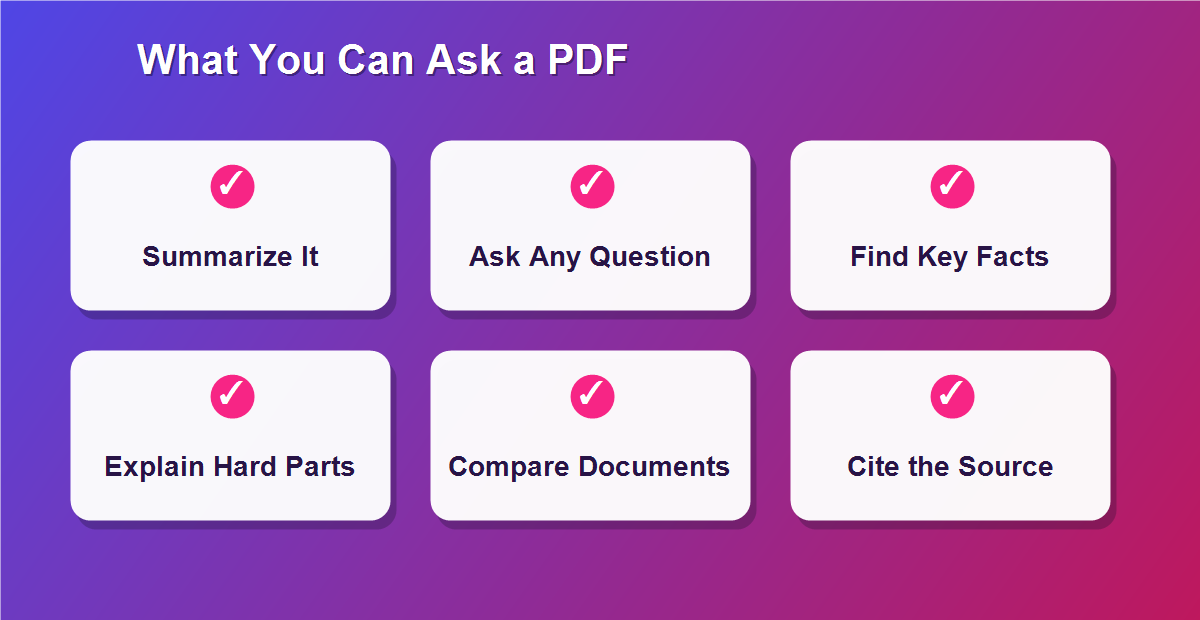
Once you can chat with a PDF using AI, the questions you can ask are almost limitless. The most useful include:
- “Summarize this document in five bullet points.”
- “What are the key terms of this contract?”
- “Explain section 4 in simple language.”
- “What does the report conclude about sales?”
- “List every deadline mentioned in this file.”
- “Does this paper support or contradict my hypothesis?”
The Best Free AI Tools to Chat With PDFs in 2026
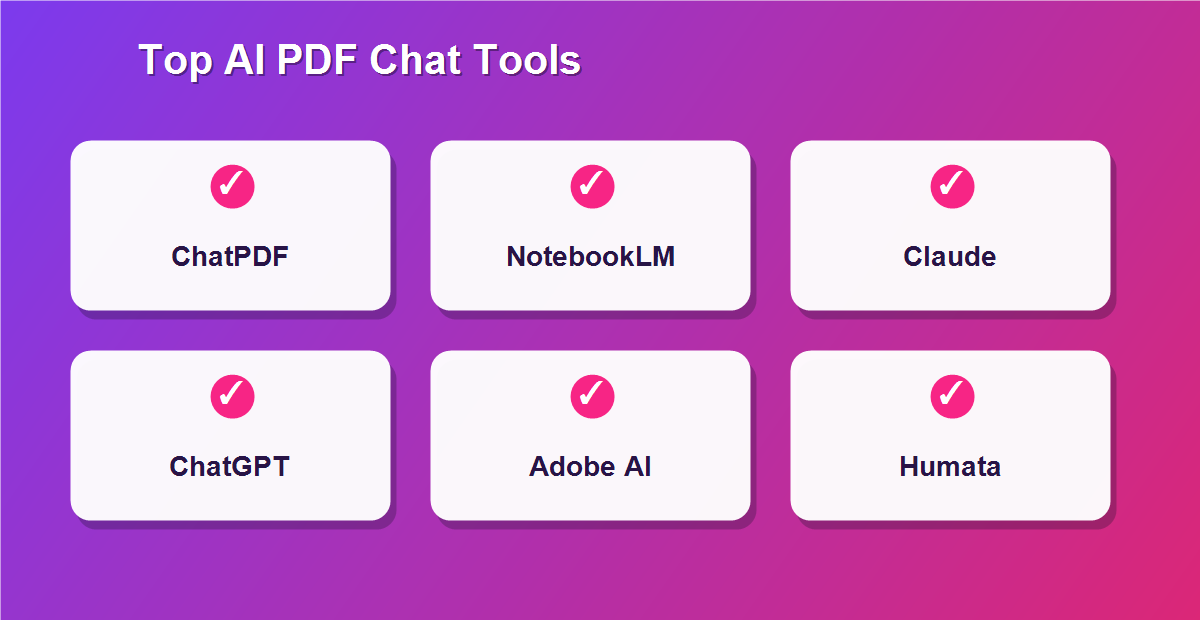
Several excellent tools let you chat with a PDF using AI, and many have generous free tiers. Here are the standouts.
1. ChatPDF
ChatPDF is the fastest way to start. You drag in a PDF, and within seconds you can ask questions – no signup required for basic use. It is perfect for quick, single-document tasks like understanding a manual or a research paper. For a no-friction first experience of how to chat with a PDF using AI, it is hard to beat.
2. Google NotebookLM
NotebookLM shines when you have several documents. Free with a Google account, it lets you add up to 50 sources and then chat across all of them at once, generating summaries, study guides, and even audio overviews. It is built for research and study rather than quick single-file chat, and it is remarkably capable for a free tool.
3. ChatGPT
ChatGPT lets you upload a PDF directly and then ask questions, summarize, or extract data. It is versatile and conversational, and because it is a general assistant, you can combine document questions with wider tasks like drafting a reply based on the file. A free account covers light use, with higher limits on paid plans.
4. Claude
Claude is especially strong with long documents, thanks to its large context window, which lets it consider a lot of text at once. That makes it excellent for lengthy contracts, reports, and books where you want the AI to reason across the whole file. Upload the PDF, ask your question, and Claude returns thoughtful, well-structured answers.
5. Adobe Acrobat AI Assistant
If you already live in Adobe Acrobat, its built-in AI Assistant lets you chat with any open PDF. It provides summaries and answers with page-level citations so you can verify every claim, and recent versions added cross-document Q&A – asking one question across a batch of files. It is a natural fit for professionals who work in Acrobat daily.
6. Humata AI
Humata is aimed at researchers and analysts who need trustworthy answers with citations. It is designed to handle technical and academic PDFs, highlighting exactly where an answer came from so you can check the source. If accuracy and traceability matter most, it is a strong choice.
Free vs Paid: Which Should You Choose?
For occasional use – understanding one report, summarizing a paper, checking a contract – the free tiers of these tools are more than enough, and you can chat with a PDF using AI without paying anything. Paid plans become worthwhile if you process many documents a day, need larger file limits, want faster responses, or require advanced features like batch cross-document Q&A. A good approach is to start free, learn which tool fits your workflow, and only upgrade the one you actually use every day.
Chat With Multiple PDFs at Once
Sometimes the answer you need is spread across several files – a set of research papers, a folder of contracts, or a year of reports. Tools like NotebookLM and Adobe Acrobat AI shine here, letting you load many documents and ask a single question across all of them. Instead of opening each file and comparing manually, you ask “Which of these contracts has the longest notice period?” and get a synthesized answer. For anyone who works with document sets, this multi-file ability is a genuine superpower.
Who Uses AI to Chat With PDFs?
The appeal is broad, because almost everyone deals with long documents. Students and researchers summarize papers and textbooks and pull out key arguments in minutes. Legal and business professionals scan contracts for specific clauses and obligations. Analysts extract figures from lengthy reports. Support teams turn product manuals into instant answers. And everyday users make sense of insurance policies, leases, and government forms without reading every line. Whoever you are, learning to chat with a PDF using AI turns dense documents into quick conversations.
Is It Safe and Private to Chat With a PDF?
This is the most important thing to consider, and the honest answer is: it depends on the tool. Most AI PDF chat services work by uploading your document to their servers to process it. For public documents – a research paper, a published report, a product manual – that is perfectly fine. But for sensitive files such as contracts, medical records, financial statements, or anything containing personal data, uploading to a third party is a real privacy consideration. Always check a tool privacy policy before uploading confidential material, prefer providers with clear data-handling and deletion practices, and for the most sensitive documents, consider redacting private details first or using a tool that processes locally. When privacy matters, treat “where does my file go?” as the first question, not an afterthought.
How to Get Better Answers From Your PDF
A few habits dramatically improve the answers you get when you chat with a PDF using AI:
- Be specific. “What is the cancellation fee?” beats “Tell me about fees.”
- Ask for the source. Request the page or section so you can verify.
- Break big questions down. Several focused questions beat one huge one.
- Ask follow-ups. Treat it as a conversation, not a single query.
- Request a format. Ask for a table, bullet points, or a short summary.
Limitations to Keep in Mind
AI is powerful but not perfect, and it pays to stay a little skeptical. Occasionally an AI can misread a table, miss context, or state something confidently that is not quite right – so for anything important, verify the answer against the actual page. Scanned PDFs that are just images can also trip up tools that lack good text recognition, producing weak answers. And very large or poorly formatted files sometimes need to be cleaned up first. None of this makes chatting with a PDF less useful; it just means you should treat the AI as a fast, helpful assistant rather than an infallible oracle.
Prepare Your PDF First for Better Results
A little preparation goes a long way. If your file is enormous, splitting it or removing irrelevant pages helps the AI focus – you can remove pages from a PDF for free first. If it is a scan, cleaning it up or making sure the text is selectable improves accuracy, and our guide on how to edit a scanned PDF can help. And if the file is too big to upload, you can compress it privately first. A clean, focused PDF almost always produces sharper answers.
Chat With a PDF on Any Device
Because most of these tools are web-based, you can chat with a PDF using AI on whatever device you have:
- Windows & Mac: in any browser, or in desktop apps like Acrobat.
- iPhone & iPad: through the tools mobile sites or apps.
- Android: in Chrome or a dedicated app.
- Chromebook: a perfect fit, since everything runs in the browser.
Chatting vs Reading vs Searching a PDF
It helps to see where AI chat fits. Reading a PDF gives you full understanding but takes the most time. Searching with Ctrl+F is fast but only finds exact words, not meaning – it cannot answer “what is the main risk?” Chatting with a PDF using AI sits in the sweet spot: it understands meaning like reading, but delivers answers in seconds like search. For most tasks, that combination of speed and comprehension is exactly what you want, with a full read reserved for the documents that truly demand it.
Related Free Guides
Explore more free, practical guides from DebugSpot that pair perfectly with this one:
- Build a Laravel AI chatbot – create your own AI over documents.
- Edit a PDF without Adobe Acrobat free – the full editing toolkit.
- Remove pages from a PDF free – trim before you chat.
- Edit a scanned PDF free – clean up scans first.
- Compress a PDF without uploading – shrink big files privately.
Frequently Asked Questions
How do I chat with a PDF using AI?
Upload your PDF to an AI tool like ChatPDF, ChatGPT, Claude, or NotebookLM, then ask questions in plain language and get instant answers drawn from the document.
What is the best free tool to chat with a PDF?
ChatPDF is great for quick single files, while NotebookLM is best for multiple documents. Both have strong free tiers.
Is it free to chat with a PDF using AI?
Yes, most tools offer a free tier that covers everyday use. Paid plans add higher limits and advanced features.
Is it safe to upload a private PDF?
For public documents, yes. For sensitive files, check the tool privacy policy first, since most upload your document to their servers.
Can I chat with a scanned PDF?
Yes, if the tool has text recognition. Clean, selectable-text PDFs give the best answers, so tidy up scans first if needed.
Can AI summarize a long PDF?
Absolutely. Summarizing is one of the most popular uses – just ask for a summary or the key points.
Can I ask questions across several PDFs?
Yes. Tools like NotebookLM and Adobe Acrobat AI let you load many files and ask one question across all of them.
Are the AI answers always accurate?
Mostly, but not perfectly. For important details, verify the answer against the actual page – many tools provide citations.
Do I need to install anything?
Usually not. Most AI PDF chat tools run in your browser, though some offer optional apps.
Can I chat with a PDF on my phone?
Yes. The web-based tools work in any mobile browser on iPhone and Android.
Turn a PDF Into a Study Guide
Students get enormous value from chatting with documents. Beyond answering questions, many tools can turn a PDF into study material – ask for a summary of each chapter, a list of key terms and definitions, or a set of practice questions based on the content. NotebookLM even generates study guides and audio overviews automatically. Instead of re-reading a textbook chapter three times, you chat with a PDF using AI, ask it to quiz you, and turn passive reading into active learning that actually sticks.
Extract Data and Tables From a PDF
PDFs are notoriously bad at giving up their data, especially tables. AI chat helps here too. You can ask “List all the figures in the revenue table” or “Pull out every date and amount mentioned,” and the AI returns the information in a clean, usable form. Ask for it as a table or a bulleted list and you can paste it straight into a spreadsheet or report. For anyone who has ever retyped numbers out of a PDF by hand, being able to chat with a PDF using AI to extract them is a real time-saver.
Chat With a PDF Without Signing Up
Not every tool demands an account. Options like ChatPDF let you drop in a file and start asking questions immediately, with no signup for basic use. This is ideal when you just need a quick answer from a single document and do not want to register anywhere. If a tool asks you to create an account before you can even upload, and you only have one quick question, a no-signup option is often the faster way to chat with a PDF using AI.
The Future of Working With Documents
Chatting with documents is quickly becoming the default way people handle information overload. As AI improves, answers get more accurate, citations more precise, and multi-document reasoning more powerful. The days of scrolling through a 100-page PDF to find one figure are ending. Learning to chat with a PDF using AI now means you are already comfortable with a skill that is fast becoming as everyday as searching the web – and it only gets more useful from here.
Start Chatting With Your PDFs Today
Long documents no longer have to mean long hours. Once you know how to chat with a PDF using AI, you can summarize, question, and understand any file in minutes. Pick a free tool, upload a document, and start asking – and use DebugSpot free PDF tools to edit, trim, or prepare your files first. Explore more free online tools that make working with documents effortless.