
Have a PDF with sensitive information? You can password protect PDF online free in seconds, right in your browser. This 2026 guide shows how to password protect PDF online free so only people with the password can open your file – with no software, no signup, and complete privacy.
Why Password Protect a PDF?
PDFs quietly carry some of our most private information – bank statements, signed contracts, ID scans, medical records, and payslips. The problem is that a plain PDF can be opened by anyone who receives it, forwards it, or finds it in a shared folder. Adding a password means that even if the file ends up in the wrong hands, it stays locked and unreadable without the key. When you password protect PDF online free, you add a serious layer of security in just a few seconds, and it costs nothing.
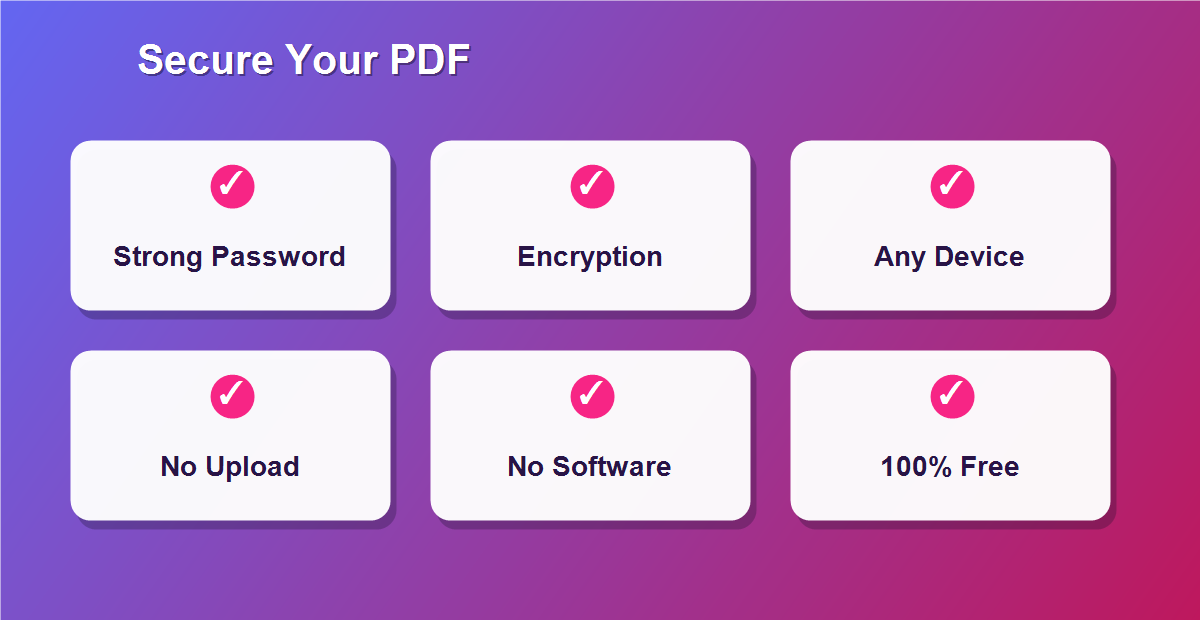
- Control access: only people with the password can open the file.
- Safe sharing: email or upload the PDF without worry.
- No software: nothing to install or configure.
- Private by design: the file is processed in your browser, not uploaded.
- Free forever: no subscription or per-file charge.
How to Password Protect PDF Online Free (Step by Step)
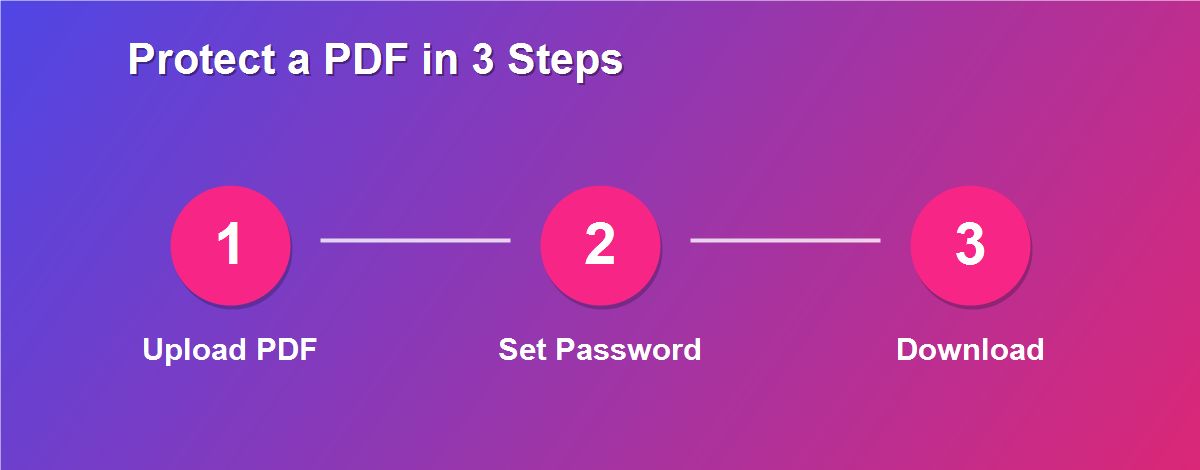
The whole process takes under a minute, and there is nothing to download:
- Open the DebugSpot PDF Editor in your browser.
- Upload the PDF you want to secure – it stays on your device.
- Choose the Password / Protect option.
- Type a strong password and confirm it.
- Click Download to save the encrypted PDF.
Share the protected file, then give the password only to the people who should be able to open it – ideally through a different channel, such as the file by email and the password by text.
What Does a PDF Password Actually Do?
A PDF password does far more than hide the file behind a prompt. It uses encryption to scramble the contents so they are mathematically unreadable without the correct key. Anyone who opens the document is asked for the password first; enter the wrong one and the content stays locked. This is the same basic principle that protects online banking, messaging apps, and secure websites, which is why a password-protected PDF is trusted for genuinely sensitive material.
When Should You Protect a PDF?
A good rule of thumb: if you would not be comfortable with a stranger reading it, protect it. Common examples include:
- Salary slips, invoices, and financial statements.
- Signed contracts and legal agreements.
- ID cards, passports, and personal documents.
- Medical and insurance paperwork.
- Confidential business or client files.
How to Choose a Strong Password
Your PDF is only as safe as the password you pick. A short, obvious password can be guessed in seconds, so it is worth taking a moment to choose well:
| Weak Password | Strong Password |
|---|---|
| name or birthday | a random mix of words |
| 123456 / password | 12+ characters long |
| reused everywhere | unique to this file |
- Use 12+ characters with letters, numbers, and symbols.
- Avoid personal info like names, dates, or phone numbers.
- Store it safely – if you lose it, the PDF cannot be recovered.
Password Protection vs Redaction: Which Do You Need?
These two are easy to confuse but solve different problems. A password controls who can open the whole document, while redaction removes or covers specific sensitive text inside a document that people are allowed to read. If you are sending a full statement to your accountant, a password is right. If you are sharing a contract but need to hide one account number, redaction with the white-out tool is the better fit. Many people use both for maximum safety.
Protect a PDF on Any Device
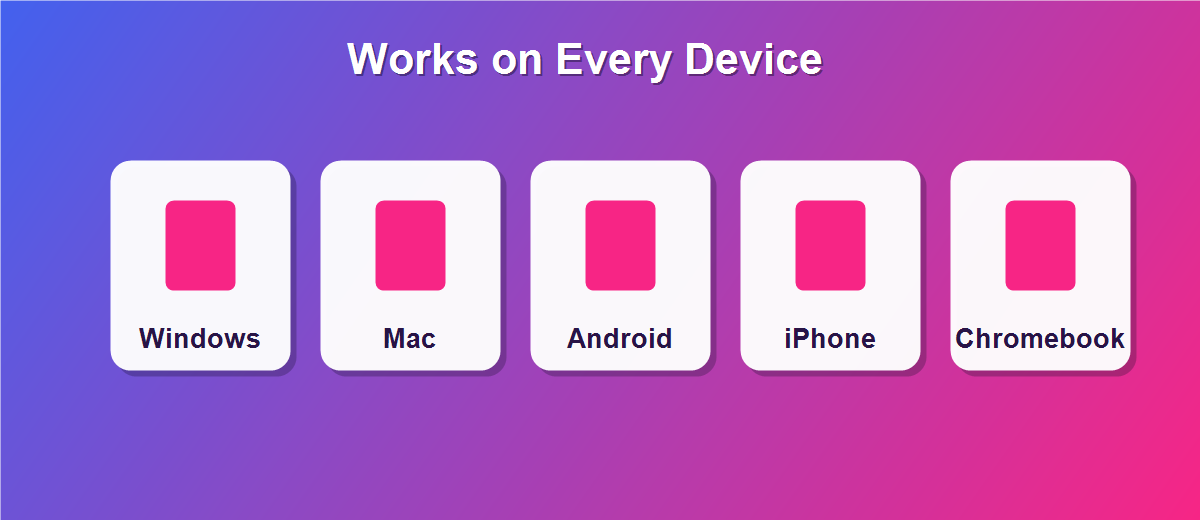
Because it runs in the browser, you can secure files from anywhere:
- Windows & Mac: works in Chrome, Edge, Firefox, or Safari.
- iPhone & iPad: protect files right from Safari.
- Android: add a password in Chrome with no app.
- Chromebook: runs perfectly in the browser.
What If You Forget the Password?
This is the one thing to be careful about. Strong encryption has no back door, which is exactly what makes it secure – but it also means that if you lose the password, even you cannot open the file. Before you share a protected PDF, save the password somewhere reliable, such as a password manager or a secure note. If the document is important, keep an unprotected master copy in a safe location so you are never locked out of your own file.
How Strong Is PDF Encryption?
Modern PDF encryption is genuinely strong. When you set a password, the file is scrambled using industry-standard algorithms, and the only practical way to open it is to enter the correct password. There is no shortcut that lets someone peek inside a properly encrypted PDF, which is why banks, law firms, and hospitals rely on it every day. The weakest link is almost never the encryption itself – it is a weak or reused password, which is exactly why choosing a strong, unique one matters so much.
Who Should Password-Protect Their PDFs?
Almost anyone who shares documents online benefits from this habit. Freelancers and small businesses send invoices and contracts full of client details; HR teams handle offer letters, payslips, and personal records; healthcare and insurance staff deal with sensitive patient information; and everyday users email tax documents, bank statements, and ID scans. If your work involves any of these, making it routine to password protect PDF online free is a simple way to cut risk.
How to Share a Password-Protected PDF Safely
Protecting the file is only half the job – how you share the password matters just as much. The golden rule is to never send the password in the same message as the file. If you email the PDF, send the password by text, phone call, or a separate app. That way, if the email is intercepted or forwarded by mistake, the document still cannot be opened. For teams, a shared password manager is an even safer way to pass credentials around without exposing them in chat or email.
Can You Remove the Password Later?
Yes. A password is not permanent. If you know it, you can open the protected file, save an unprotected copy, and share that instead when protection is no longer needed. This flexibility is useful when a document has done its confidential job – for example, once a contract is finalized and stored securely, you may no longer need the open password on every copy. Just remember that removing protection makes the file readable by anyone again, so only do it when you are sure.
Owner Password vs Open Password
PDFs actually support two kinds of protection. An open password (sometimes called a user password) is required just to view the document. An owner password (or permissions password) controls what people can do once it is open – such as printing, copying text, or editing. For most personal needs, the open password is what you want, because it stops unauthorized people from reading the file at all. Understanding the difference helps you pick the right protection for the situation.
Protecting PDFs for Business and Compliance
For businesses, password protection is often more than good practice – it is a requirement. Regulations covering financial, medical, and personal data expect sensitive documents to be safeguarded when they are stored and shared. Adding a password is a simple, defensible step that shows you take data protection seriously. Combined with careful sharing habits and secure storage, it helps small teams meet the same standards larger organizations follow, without expensive software.
Common Password Mistakes to Avoid
- Reusing the same password across many files – one leak exposes them all.
- Sending the password with the file – always use a separate channel.
- Choosing something guessable – avoid names, dates, and common words.
- Not recording it – a lost password means a lost file.
- Forgetting to protect the final version – lock the copy you actually send.
Password-Protecting Scanned Documents
Scanned files often hold the most sensitive information of all – copies of IDs, signed forms, and medical records. Because a scan is just an image inside a PDF, you protect it exactly the same way: upload it, set a password, and download the encrypted version. This is especially valuable before emailing a scanned passport or bank letter, since it ensures that only the intended recipient, armed with the password, can ever open the document.
Is Free PDF Protection Really Safe?
Yes – and with a browser-based tool, arguably safer than many paid alternatives. Because DebugSpot encrypts your file locally without uploading it, your document and its password never touch a server. Some paid or online services process files in the cloud, which introduces a point of exposure. A tool that does everything on your own device gives you strong encryption and complete privacy at the same time, all for free.
Related Free PDF Guides
Protecting a PDF is one part of handling documents securely. These free step-by-step guides pair perfectly with this one:
- White out text on a PDF free – redact details before protecting.
- Edit a PDF without Adobe Acrobat free – the full editing toolkit.
- Add a signature to a PDF online free – sign before you lock.
- Edit a scanned PDF free – clean up scans before securing them.
- Remove pages from a PDF free – trim before you protect.
Frequently Asked Questions
Can I password protect PDF online free?
Yes. You can add a password to any PDF at no cost and without an account. There is no limit on how many files you protect.
Is my file uploaded to a server?
No. The PDF is processed in your browser, so your document and password never leave your device.
What if I forget the password?
There is no back door, so a forgotten password means the file cannot be opened. Always store the password somewhere safe.
Will the password work in every PDF reader?
Yes. The protected file prompts for the password in standard readers like Adobe Reader, Chrome, and Preview.
Can I remove the password later?
Yes. If you know the password, you can open the file and save an unprotected copy whenever you want.
Is a password enough for very sensitive files?
For most needs, yes. For extremely sensitive data, combine a strong password with redaction of the most critical details.
Can I protect a scanned PDF?
Yes. Scanned files are protected the same way – upload, set a password, and download the encrypted version.
Does protecting a PDF change its quality?
No. Encryption only locks access; the text, images, and layout stay exactly as they were.
Can I protect a PDF on my phone?
Yes. The tool works in any mobile browser, so you can secure files on iPhone or Android.
How should I share the password?
Send it separately from the file – by text or phone – so the two never travel together.
How Password Protection Works Behind the Scenes
When you set a password, the tool does not simply hide the file – it transforms it. The contents are encrypted, meaning they are converted into scrambled data that only the correct password can unlock. Your reader software reverses that process the instant you type the right password, revealing the document. Because the encryption happens on your own device, the original readable version never leaves your computer, and the file you share is protected from the moment it is created. This is why a properly protected PDF is safe to email even across untrusted networks.
Protecting PDFs Before Cloud Upload
Cloud storage is convenient, but you are trusting a third party with your files. Adding a password before you upload a sensitive PDF to Google Drive, Dropbox, or a shared server means that even if the account is compromised, the document stays unreadable. It is a simple extra step that puts you in control of your own data rather than relying entirely on the provider security. For anything confidential, encrypting before upload is a habit worth keeping.
Password Protection for Email Attachments
Email is one of the least secure ways to send a document, because messages can be forwarded, intercepted, or sent to the wrong person. A password-protected attachment solves this: even if the email goes astray, the PDF cannot be opened without the key. Send the password separately, and your sensitive attachment is far safer than an ordinary one. This is especially important for invoices, statements, and any document containing personal details.
Combining a Password with a Watermark
For an extra layer of control, you can pair a password with a watermark. The password stops unauthorized people from opening the file, while a watermark such as “Confidential” or “Draft” makes its status clear to anyone who is allowed in. Together they protect both access and intent, which is useful for documents shared within a team where you want readers to understand how the file should be handled.
What Devices Can Open a Protected PDF?
A password-protected PDF opens on virtually any device, as long as the reader supports encryption – and almost all of them do. Adobe Reader, Chrome, Edge, Safari, Preview on Mac, and the built-in PDF viewers on iPhone and Android all prompt for the password and then display the file normally. That universal support means you can protect a document without worrying whether your recipient will be able to open it; they simply need the password you provide.
Free vs Paid PDF Protection
Paid PDF suites advertise password protection as a premium feature, but the core capability – encrypting a file so only the right password opens it – is exactly what a free browser tool provides. Unless you need advanced permission controls or batch-processing for hundreds of files, the free option covers everyday needs completely, with no watermark and no subscription. For individuals and small teams, that makes free protection the sensible default.
A Real-World Example
Imagine you need to email your accountant a scanned bank statement. Sending it as a plain PDF would mean anyone who saw that email could read your finances. Instead, you open the free editor, upload the statement, set a strong password, and download the encrypted file. You email the protected PDF and text the password separately. Your accountant opens it in seconds, and your financial details stay private the entire way. That thirty-second habit is exactly why people password protect PDF online free before sharing anything sensitive.
Peace of Mind for Your Most Sensitive Files
Ultimately, password protection is about peace of mind. Knowing that your bank statements, contracts, and personal records cannot be opened by the wrong person lets you share documents with confidence. It takes only seconds, costs nothing, and turns an ordinary PDF into a locked file that only your intended recipient can read – a small habit that protects the information that matters most to you and your business.
Secure Your PDF for Free Today
Do not send sensitive documents unprotected. Use the free online PDF Editor to password protect PDF online free, and explore more free online tools from DebugSpot.