
Tired of printing, signing, and scanning? You can add signature to PDF online free in under a minute, right in your browser. This 2026 guide shows exactly how to add signature to PDF online free – draw it, type it, or upload an image – with no printer, no app, and no signup.
Why Sign PDFs Online Instead of Printing?
The old print-sign-scan routine wastes paper, ink, and time. When you add signature to PDF online free, you keep the document digital from start to finish and get a cleaner, more professional result. There is no hunting for a printer, no blurry scan, and no delay – you finish the whole thing on the same screen you opened it.
- Faster: sign and send in seconds, not minutes.
- Paperless: no printer, scanner, or ink required.
- Cleaner: a crisp digital signature beats a blurry scan.
- Private: your document stays in your browser and is never uploaded.
- Anywhere: sign from a laptop or phone, even on the go.
How to Add Signature to PDF Online Free (Step by Step)
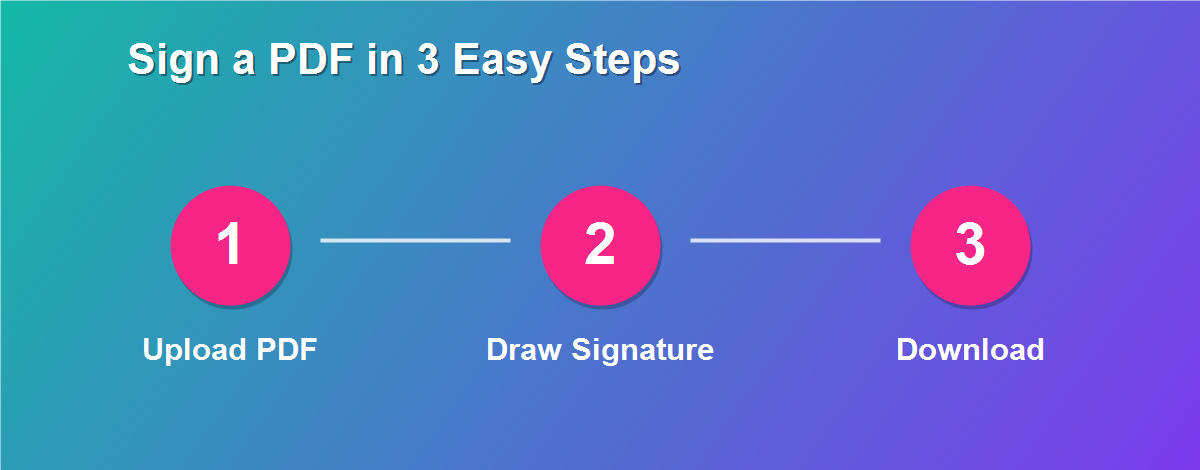
Follow these steps to add signature to PDF online free:
- Open the DebugSpot PDF Editor in any browser.
- Upload the PDF you need to sign – it stays on your device.
- Select the Draw / Sign tool.
- Create your signature by drawing, typing, or uploading an image.
- Place the signature where it belongs and resize it to fit.
- Click Download to save your signed PDF.
The whole process takes less than a minute, and you can repeat it for as many documents as you need.
3 Ways to Create Your Signature
The editor gives you three quick ways to sign, so you can pick whatever feels natural:
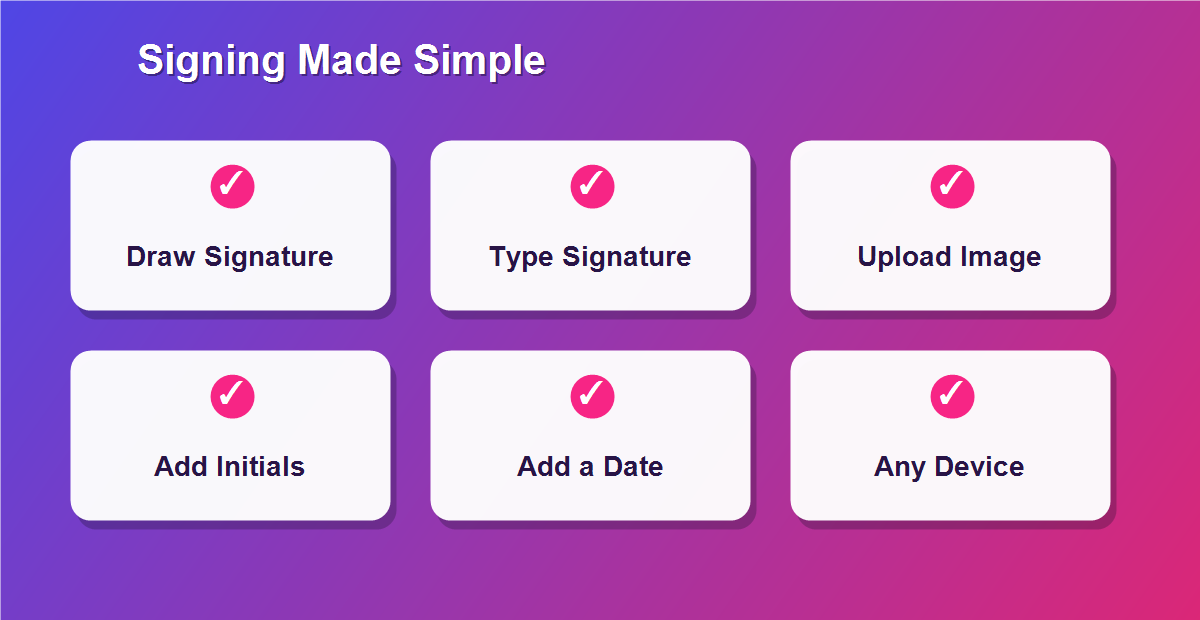
- Draw it: use your mouse, trackpad, or finger to draw your signature by hand.
- Type it: type your name and choose a handwriting-style font.
- Upload it: add a photo or scan of your real signature as an image.
Draw vs Type vs Upload: Which Is Best?
| Method | Best For | Look |
|---|---|---|
| Draw | Phones & tablets with touch | Natural, handwritten |
| Type | Speed on a laptop | Clean, font-based |
| Upload image | Matching your real signature | Most authentic |
Are Electronic Signatures Legal?
In most countries, yes. Electronic signatures are legally recognized for the vast majority of business and personal documents under laws such as the U.S. ESIGN Act and the EU eIDAS regulation. For everyday agreements, offer letters, and forms, a signature you add to a PDF online is perfectly valid and enforceable. What matters legally is your clear intent to sign, which a drawn, typed, or uploaded signature demonstrates.
When Do You Need to Sign a PDF?
Digital signing is now part of everyday life. You might need to add signature to PDF online free when you are:
- Accepting a job offer or employment contract.
- Signing a rental or lease agreement.
- Approving an invoice, quote, or purchase order.
- Completing a consent, medical, or school form.
- Finalizing a freelance contract or NDA with a client.
How to Add Initials and a Date Too
Many documents need more than a signature. After you sign, use the Text tool to add your printed name, initials, and the date next to your signature. You can also add initials on every page of a multi-page contract – simply place your initials, then copy them to each page where they are required. This keeps long agreements consistent and complete before you send them.
Sign a PDF on Any Device
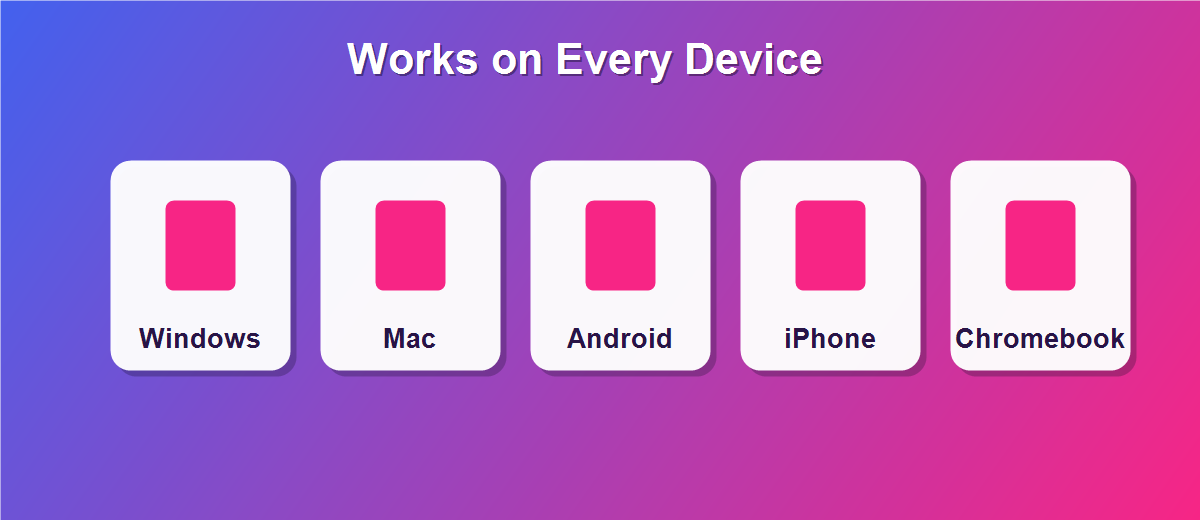
- Windows & Mac: draw with your mouse or trackpad in any browser.
- iPhone & iPad: sign with your finger or Apple Pencil in Safari.
- Android: sign by finger in Chrome – no app needed.
- Chromebook: works instantly in the built-in browser.
Signature vs Digital Signature: What Is the Difference?
People often mix up two terms. An electronic signature is any mark you add to show your intent to sign – a drawn, typed, or uploaded signature like the ones in this editor. A digital signature is a more technical, certificate-based method used for high-security government and enterprise workflows. For the vast majority of everyday documents – offers, invoices, consent forms, and agreements – a simple electronic signature is exactly what you need and is widely accepted.
Where Can You Use a Signed PDF?
Once you add signature to PDF online free, the signed file is ready to use almost anywhere. You can email it back to an employer, client, or landlord; upload it to an application portal or HR system; store it in Google Drive, Dropbox, or your files for your records; or print it if a physical copy is ever required. Because the output is a standard PDF, it opens perfectly in every reader and on every device.
How to Sign a Multi-Page PDF
Long agreements often need a signature or initials on several pages. Sign or initial the first page, then place the same mark on each additional page that requires it. You can jump between pages using the thumbnails, so even a twenty-page contract is quick to finish. When every required field is complete, download the whole document as a single signed PDF that is ready to send.
Is It Safe to Sign PDFs Online?
Yes. With DebugSpot, your document is processed entirely in your browser and is never uploaded to a server. That means even sensitive contracts, offer letters, and personal forms stay completely private on your own device while you add signature to PDF online free. There is no cloud copy that could be exposed and no account linking the document to your identity, which is exactly the level of privacy signing deserves.
Do You Need to Print a Signed PDF?
No. Once you sign and download the file, it is a complete, usable document in digital form. You can email it, upload it to a portal, or store it for your records without ever printing a page. Printing only makes sense if a specific office insists on a physical copy, and even then you are printing a finished, signed document rather than signing by hand. Keeping everything digital saves paper and produces a cleaner, more professional result.
Common Signing Mistakes to Avoid
- Signature too large or too small – resize it to match the signature line.
- Forgetting the date – many contracts are invalid without it.
- Signing the wrong field – zoom in to place it precisely.
- Low-quality uploaded signature – use a clean, high-contrast image.
- Not saving a copy – download the signed file right away.
Tips for a Professional Signature
- Sign slowly when drawing for a smoother line.
- Upload a transparent PNG for the sharpest look.
- Reuse the same signature so it stays consistent across documents.
- Add the date and printed name next to the signature when required.
Signing on Behalf of a Business
If you sign documents for a company, a consistent signature helps your paperwork look professional. Create your signature once, and reuse the same version on every contract, quote, and agreement so your files stay uniform. You can also add your title and company name beneath the signature using the text tool, which is often expected on business documents. This small habit makes your signed PDFs look polished and keeps your records tidy over time.
A Quick Real-World Example
Imagine a client emails you a contract on a Friday afternoon and needs it signed before the weekend. Instead of rushing to find a printer, you open the free editor on your phone, drop your saved signature on the line, add the date, and email the signed PDF back in under two minutes. The deal moves forward, and you never left your chair. That everyday convenience is exactly why so many people now add signature to PDF online free as their default.
Related Free PDF Guides
Signing is just one thing you can do with a PDF. These free step-by-step guides pair perfectly with this one:
- Edit a PDF without Adobe Acrobat free – the full editing toolkit.
- Fill a PDF form online free with no login – complete forms fast.
- Password protect a PDF online free – lock a signed file before sharing.
- Remove pages from a PDF free – trim documents before signing.
- Edit a scanned PDF free – sign and fix scanned contracts.
Frequently Asked Questions
How do I add signature to PDF online free?
Open the PDF editor, choose the sign tool, draw or type your signature, place it on the page, and download the signed file. No signup or software is required.
Is it really free?
Yes. You can sign as many PDFs as you like at no cost and without creating an account.
Are my documents private?
Completely. Files are processed in your browser and never uploaded to a server.
Can I sign a PDF on my phone?
Yes. The tool is touch-friendly, so you can sign with your finger on iPhone, iPad, or Android.
Can I add my initials or a date too?
Yes. Use the text tool to add initials, a printed name, or the date alongside your signature.
Is a typed signature legally valid?
In most cases, yes. What matters legally is your intent to sign, so a typed or drawn signature is generally accepted for everyday documents.
Can I reuse my signature on other documents?
Yes. Save your signature once and drop the same version onto any future PDF for a consistent look.
Do I need to install an app to sign?
No. Everything runs in your browser, so there is nothing to download or install.
Will the signed PDF open on any device?
Yes. You download a standard PDF that opens in every reader on every device.
Can I sign a scanned contract?
Yes. Scanned PDFs work the same way – place your signature on top of the scanned page and download.
What Is an Electronic Signature?
An electronic signature is simply a mark you apply to a document to show you agree to it – the digital equivalent of signing with a pen. It can be a drawing of your handwritten signature, your typed name in a signature font, or an uploaded image of your real signature. What makes it valid is not how fancy it looks but the clear intent behind it. When you add signature to PDF online free, you are creating a legally meaningful electronic signature that stands up for the everyday agreements most people deal with.
How Secure Is a Signature You Add Online?
Security comes from two things: how the signature is applied and how the file is handled. Because DebugSpot processes your document entirely in your browser, the file and your signature never touch a server, so there is no upload that could be intercepted. Once you download the signed PDF, the signature is flattened into the page, making it part of the document. For most business and personal use, that is exactly the level of security you need, and it is far safer than emailing a loose signature image around.
Can You Remove a Signature After Adding It?
Before you download, yes – your original file is untouched, so you can delete a signature, move it, or start over as many times as you like. After you download the flattened PDF, the signature becomes part of the page, just like ink on paper. If you need an unsigned version later, simply keep your original file, which the tool never changes. This is why saving the original until you are happy with the signed copy is always a smart habit.
Signing PDFs for Remote Work
Remote and hybrid work has made digital signing essential. Contracts, onboarding forms, expense approvals, and NDAs all move by email now, and printing each one to sign is simply not practical. Being able to add signature to PDF online free means a remote worker in any location can complete paperwork the moment it arrives, then send it straight back. It keeps projects moving, shortens approval cycles, and removes the printer from the equation entirely – a small change that saves hours over a busy month.
How to Sign a PDF Someone Sent You
This is one of the most common situations. When a colleague, client, or company emails you a document to sign, save it to your device, open it in the editor, and add your signature exactly where the signature line is. You do not need the sender to use any particular service, and they do not need an account either. Once you finish, download the signed copy and email it straight back. The whole exchange stays simple, and both sides end up with a clean, standard PDF.
Adding a Company Stamp or Logo
Businesses often need more than a signature. Alongside your signature, you can insert a company logo, a stamp, or a letterhead image using the image tool. Place the logo at the top of the page or beside the signature to give the document an official, branded appearance. This is especially useful for invoices, quotes, and letters, where a professional look reassures the recipient that the document is genuine and complete.
Why Digital Signing Saves Time and Money
The savings add up quickly. Every printed page costs paper and ink, every scan takes time, and every posted document costs postage and days of delay. Digital signing removes all of that. A task that once took ten minutes and a trip to the printer now takes under a minute on any device. Multiply that across a team signing dozens of documents a week, and a free browser-based signer quietly saves real money while making everyone faster.
Signing on a Tablet with a Stylus
If you own a tablet and stylus, you get the most natural signature of all. On an iPad with an Apple Pencil, or an Android tablet with a stylus, you can draw your signature almost exactly as you would on paper. The result is smooth and personal, and it takes just seconds. For anyone who signs documents regularly, a tablet and stylus paired with a browser-based signer is a fast, paper-free setup that feels completely familiar.
Keeping Your Signed Documents Organized
A little organization goes a long way. When you download a signed PDF, give it a clear name that includes the document type and date, and store it in a dedicated folder or cloud drive. Because every signed file is a standard PDF, it is easy to search, back up, and resend whenever you need it. Staying tidy means you never have to hunt for a signed contract months later – it is right where you expect it.
Sign Your PDF for Free Today
Skip the printer forever. Use the free online PDF Editor to add signature to PDF online free in seconds, and discover more free online tools from DebugSpot.