
Need to hide or remove text in a PDF? You can white out text on PDF free, right in your browser. This 2026 guide shows how to white out text on PDF free – cover mistakes, remove old details, or hide sensitive information – with no software, no signup, and full privacy.
What Does “White Out Text on a PDF” Mean?
Whiting out text means placing a solid box – usually white – over words you want to hide, exactly like correction fluid on paper. It is the fastest way to remove a wrong value, an old address, or a piece of sensitive data without rebuilding the whole document. Because the box sits on top of the page, the text underneath disappears from view, and you can then type fresh text in its place if you need to. When you white out text on PDF free online, the entire job takes just a few clicks.
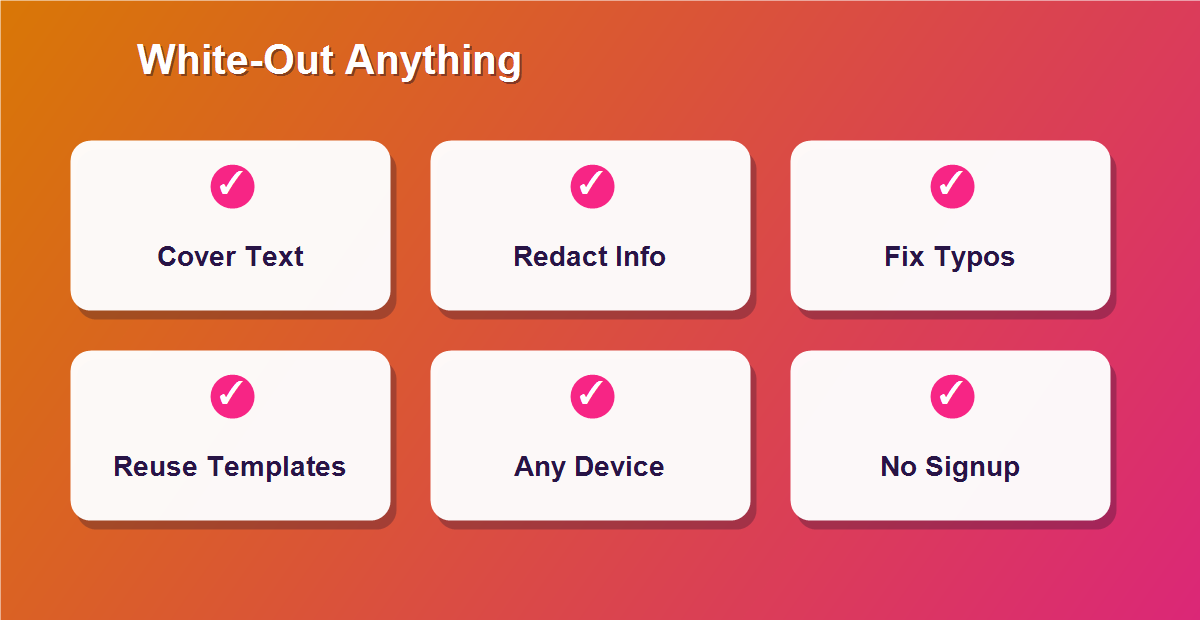
- Cover mistakes before sending a document.
- Remove outdated details like prices or dates.
- Hide private information such as account numbers.
- Reuse a template by clearing the old entries.
How to White Out Text on PDF Free (Step by Step)
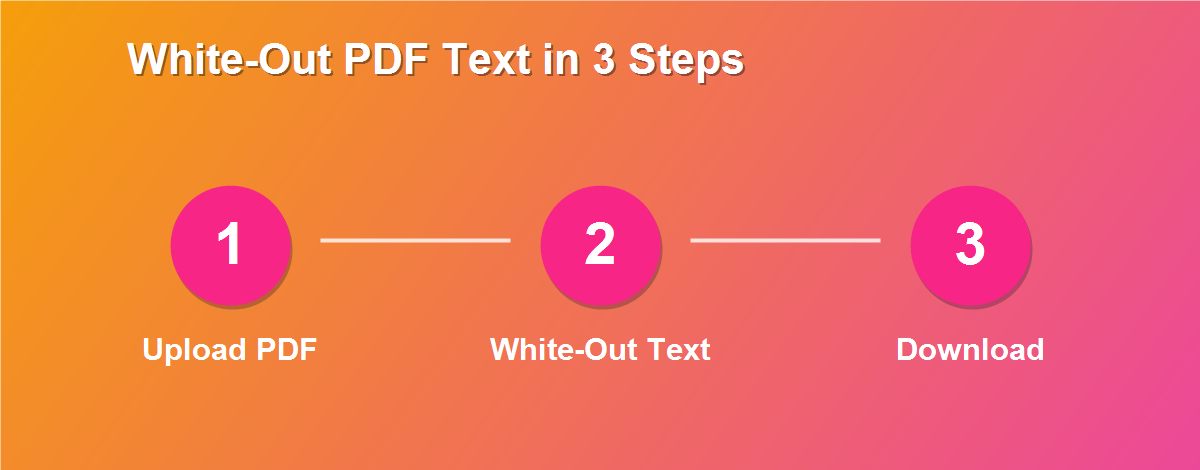
The whole process takes less than a minute, and there is nothing to install:
- Open the DebugSpot PDF Editor in your browser.
- Upload your PDF – it stays on your device.
- Select the white-out / eraser tool.
- Drag a box over the text you want to hide.
- Optionally, add new text on top with the Text tool.
- Click Download to save your edited PDF.
White-Out vs True Redaction
There is an important difference to understand, especially for sensitive files. A white-out box hides text visually, which is perfect for scans and everyday edits. True redaction goes further and permanently removes the underlying text so it can never be copied out.
| White-Out | True Redaction | |
|---|---|---|
| Speed | Instant | Slower |
| Best for | Scans & quick fixes | Highly sensitive text |
| Text underneath | Covered visually | Permanently removed |
For scanned, image-based PDFs, a white-out box is effectively permanent because there is no text layer underneath to recover. On a text-based PDF, download the finished file and re-open it to confirm the covered words are not selectable before you share anything truly confidential. You can read more about the practice of redaction if you handle highly sensitive documents.
When You Need to White Out Text
- Fixing a typo in a contract or resume.
- Updating a scanned form with new information.
- Removing personal data before sharing a document.
- Clearing a reusable invoice or letter template.
- Hiding pricing before sending a sample document.
White-Out and Retype in One Go
One of the most useful tricks is to white out text on PDF free and immediately type the correct text on top, so the page looks like it was never changed. Cover the old word with a box that matches the background color, then add new text in a similar font and size. This works especially well on scanned documents, where there is no text layer to give the edit away. In a few seconds you can update a figure, swap a name, or correct a date, and the result looks completely natural.
White Out Text on Any Device
- Windows & Mac: drag white-out boxes in any browser.
- iPhone & iPad: use touch to cover text in Safari.
- Android: works in Chrome, no app needed.
- Chromebook: ideal for browser-based editing.
Why You Cannot Just Delete Text in a PDF
A common question is why you cannot simply select and clear text in a PDF the way you would in a word processor. The reason is that a PDF is a fixed, final-layout format – its text is locked into position so the document looks identical everywhere. Clearing a word cleanly would mean re-flowing the entire page, which the format is not designed to do. Whiting out sidesteps the problem: instead of removing the text, you cover it, which is faster, safer, and keeps the rest of the page exactly where it belongs.
When You Need to White Out Text on a Scan
Scanned documents are the perfect case for whiting out. Because a scan is an image with no underlying text layer, a white box placed over an area genuinely hides what is beneath it once you download the flattened file. This makes white-out ideal for hiding a signature, an account number, or an old address from a scanned letter before you share it, with no risk of the covered text being copied out later.
White Out Text for Templates and Reuse
Whiting out is also a quick way to turn a finished document into a reusable template. Say you have a completed invoice or letter and want to send a fresh one: cover the old figures, names, and dates, type in the new details, and download. In a minute you have a brand-new document without rebuilding it from scratch. Many small businesses use this trick to reuse quotes, receipts, and standard letters again and again.
Is Whiting Out Text Secure Enough?
For everyday needs, yes – especially on scans, where the covered content is truly gone from the flattened file. The one case to watch is a text-based PDF with highly sensitive data, where a covering box on some tools can leave the original text selectable underneath. The safe habit is simple: after you white out text on PDF free and download the file, re-open it and try to select the covered area. If nothing is selectable, your document is safe to share.
How to White Out Text Cleanly
A tidy white-out is all about precision. Zoom in before you drag the box so it lines up exactly with the text you want to hide, and make it slightly larger than the words so no letters peek out at the edges. If the page is not pure white – for example, a form with a light grey background – match the box color to the background so the patch is invisible. Take a moment to check your work at full zoom, and the covered area will blend in seamlessly with the rest of the page.
White-Out for Privacy Before Sharing
Before you send a document to anyone, it is worth scanning it for details that should stay private. Account numbers, home addresses, salary figures, and ID numbers are common examples. Covering them with white-out – or better yet, on a scan – lets you share the useful parts of a document while keeping the sensitive parts hidden. It is a quick, responsible habit that protects both you and anyone else named in the file.
Removing Old Prices and Dates
Businesses constantly reuse quotes, proposals, and price lists. Rather than rebuilding a document each time, white out the old prices, dates, and reference numbers, then type the new ones on top. The layout, branding, and wording stay intact, and only the details that changed are updated. This keeps your documents consistent and professional while saving the time it would take to recreate them from scratch.
White-Out vs Highlighter: When to Use Each
White-out and highlighting are opposites, and each has its place. Use white-out when you want to hide or remove something – a mistake, an old value, or private data. Use a highlighter when you want to draw attention to something instead, such as an important clause or a key figure. Knowing which tool fits the task keeps your edits clear: cover what should disappear, highlight what should stand out.
Fixing Mistakes on Finished Documents
Everyone has sent a document only to spot a small error afterwards. Instead of redoing the whole thing, open it in the editor, white out the mistake, and type the correction on top. Whether it is a wrong figure on an invoice or a typo in a letter, the fix takes seconds and the corrected file looks flawless. It is a far better option than apologising and resending a messy handwritten fix.
Does White-Out Change the File Size?
Barely. Adding a small white rectangle and a line of text to a PDF has almost no effect on its size, so your edited file stays roughly the same as the original. This means you can white out text without worrying about creating a bloated document that is slow to email. The output is a standard, lightweight PDF that opens quickly on any device.
Related Free PDF Guides
Whiting out text is one part of tidying a PDF. These free step-by-step guides pair perfectly with this one:
- Edit a scanned PDF free – white-out is the core tool for scans.
- Password protect a PDF online free – secure a redacted file.
- Edit a PDF without Adobe Acrobat free – the full editing toolkit.
- Add a signature to a PDF online free – sign after editing.
- Remove pages from a PDF free – delete whole pages instead.
Frequently Asked Questions
How do I white out text on PDF free?
Open the editor, pick the white-out tool, and drag a box over the text you want to hide. You can then type new text on top before downloading, all at no cost.
Is it really free?
Yes. You can white out text on as many PDFs as you like at no cost and without an account.
Is the covered text gone for good?
On scanned PDFs, yes, since there is no text layer underneath. On text PDFs, download and re-check to be sure sensitive text is not selectable.
Are my files private?
Completely. Everything is processed in your browser and never uploaded to a server.
Can I white out text on my phone?
Yes. The tool is touch-friendly and works on iPhone, iPad, and Android browsers.
Can I type new text after whiting out?
Yes. Cover the old text, then use the text tool to type a replacement in a matching font.
Does white-out work on scanned documents?
Yes, and scans are ideal – a covered area on a flattened scan is genuinely hidden.
Will the file open on any device?
Yes. You download a standard PDF that opens in every reader on every device.
Does whiting out reduce quality?
No. Your box and text sit on top of the page, so the rest of the document stays exactly as sharp as before.
Can I undo a white-out box?
Yes. Before you download, you can remove or move any box, or reload the original file to start over.
White-Out for Job Seekers and Resumes
Job seekers often need to tweak a resume or cover letter fast – updating a date, fixing a company name, or removing an outdated line before applying. Rather than opening the original design file, you can white out the detail on the finished PDF and type the correction on top. It keeps your carefully formatted layout intact and lets you tailor the same document to different roles in seconds. For anyone applying to several positions, that speed makes a real difference.
White-Out on Official and Legal Documents
Official paperwork sometimes needs a small correction before submission – a mistyped reference number or an out-of-date figure. On a scanned official document, white-out is a clean way to cover the error and enter the right information, producing a tidy result that reads clearly. Always keep the original for your records, and where a document must be certified, check that corrections are acceptable. For everyday administrative fixes, though, whiting out is quick and effective.
How Much Text Can You White Out?
There is no real limit. You can cover a single character, a whole line, an entire paragraph, or several sections across many pages. For large areas, drag a bigger box or place several boxes side by side until everything you want hidden is covered. Because each box is independent, you stay in full control of exactly what disappears and what remains, whether you are hiding one number or clearing half a page.
White-Out for Students and Teachers
Students and teachers use white-out constantly. A teacher might blank out the answers on a worksheet to create a fresh quiz, while a student might correct a detail on a scanned assignment before submitting it. Because the tool works on any PDF, worksheets, study guides, and forms can all be tidied in the browser without special software. It is a simple, free way to keep classroom documents neat and reusable.
Keeping a Backup Before You Edit
One good habit makes white-out completely risk-free: keep the original file. Because your source PDF on your device is never changed, you always have a clean copy to return to if you cover the wrong thing or want to start over. Save the edited version as a new file when you download, and you end up with both the original and the corrected copy. That way, no edit is ever permanent until you decide it is.
Free vs Paid White-Out Tools
Paid PDF suites include a white-out or redaction feature, but the everyday task of covering text is fully handled by a free browser tool – with no watermark and no limit. Unless you need certified, audited redaction for legal discovery, the free option does exactly what most people need. It saves the subscription cost while still giving you clean, professional results on every document.
A Real-World Example
Imagine you need to send a signed contract to a new client, but it still shows the previous client name in one spot from a reused template. Opening the original design file would take time you do not have. Instead, you open the PDF in the editor, white out the old name, type the new one in a matching font, and download – all in under a minute. The client receives a flawless document, and no one would ever know it was edited. That everyday convenience is why so many people white out text on PDF free.
White-Out Works on Any PDF Size
Whether your document is a single page or a two-hundred-page report, the white-out tool works the same way. You can cover text on page one or page one-fifty with equal ease, jumping between pages using the thumbnails. For very large files, a desktop browser gives the smoothest experience, but the process never changes: find the text, drag a box over it, and download. Size is simply not a barrier to whiting out what you need.
Why Digital White-Out Beats Correction Fluid
Physical correction fluid is messy, slow to dry, and leaves an obvious raised patch that shows up when a document is scanned or copied. Digital white-out has none of those drawbacks. The cover is perfectly flat, blends into the page, and can be repositioned or removed before you download. You also keep a clean digital file rather than a marked-up paper copy. For anyone who still reaches for the little bottle, the digital version is faster, neater, and completely reversible.
White-Out Your PDF Text for Free
Cover mistakes and hide sensitive details in seconds. Use the free online PDF Editor to white out text on PDF free, and explore more free online tools from DebugSpot.