
Only have your phone or a Chromebook nearby? You can still edit PDF on iPhone and Chromebook for free, right in the browser. This 2026 guide shows how to edit PDF on iPhone and Chromebook – add text, sign, fill forms, and white-out – with no app to install and no signup.
Can You Edit a PDF on iPhone or Chromebook?
Yes – and you do not need a paid app to do it. Many people assume PDF editing requires a desktop program or an App Store download, but that is no longer true. Because the DebugSpot editor runs entirely in the browser, you can edit PDF on iPhone in Safari or on a Chromebook in Chrome, using the very same tools you would use on a laptop. Nothing is uploaded to a server, so your files stay private on your own device the whole time.
- No app store: nothing to download or update.
- Touch-friendly: tap, type, and draw with your finger.
- Private: files are processed on your device.
- Free: no subscription or per-file fee.
How to Edit PDF on iPhone (Free)
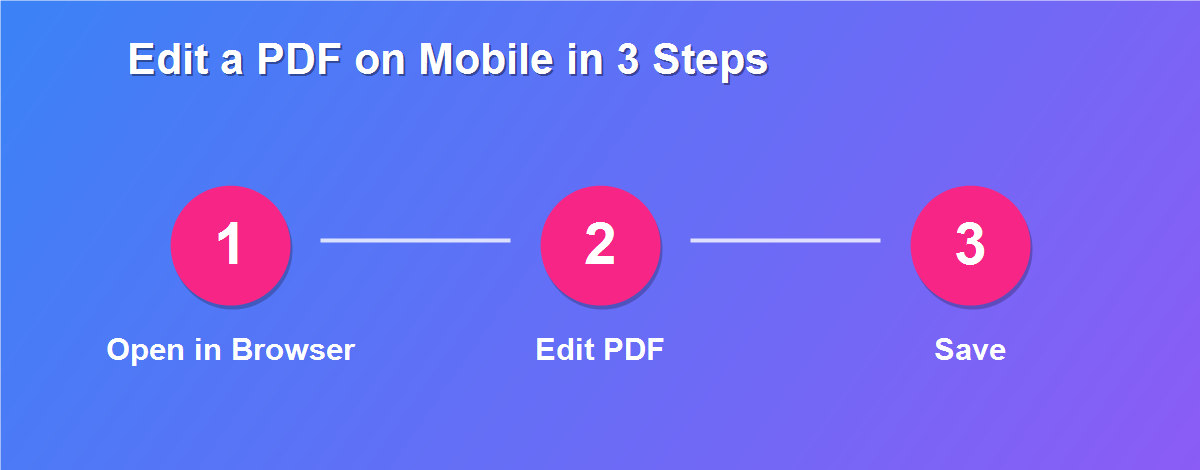
To edit PDF on iPhone or iPad, everything happens inside Safari:
- Open Safari and go to the DebugSpot PDF Editor.
- Tap Upload and choose a PDF from Files, Photos, or iCloud.
- Pick a tool – text, sign, highlight, or white-out.
- Tap the page to place your edit and resize it with your fingers.
- Tap Download to save the edited PDF back to Files.
How to Edit a PDF on a Chromebook (Free)
Chromebooks are built around the browser, which makes them perfect for this:
- Open Chrome and go to the PDF Editor.
- Upload your PDF from Downloads or Google Drive.
- Add text, a signature, highlights, or white-out.
- Manage pages – rotate, delete, or reorder them.
- Download the finished file to your Chromebook.
What You Can Do on Mobile
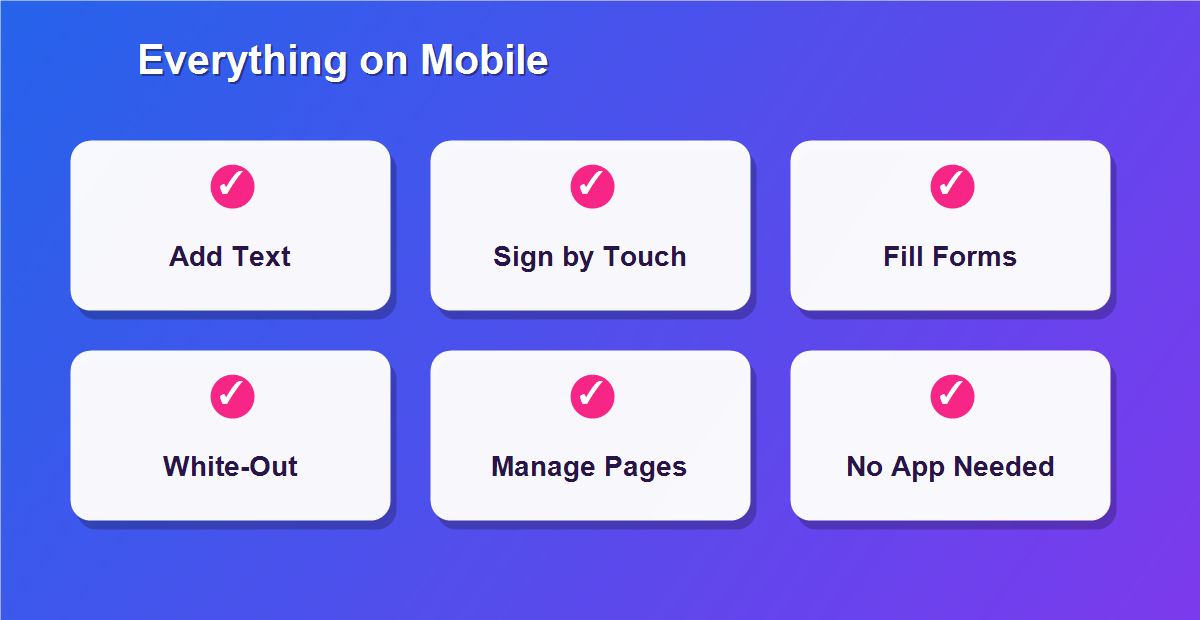
- Add or edit text and match the original font.
- Sign with your finger or an Apple Pencil.
- Fill out forms by tapping and typing.
- White-out or hide sensitive details.
- Insert images, highlight, and annotate.
- Rotate, delete, and reorder pages.
iPhone vs Chromebook: Which Is Easier?
Both work well, and the best choice simply depends on the device in your hand and the size of the job:
| iPhone / iPad | Chromebook | |
|---|---|---|
| Browser | Safari or Chrome | Chrome |
| Input | Touch / Apple Pencil | Touchpad + touchscreen |
| Best for | Quick edits on the go | Larger, detailed edits |
No App Needed: Why Browser Editing Wins
App-based PDF editors often come with strings attached. Many push a subscription after a short trial, stamp a watermark on your file, or require you to sign in before you can save. Editing in the browser sidesteps all of that. You get the full toolset the moment the page loads, there is nothing to install or keep updated, and because you edit PDF on iPhone or Chromebook locally, your documents never leave your device. For a one-off edit, that is far quicker than downloading, installing, and registering an app.
Where Are Edited Files Saved?
On an iPhone or iPad, downloaded PDFs go to the Files app by default, usually in the Downloads folder, where you can move them to iCloud Drive or share them straight to email. On a Chromebook, files land in the Downloads folder or your linked Google Drive, so they sync across your devices automatically. In both cases the output is a standard PDF, which means it opens perfectly on a desktop later if you want to continue there.
Common Reasons to Edit a PDF on Mobile
Editing on the go covers most everyday needs. People often edit PDF on iPhone or Chromebook to sign a contract or offer letter while away from a computer, fill out a form and send it back the same day, fix a typo in a document before an email goes out, white-out sensitive details before sharing a file, or add a photo, receipt, or ID scan to a PDF. Because the tools work the same on every device, you can start on your phone and finish on a laptop without missing a beat.
Tips for Mobile PDF Editing
- Zoom in for precise taps on small fields.
- Rotate to landscape for more working space.
- Use a stylus for a cleaner signature.
- Save to Files or Drive so your edited PDF is easy to find.
Is It Safe to Edit PDFs on Your Phone?
Yes. The editor processes your file entirely within the mobile browser and never uploads it, so even sensitive documents such as IDs, contracts, and medical forms stay on your device. There is no account to create and no cloud copy left behind, which makes browser-based mobile editing a genuinely private option. For anyone who handles confidential paperwork on the move, that local-only approach is a real advantage over apps that sync your files to their servers.
How to Sign a PDF on Your iPhone
Signing on an iPhone is wonderfully natural. Open the PDF in Safari, choose the sign tool, and draw your signature directly on the screen with your finger or an Apple Pencil. The touchscreen captures a smooth, personal signature that looks just like pen on paper. Place it on the signature line, add the date with the text tool, and download the signed file to your Files app. From there you can email it back in seconds – no printer, no scanner, and no app.
How to Fill a Form on Your Phone
Filling a form on your phone is just as easy. Open the form in your mobile browser, tap the first blank field, and the on-screen keyboard appears so you can type your answer. Tap the next field and continue, zooming in on small boxes so your text lines up neatly. Add checkmarks for tick boxes and a signature at the bottom if required, then download the completed form. The whole task fits comfortably into a few minutes on a phone, wherever you happen to be.
Editing PDFs on an iPad
The iPad is arguably the best mobile device for PDF editing. Its larger screen gives you room to see the whole page, and with an Apple Pencil you can sign, annotate, and mark up documents with precision. Open the editor in Safari, upload your file, and use the same tools you would on a laptop. For students marking up study material or professionals reviewing contracts, the iPad and Apple Pencil combination turns PDF editing into a smooth, paper-like experience.
Editing PDFs on Android
Android phones and tablets work exactly the same way. Open Chrome, go to the editor, and upload your PDF from your device or Google Drive. Every tool – text, signature, white-out, and page management – is available and touch-friendly, with no app to install from the Play Store. Whether you use a Samsung, Pixel, or any other Android device, you can edit PDF on iPhone-style workflows on Android just as easily, all within the browser.
Why Chromebooks Are Great for PDFs
Chromebooks and browser-based tools are a natural match. Because a Chromebook runs almost everything through Chrome, there is no expectation of installing desktop software in the first place – the browser is the computer. That means a web PDF editor feels completely at home, loading instantly and running smoothly. Add the Chromebook keyboard and touchpad, and you get a comfortable, laptop-like editing experience without any of the cost or overhead of traditional PDF software.
Editing PDFs Straight From Your Email
Many documents arrive as email attachments, and you can edit them without ever reaching a computer. On your phone, save the attached PDF to your Files app or Downloads, open the editor in your browser, and upload it from there. Make your changes – sign it, fill it, or correct it – then download and attach the finished version to your reply. It closes the whole loop on a single device, turning a received attachment into a completed document in minutes.
Saving PDFs to iCloud or Google Drive
Cloud storage makes your edited files easy to reach everywhere. After downloading on an iPhone, move the file into iCloud Drive from the Files app; on a Chromebook, save directly to Google Drive. Your document is then backed up and available on every device linked to your account. This is handy when you edit something quickly on your phone but want to keep working on it later from a laptop – the file is already waiting for you.
Does It Work the Same as on Desktop?
Yes. The mobile and Chromebook experience uses the same engine as the desktop version, so the tools, layout handling, and output are identical. The main differences are input and screen size: on a phone you tap and pinch instead of clicking, and you may want to zoom in for precise work. Everything you can do on a computer – text, signatures, forms, white-out, and page management – is available on your phone or Chromebook too.
Related Free PDF Guides
Editing on mobile is just one way to work with PDFs. These free step-by-step guides pair perfectly with this one:
- Edit a PDF without Adobe Acrobat free – the full editing toolkit.
- Add a signature to a PDF online free – sign by touch on any device.
- Fill a PDF form online free with no login – complete forms on your phone.
- Password protect a PDF online free – secure files from mobile.
- Remove pages from a PDF free – trim documents on the go.
Frequently Asked Questions
Can I edit PDF on iPhone for free?
Yes. Open the editor in Safari, upload your PDF, make your changes, and download it – no app or account needed.
Do I need to install an app?
No. Everything runs in the browser on both iPhone and Chromebook, so there is nothing to download.
Are my files safe on mobile?
Yes. Files are processed on your device and never uploaded, which keeps sensitive documents private.
Can I sign a PDF with my finger?
Yes. The sign tool is touch-friendly, so you can draw your signature with a finger or Apple Pencil.
Will it work on Android too?
Yes. The same browser editor works in Chrome on Android, using the identical steps.
Where do my edited PDFs go?
To the Files app on iPhone or the Downloads folder and Google Drive on a Chromebook, ready to share.
Can I fill a form on my phone?
Yes. Tap any field, type your answer, and download the completed form – no app required.
Is it better on an iPad?
The larger screen and Apple Pencil make an iPad especially comfortable for detailed edits and signing.
Does mobile editing reduce quality?
No. Your edits sit on top of the original pages, which stay exactly as sharp as before.
Can I start on my phone and finish on a laptop?
Yes. The output is a standard PDF, so you can continue editing it on any device later.
Editing PDFs While Traveling
Travel is where mobile PDF editing really proves its worth. Whether you are at an airport, in a hotel, or on a train, documents still need signing and forms still need filling. With a browser-based editor, all you need is your phone and an internet connection to handle a contract, a booking form, or an expense receipt on the spot. There is no laptop to unpack and no app to hunt for – you simply open the page, make your edit, and send it, then get back to your journey.
Battery and Data Use
Because the editor runs in the browser and processes files locally, it is light on both battery and data. Loading the page uses a small amount of data, but the actual editing happens on your device without constantly talking to a server, so a quick edit barely registers on your battery or data plan. That efficiency makes it practical even when you are running low on charge or watching your mobile data, unlike heavy apps that sync large files back and forth.
Multitasking on a Chromebook
Chromebooks make it easy to work across several tabs at once, which suits document tasks perfectly. You can keep your email open in one tab, the PDF editor in another, and your Google Drive in a third, moving files between them without switching apps. Download an attachment, edit it in the editor tab, and upload the finished version back to your email – all within the same browser window. This smooth multitasking is one reason Chromebooks feel so natural for PDF work.
Editing PDFs on Older Phones
You do not need the latest flagship device. Because the editor is browser-based and lightweight, it runs comfortably on older iPhones and budget Android phones too. As long as the device has a modern browser, you can open a PDF and use the full set of tools. For very large or image-heavy files, an older phone may work a little slower, but everyday documents open and edit smoothly, giving older hardware a genuinely useful second life.
Why Mobile PDF Editing Is the Future
The way people work has shifted decisively toward mobile. More documents than ever are read, signed, and shared on phones and tablets, and expecting people to return to a desktop for every small edit no longer fits how life works. Browser-based editing meets that reality: it is instant, private, and available on whatever device is in your hand. As phones grow more capable and browsers more powerful, editing a PDF on mobile is quickly becoming the normal way to get things done.
A Real-World Example
Imagine you are out running errands when a client emails a contract that needs signing today. In the past, that meant rushing home to a computer and printer. Instead, you open the email on your iPhone, save the PDF, open the editor in Safari, sign with your finger, and email the signed copy back – all before you reach the next shop. The deal is done, and you never broke your stride. That freedom to handle documents anywhere is exactly why so many people now edit PDF on iPhone and Chromebook as a matter of habit.
Free, Forever, on Every Device
Best of all, none of this costs anything. There is no subscription, no per-device license, and no watermark on your finished files. Whether you are on an iPhone, an iPad, an Android phone, or a Chromebook, you get the same full toolset for free. That consistency across every device means you can pick up whatever is nearest and know the tools will be there, ready to go.
Edit Your PDF on iPhone or Chromebook Free
No computer? No problem. Use the free online PDF Editor to edit PDF on iPhone and Chromebook in minutes, and browse more free online tools from DebugSpot.