
Got a PDF that shows up sideways or upside down? You can rotate PDF pages free, right in your browser, in just a few seconds. Whether it is one crooked page or a whole scanned document, this 2026 guide shows you how to rotate PDF pages free – 90, 180, or 270 degrees – with no upload, no signup, and 100% privacy.
What Is a Rotate PDF Tool?
A rotate PDF tool is a free online utility that turns the pages of a PDF to the correct orientation and saves the change permanently. Unlike simply rotating the view in a reader – which resets the next time the file is opened – this tool bakes the rotation into the document, so it always displays the right way up. Because everything runs in your browser, your file is never uploaded to a server, which makes rotating a PDF both fast and completely private.
How to Rotate a PDF Free (Step by Step)
The whole process takes under a minute, and there is nothing to install:
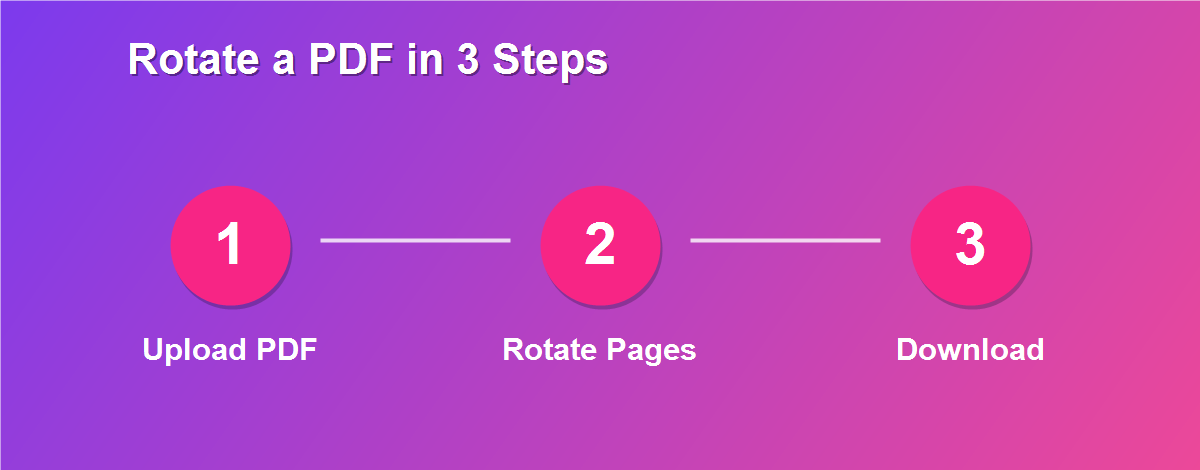
- Open the DebugSpot Rotate PDF tool in any browser.
- Upload your PDF – it stays on your device and is never sent to a server.
- Rotate a single page or all pages by 90, 180, or 270 degrees.
- Check the preview so every page faces the right way.
- Click Download to save the corrected PDF.
That is all it takes. The rotation is saved into the file, so it opens correctly every time from now on.
Why Rotate a PDF?
Wrongly oriented pages are one of the most common PDF annoyances. A scanner grabs a page sideways, a phone photo comes out rotated, or a landscape chart lands in a portrait document. People most often rotate PDF pages to:
- Fix a sideways scan that came out at 90 degrees.
- Turn an upside-down page the right way up.
- Correct a landscape chart in a portrait document.
- Straighten a photographed page before sharing it.
- Prepare a document for printing so it comes out correctly.
Rotate One Page or All Pages
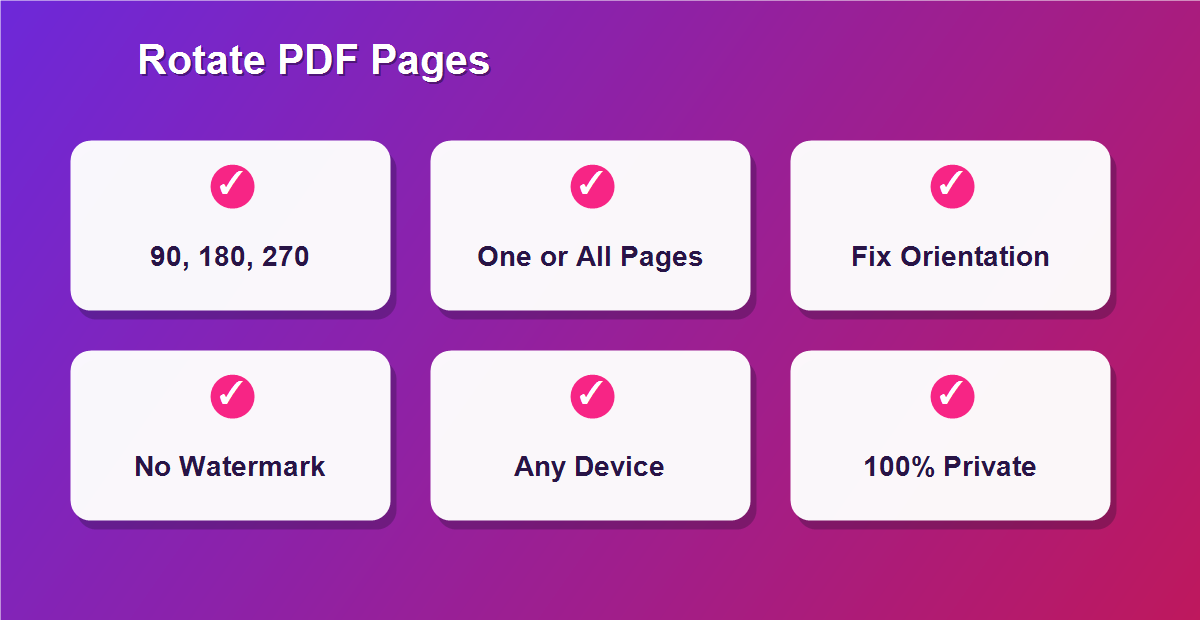
You are in full control of which pages turn. Rotate the entire document at once when a whole scan came out sideways, or rotate a single page when just one is off – for example, a lone landscape chart in an otherwise upright report. This flexibility means you fix exactly what needs fixing without disturbing the pages that are already correct, and the preview lets you confirm everything looks right before you download.
Rotate 90, 180, or 270 Degrees
Different problems need different turns, so the tool offers three rotations. Use 90 degrees to fix a page that scanned sideways, 180 degrees to flip an upside-down page, and 270 degrees (or 90 the other way) for pages rotated in the opposite direction. You can apply the same turn to every page or handle them individually, so even a document with pages facing several directions ends up perfectly aligned.
Fixing Sideways and Upside-Down Scans
Scanners and phone cameras are the usual culprits behind rotated pages. When you feed a page in the wrong way or snap a photo in landscape, the resulting PDF displays at an awkward angle. Rotating it is the quick fix: choose the right turn, preview the result, and download a document that reads naturally. It saves you from re-scanning the original, which may be slow or no longer to hand.
Is It Safe and Private?
Yes. The tool does all of its work inside your browser, which means your PDF is opened, rotated, and rebuilt right on your own device. Nothing is ever uploaded to a server, stored in the cloud, or attached to an account. For sensitive documents – contracts, statements, or scanned IDs – that local-only approach is exactly what you want, because the pages you are rotating never leave your computer in the first place.
Rotate a PDF on Any Device
Because it runs in the browser, you can rotate PDF pages on whatever device is nearby:
- Windows & Mac: works in Chrome, Edge, Firefox, or Safari.
- iPhone & iPad: rotate pages straight from Safari.
- Android: works in Chrome with no app to install.
- Chromebook: a perfect fit, since everything runs in the browser.
Permanent Rotation vs Viewer Rotation
Here is a difference that trips many people up. Most PDF readers let you rotate the view, but that change is not saved – re-open the file and it is sideways again. A rotate PDF tool saves the rotation into the document itself, so the correction is permanent. This matters when you send the file to someone else, upload it to a portal, or print it, because the page will display the right way up everywhere, not just in your own viewer.
Rotate Pages Before Printing
Printing a sideways page wastes paper and produces an awkward result. By rotating the pages to their correct orientation first, you ensure the document prints cleanly, with text upright and margins where they belong. This is especially useful for scanned forms and mixed-orientation reports, where a quick rotation before printing turns a messy printout into a professional one.
Does Rotating Reduce Quality?
No. Rotating a PDF simply changes the orientation of the pages; it does not re-compress the text or images. Your document stays exactly as sharp as the original, just facing the right way. There is no blurring, no loss of detail, and no change to the content – only the angle. The result is a clean, correctly oriented PDF that looks identical in quality to the file you started with.
Rotate a PDF on Your Phone
Phone scans are a frequent source of rotated pages, and you can fix them on the same device. Open the tool in your mobile browser, upload the PDF, choose the rotation, and download the corrected file – all without a computer. It is ideal for straightening a document you just photographed before you email it, turning a quick capture into a tidy, correctly oriented PDF in moments.
Handling Mixed-Orientation Documents
Some documents mix portrait and landscape pages – a report with a wide table dropped into upright text, for example. With per-page rotation, you can turn just the pages that need it, leaving the rest untouched. The preview makes it easy to spot which pages are off, so you end up with a document where every page faces the right way, regardless of how it started.
Tips for the Best Results
- Check the preview before downloading so every page is correct.
- Rotate all at once when a whole scan is sideways.
- Use per-page rotation for mixed-orientation documents.
- Rotate before printing to avoid awkward printouts.
Common Mistakes to Avoid
- Rotating the wrong way – use the preview to confirm direction.
- Forgetting a single off page – scan through all pages first.
- Relying on viewer rotation – it will not save; use this tool instead.
- Skipping the download – save the corrected file before closing.
Related Free PDF Guides
Rotating pages is one part of tidying a PDF. These free step-by-step guides pair perfectly with this one:
- Remove pages from a PDF free – drop unwanted pages.
- Edit a PDF without Adobe Acrobat free – the full editing toolkit.
- Edit a scanned PDF free – fix scanned documents.
- Convert JPG to PDF free – turn images into a PDF.
- Password protect a PDF online free – secure the finished file.
Frequently Asked Questions
How do I rotate a PDF for free?
Open the tool, upload your PDF, rotate the pages 90, 180, or 270 degrees, and download the corrected file. It is completely free with no signup.
Can I rotate just one page?
Yes. Rotate a single page or every page at once – you choose which pages turn.
Is the rotation saved permanently?
Yes. Unlike a viewer, this tool saves the rotation into the file, so it opens correctly everywhere.
Is my PDF uploaded anywhere?
No. Everything happens in your browser, so your document never leaves your device.
Will rotating reduce the quality?
No. Only the orientation changes; the text and images stay exactly as sharp as before.
Can I rotate 180 degrees to flip a page?
Yes. Use 180 degrees to turn an upside-down page the right way up.
Is there a watermark or limit?
No watermark and no artificial limits – rotate as many PDFs as you need.
Can I rotate a PDF on my phone?
Yes. The tool works in any mobile browser, so you can fix pages on iPhone or Android.
Does it work on scanned PDFs?
Yes. Scanned pages rotate exactly like digital ones.
Will the rotated PDF open on any device?
Yes. You download a standard PDF that opens correctly in every reader on every device.
Rotate PDF Pages Anytime, Anywhere
Because the tool lives in your browser, there is no waiting and no setup. Whether you spot a sideways page late at night, during a commute, or right before a meeting, you can fix it the moment you notice. Open the page, upload your file, turn the pages, and download – the correction is done in the time it takes to describe it. That round-the-clock availability is part of what makes browser-based tools so practical for busy people.
One Tool for Every Rotation Need
From a single crooked scan to a hundred-page report with mixed orientations, the same tool handles it. You can turn one page or all of them, choose any of the three rotations, and preview the result before saving. There is nothing else to learn and nothing to install – one simple tool covers every rotation task you are likely to have, and it does so for free on any device.
Rotate Your PDF for Free
A sideways page does not have to stay that way. Use the free Rotate PDF tool to rotate PDF pages in seconds, and explore more free online tools from DebugSpot.