
Have a PDF that should stay private? You can add password to PDF free, right in your browser, with strong AES-256 encryption. This 2026 guide shows you how to add password to PDF free so only people with the password can open your file – no upload, no software, and 100% privacy.
What Does Adding a Password to a PDF Do?
Adding a password to a PDF locks the file so it cannot be opened without the correct password. Behind the scenes, the tool encrypts the document, scrambling its contents so they are unreadable to anyone who does not have the key. When you add password to PDF this way, even if the file is forwarded, leaked, or found in a shared folder, its contents stay completely protected. It is one of the simplest and strongest ways to keep a sensitive document private.
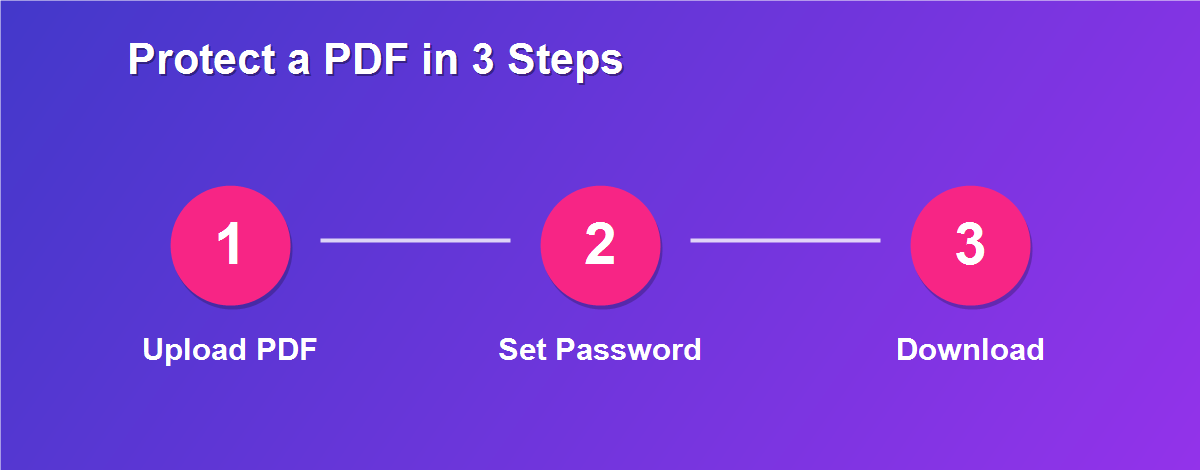
How to Add a Password to a PDF Free (Step by Step)
The whole process takes under a minute, and there is nothing to install:
- Open the DebugSpot Protect PDF tool in your browser.
- Upload the PDF you want to secure – it stays on your device.
- Type a strong password and confirm it.
- The file is encrypted with AES-256 right in your browser.
- Click Download to save the protected PDF.
Share the locked file, then give the password only to the people who should be able to open it – ideally through a separate channel.
Why Add a Password to a PDF?
PDFs carry some of our most private information – bank statements, contracts, ID scans, and medical records. A plain PDF can be opened by anyone who receives it. Adding a password changes that completely, so only trusted people can read the file. People most often add password to PDF documents to:
- Protect financial files like statements and payslips.
- Secure signed contracts and legal agreements.
- Lock personal documents such as ID and passport scans.
- Keep medical records private before sharing.
- Safeguard confidential business or client files.
What Is AES-256 Encryption?
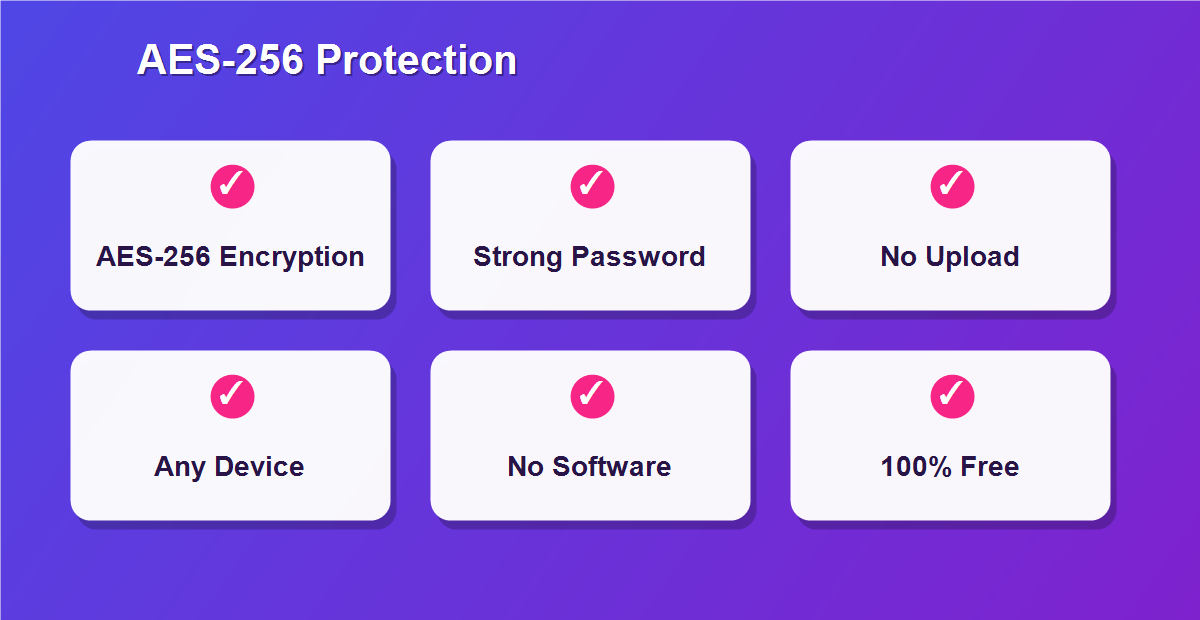
AES-256 is the encryption standard trusted by banks, governments, and security professionals worldwide. The “256” refers to the key size, which is so large that guessing it by brute force is effectively impossible with today’s technology. When you add password to PDF files with AES-256, your document receives the same class of protection used for sensitive military and financial data. In practice, that means the only realistic way to open your file is with the correct password.
How to Choose a Strong Password
Encryption is only as strong as the password you pick. A weak password undoes even the best encryption, so choose carefully:
| Weak Password | Strong Password |
|---|---|
| name or birthday | a random mix of words |
| 123456 / password | 12+ characters long |
| reused everywhere | unique to this file |
- Use 12+ characters with letters, numbers, and symbols.
- Avoid personal info like names, dates, or phone numbers.
- Store it safely – if you lose it, the PDF cannot be recovered.
Is It Safe to Add a Password Online?
Yes – and with this tool, arguably safer than many alternatives. Because the encryption happens entirely in your browser, your PDF and its password never touch a server. Some online services upload your file to the cloud to process it, which introduces a point of exposure. A tool that does everything on your own device gives you strong AES-256 protection and complete privacy at the same time, all for free.
Add a Password on Any Device
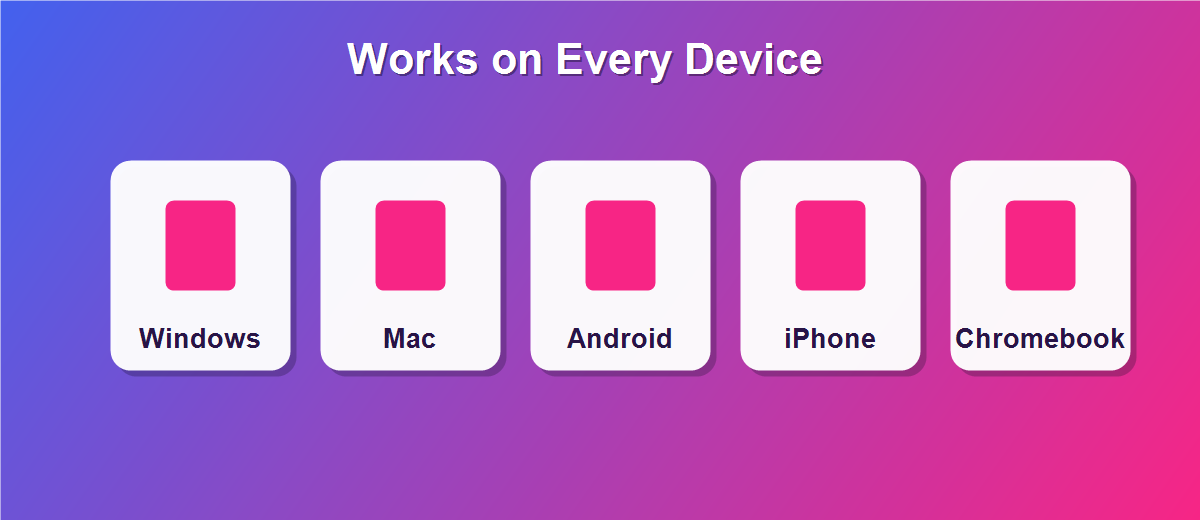
Because it runs in the browser, you can secure files from anywhere:
- Windows & Mac: works in Chrome, Edge, Firefox, or Safari.
- iPhone & iPad: protect files right from Safari.
- Android: add a password in Chrome with no app.
- Chromebook: runs perfectly in the browser.
When Should You Password-Protect a PDF?
A good rule of thumb: if you would not be comfortable with a stranger reading it, lock it. Salary slips, tax documents, signed agreements, ID scans, and medical paperwork are all obvious candidates. Any time a sensitive file leaves your device – by email, upload, or shared drive – a password ensures that only the intended person can open it. Making this a habit for confidential documents dramatically reduces the risk of a leak.
What If You Forget the Password?
This is the one thing to be careful about. Strong encryption has no back door, which is exactly what makes it secure – but it also means that if you lose the password, even you cannot open the file. Before you share a protected PDF, save the password in a reliable place such as a password manager. If the document is important, keep an unprotected master copy somewhere safe so you are never locked out of your own file.
Sharing a Password-Protected PDF Safely
Protecting the file is only half the job – how you share the password matters just as much. Never send the password in the same message as the file. If you email the PDF, send the password by text, phone, or a separate app. That way, if the email is intercepted or forwarded by mistake, the document still cannot be opened. For teams, a shared password manager is an even safer way to pass credentials around.
Can You Remove the Password Later?
Yes. Protection is not permanent. If you know the password, you can open the file and save an unprotected copy when protection is no longer needed – for example, once a document has been safely stored. Just remember that removing the password makes the file readable by anyone again, so only do it when you are sure the information no longer needs to be locked.
Add a Password to Scanned PDFs
Scanned files often hold the most sensitive information of all – copies of IDs, signed forms, and medical records. Because a scan is just an image inside a PDF, you protect it exactly the same way: upload it, set a password, and download the encrypted version. This is especially valuable before emailing a scanned passport or bank letter, since it ensures only the intended recipient, armed with the password, can ever open the document.
Password Protection vs Redaction
These two solve different problems. A password controls who can open the whole document, while redaction hides specific sensitive details inside a document people are allowed to read. If you are sending a full statement to your accountant, a password is right. If you are sharing a contract but need to hide one account number, redaction is the better fit. Many people combine both for maximum safety on truly sensitive files.
Password Protection for Business and Compliance
For businesses, password protection is often more than good practice – it is expected. Regulations covering financial, medical, and personal data require sensitive documents to be safeguarded when stored and shared. Adding an AES-256 password is a simple, defensible step that shows you take data protection seriously, helping small teams meet the same standards larger organizations follow without expensive software.
Common Mistakes to Avoid
- Weak or guessable passwords – a strong key is essential.
- Sending the password with the file – always use a separate channel.
- Reusing one password across many files – one leak exposes them all.
- Not recording it – a lost password means a lost file.
Related Free PDF Guides
Locking a file is one part of handling documents securely. These free step-by-step guides pair perfectly with this one:
- Password protect a PDF online free – more on securing PDFs.
- White out text on a PDF free – redact details before locking.
- Edit a PDF without Adobe Acrobat free – the full editing toolkit.
- Add a signature to a PDF online free – sign before you lock.
- Remove pages from a PDF free – trim before you protect.
Frequently Asked Questions
How do I add a password to a PDF for free?
Open the tool, upload your PDF, type a strong password, and download the encrypted file. It is completely free with no signup.
What encryption is used?
Strong AES-256 encryption – the same standard trusted by banks and governments.
Is my file uploaded to a server?
No. The PDF is encrypted in your browser, so your document and password never leave your device.
What if I forget the password?
There is no back door, so a forgotten password means the file cannot be opened. Always store it safely.
Can I remove the password later?
Yes. If you know the password, you can open the file and save an unprotected copy whenever you want.
Will the password work in every PDF reader?
Yes. The protected file prompts for the password in standard readers like Adobe Reader, Chrome, and Preview.
Can I protect a scanned PDF?
Yes. Scanned files are protected the same way – upload, set a password, and download.
Does adding a password change the file quality?
No. Encryption only locks access; the text, images, and layout stay exactly as they were.
Can I add a password on my phone?
Yes. The tool works in any mobile browser, so you can secure files on iPhone or Android.
How should I share the password?
Send it separately from the file – by text or phone – so the two never travel together.
Add a Password in Just Seconds
Speed is part of the appeal. There is no software to install, no account to create, and no upload to wait for – you open the tool, choose a password, and download the encrypted file almost immediately. For a task that protects your most sensitive documents, that instant convenience means you are far more likely to actually do it every time, rather than sending files unlocked because protection felt like a hassle.
Free, With No Watermark or Limit
You never have to pay or sign up to add password to PDF files here. There is no trial that expires, no watermark stamped on your document, and no cap on how many files you protect. Just open the tool whenever you need it and lock your PDFs with AES-256 encryption every time, completely free.
Add a Password to Your PDF for Free
Do not send sensitive documents unlocked. Use the free Protect PDF tool to add password to PDF with AES-256 encryption, and explore more free online tools from DebugSpot.