
Need to turn PDF pages into images? You can convert PDF to JPG free, right in your browser, in just a few seconds. Whether you want one page or the whole document as pictures, this 2026 guide shows you how to convert PDF to JPG free – high quality, page by page – with no upload, no signup, and 100% privacy.
What Is a PDF to JPG Converter?
A PDF to JPG converter is a free online tool that turns each page of a PDF into a separate image file. Instead of taking a screenshot or printing a page, you upload your PDF, pick the pages you want, and download crisp JPG images. Because the whole process runs in your browser, your document is never uploaded to a server, which makes converting PDF to JPG both fast and completely private.
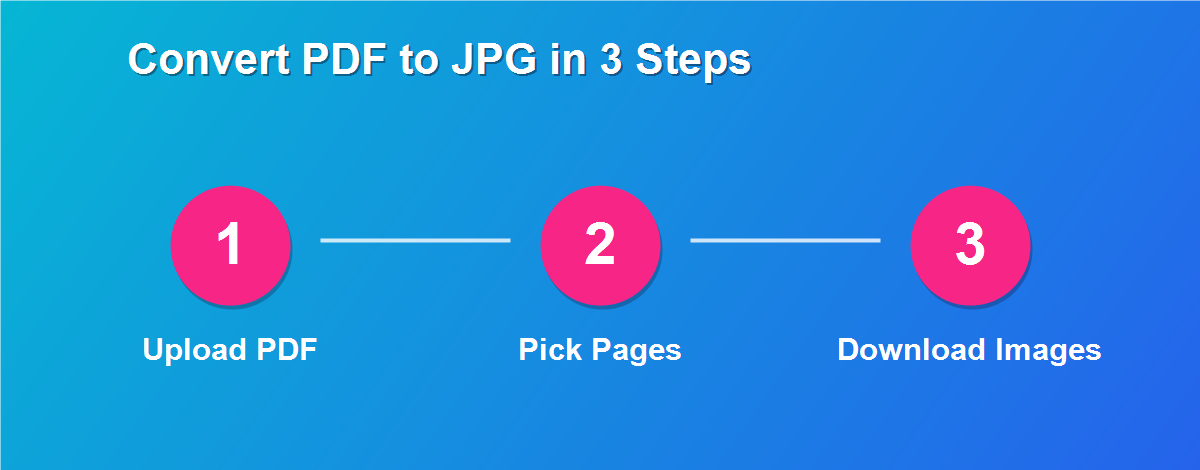
How to Convert PDF to JPG Free (Step by Step)
The whole process takes under a minute, and there is nothing to install:
- Open the DebugSpot PDF to JPG tool in any browser.
- Upload your PDF – it loads on your device and is never sent to a server.
- Choose whether to export every page or just the ones you need.
- Click Convert to turn each page into a JPG image.
- Download your images individually or all at once.
That is all it takes. Each page of your PDF becomes a sharp JPG, ready to post, share, or drop into a slide.
Why Convert PDF to JPG?
PDFs are perfect for documents, but sometimes you need a plain image instead. An image is easier to post online, insert into a presentation, or share on social media, because it displays instantly without a PDF reader. People most often convert PDF to JPG to:
- Post a page online where PDFs will not display.
- Insert a page into a slide or document as a picture.
- Share on social media, which favours images over PDFs.
- Create a thumbnail or preview of a document.
- Pull one chart or diagram out of a report as an image.
Convert Every Page or Just One
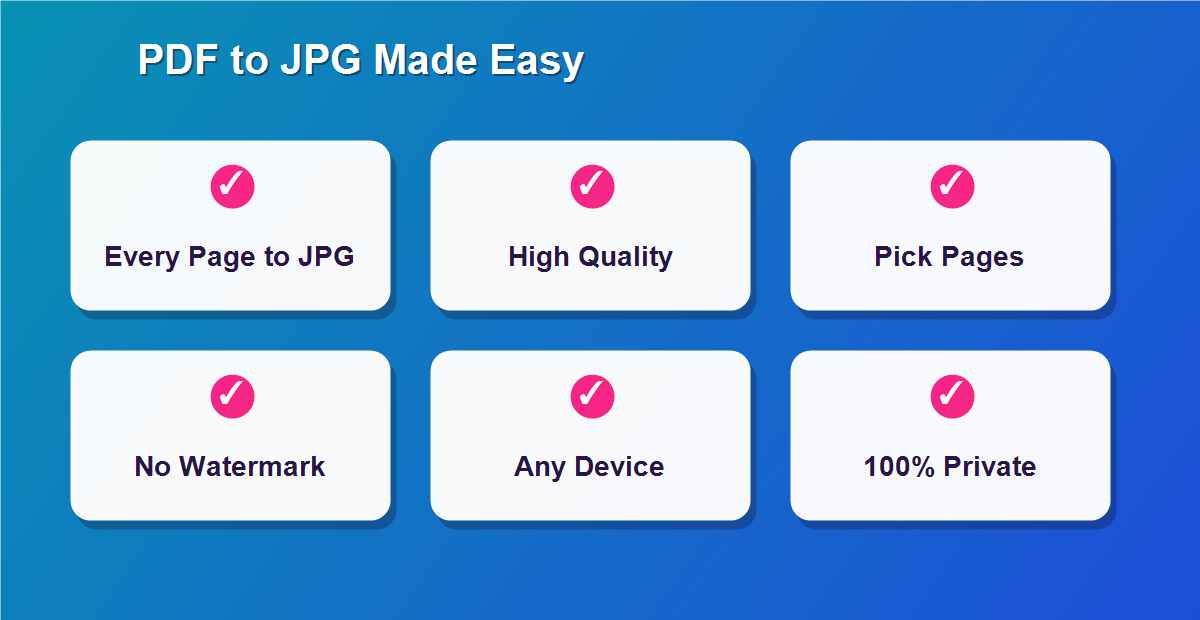
You are in full control of which pages become images. Convert the entire PDF to get one JPG per page, or pick a single page when that is all you need – for example, pulling just the cover or one chart out of a long report. This flexibility means you never end up with a pile of images you did not want; you download exactly the pages that matter and leave the rest behind.
High-Quality Image Output
Quality matters, especially if the images will be printed or displayed large. The converter renders each page at high resolution, so text stays crisp and diagrams remain clear rather than pixelated. That means a page turned into a JPG looks clean whether you view it on a phone, drop it into a presentation, or post it online. You get images that do justice to the original document.
Is It Safe and Private?
Yes. The tool does all of its work inside your browser, which means your PDF is opened and converted right on your own device. Nothing is ever uploaded to a server, stored in the cloud, or attached to an account. For sensitive documents – contracts, statements, or personal records – that local-only approach is exactly what you want, because the pages you are converting never leave your computer in the first place.
Convert PDF to JPG on Any Device
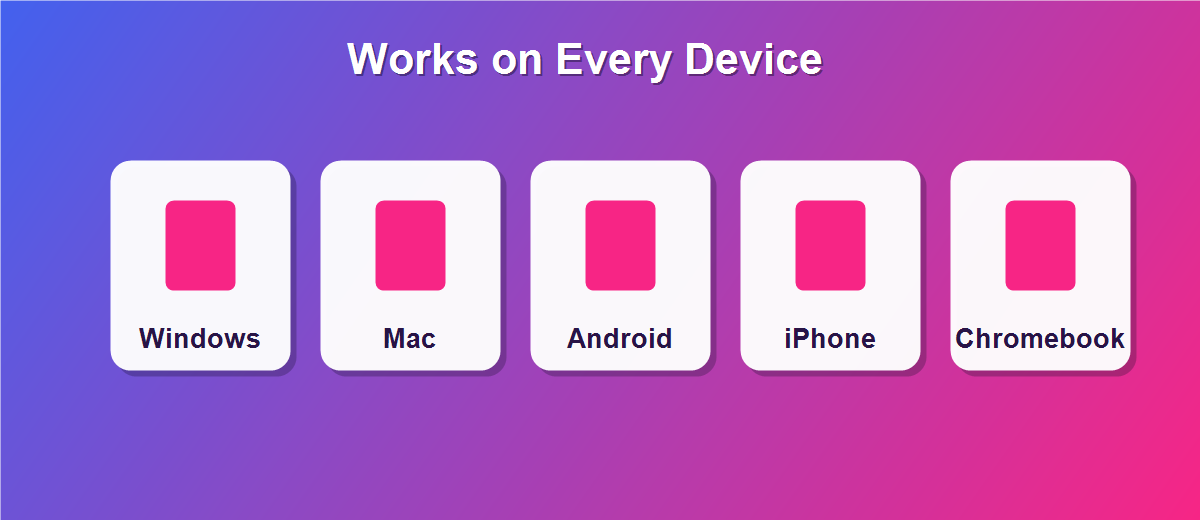
Because it runs in the browser, you can convert PDF to JPG on whatever device is nearby:
- Windows & Mac: works in Chrome, Edge, Firefox, or Safari.
- iPhone & iPad: convert and save images straight to your camera roll in Safari.
- Android: works in Chrome with no app to install.
- Chromebook: a perfect fit, since everything runs in the browser.
How to Convert a Single PDF Page to JPG
Sometimes you only need one page as an image – the cover, a signature page, or a single chart. Instead of converting the whole document, select just that page and export it. You get a single clean JPG without a folder full of images to sort through. This is the quickest way to grab one page out of a long PDF and use it wherever you need a picture rather than a document.
Convert PDF to JPG for Social Media
Social platforms are built for images, not PDFs. If you want to share a flyer, certificate, or infographic that only exists as a PDF, converting it to JPG first means it displays instantly in a post, story, or message. The image appears right in the feed where a PDF would just be a link nobody clicks. For anything you want people to actually see, a JPG is the format that works everywhere social.
Convert PDF to JPG for Presentations
Slides love images. When you need to include a page from a report or a scanned diagram in a presentation, converting that page to JPG lets you drop it straight onto a slide, resize it, and position it exactly where you want. There is no awkward embedding of a whole PDF or fiddly copy-paste – just a clean image that behaves like any other picture in your slideshow.
Use PDF Pages as Images on a Website
Web pages display images far more reliably than embedded PDFs. If you run a blog or website and want to show a document page – a menu, a schedule, or a certificate – converting it to JPG lets you place it inline where every visitor can see it immediately, on any device. It loads faster than a PDF viewer and works even on browsers that handle PDFs poorly.
JPG vs PNG: Which Should You Choose?
JPG and PNG are both image formats, but they suit different needs. JPG produces smaller files and is ideal for pages full of text and photos, which is why it is the go-to for sharing and posting. PNG keeps sharper edges and supports transparency, making it better for graphics with hard lines. For most PDF pages – especially scanned or text-heavy ones – JPG gives the best balance of quality and file size.
PDF to JPG vs JPG to PDF
These two tools are opposites, and knowing which you need saves time. Converting PDF to JPG turns document pages into images – useful for posting and presenting. Going the other way, converting JPG to PDF combines images into a document – useful for bundling photos and scans. Pick the direction that matches your goal, and remember you can always convert back if your needs change.
How Big Are the Exported Images?
The size of each JPG depends on the page content and resolution. A page of plain text produces a small, light image, while a page full of photos or detailed graphics creates a larger file. Because JPG compresses efficiently, even high-quality exports stay reasonably sized and easy to share by email or message. If you need smaller files for a size-limited upload, a slightly lower resolution keeps the images clear while trimming the file size.
Convert Scanned PDFs to JPG
Scanned PDFs convert to JPG just as easily as digital ones. Because a scanned page is already an image inside the PDF, exporting it to JPG gives you a clean picture of that page that you can crop, share, or post. This is handy when you have a scanned certificate or form and need it as an image for an upload that does not accept PDFs.
Tips for the Best Results
- Convert only the pages you need to avoid extra files.
- Use high resolution when the image will be printed or shown large.
- Choose JPG for text and photos, PNG for sharp-edged graphics.
- Rename the downloads so you can find the right page later.
Common Mistakes to Avoid
- Exporting every page when you only need one.
- Using low resolution for images you will print.
- Forgetting which page is which – rename files after download.
- Choosing the wrong format – JPG for most pages, PNG for graphics.
Related Free PDF Guides
Converting pages to images is one part of working with PDFs. These free step-by-step guides pair perfectly with this one:
- Convert JPG to PDF free – go the other direction.
- Remove pages from a PDF free – trim before you convert.
- Edit a PDF without Adobe Acrobat free – tweak pages first.
- Password protect a PDF online free – secure the original.
- Edit a scanned PDF free – clean up scans before converting.
Frequently Asked Questions
How do I convert PDF to JPG for free?
Open the tool, upload your PDF, choose the pages, and click convert to download JPG images. It is completely free with no signup.
Can I convert every page at once?
Yes. Convert the whole PDF to get one JPG per page, or pick just the pages you need.
Will the images be high quality?
Yes. Each page is rendered at high resolution, so text and graphics stay sharp.
Is my PDF uploaded anywhere?
No. Everything happens in your browser, so your document never leaves your device.
Can I convert just one page?
Yes. Select a single page and export only that one as a JPG.
Is there a watermark or limit?
No watermark and no artificial limits – convert as many pages as you need.
Can I convert PDF to JPG on my phone?
Yes. It works in any mobile browser, and you can save the images to your device.
Does it work on scanned PDFs?
Yes. Scanned pages convert to JPG just like digital ones.
Should I choose JPG or PNG?
JPG is best for text and photos; PNG suits sharp-edged graphics with transparency.
Will the images open everywhere?
Yes. JPG is a universal format that opens on every device and platform.
Convert PDF to JPG in Seconds
Speed is a big part of the appeal. There is no software to launch, no account to sign into, and no upload to wait for – you open the page, add your PDF, and download the images almost instantly. For anyone who regularly needs a page as a picture, that immediacy turns a fiddly task into a quick habit you barely think about.
Works With Any PDF, From Any Source
It does not matter where your PDF came from – a document export, a scanner, an email attachment, or a download from a website. As long as it is a PDF, you can open it in the converter and turn its pages into JPG images. This universal compatibility means you never have to wonder whether a particular file will work; if it opens as a PDF, it converts to JPG.
Convert Your PDF to JPG for Free
Turning PDF pages into images should be quick and free – and it is. Use the free PDF to JPG tool to convert PDF to JPG in seconds, and explore more free online tools from DebugSpot.