
Need to turn images into a PDF? You can convert JPG to PDF free, right in your browser, in just a few seconds. Whether it is one photo or a stack of scans, this 2026 guide shows you how to convert JPG to PDF free – combine images, choose the page size, and download – with no upload, no signup, and 100% privacy.
What Is a JPG to PDF Converter?
A JPG to PDF converter is a free online tool that turns one or more image files into a single PDF document. Instead of emailing loose photos or printing and re-scanning them, you upload your images, arrange them in order, and download a tidy PDF that opens the same way on every device. Because the whole process runs in your browser, your pictures are never uploaded to a server, which makes converting JPG to PDF both fast and completely private.
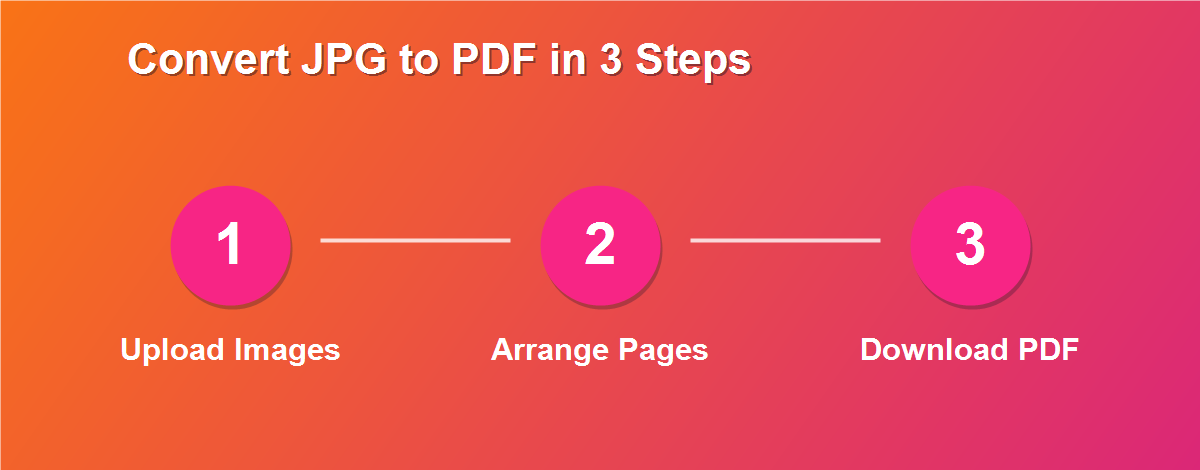
How to Convert JPG to PDF Free (Step by Step)
The whole process takes under a minute, and there is nothing to install:
- Open the DebugSpot JPG to PDF tool in any browser.
- Upload your images – JPG, PNG, and other common formats all work.
- Drag to reorder them so the pages appear in the right sequence.
- Choose a page size and orientation if you want.
- Click Convert, then download your finished PDF.
That is all it takes. Your images are combined into one clean PDF, ready to email, print, or store.
Why Convert JPG to PDF?
Images are everywhere, but they are not always the best way to share information. A PDF keeps your pictures together in one file, in a fixed order, that looks identical on every screen. People most often convert JPG to PDF to:
- Combine several photos into one document.
- Submit scanned images as a single file for an application.
- Share receipts or IDs in a professional format.
- Turn a photo of a document into a proper PDF.
- Create a simple portfolio or photo booklet.
Which Image Formats Can You Convert?
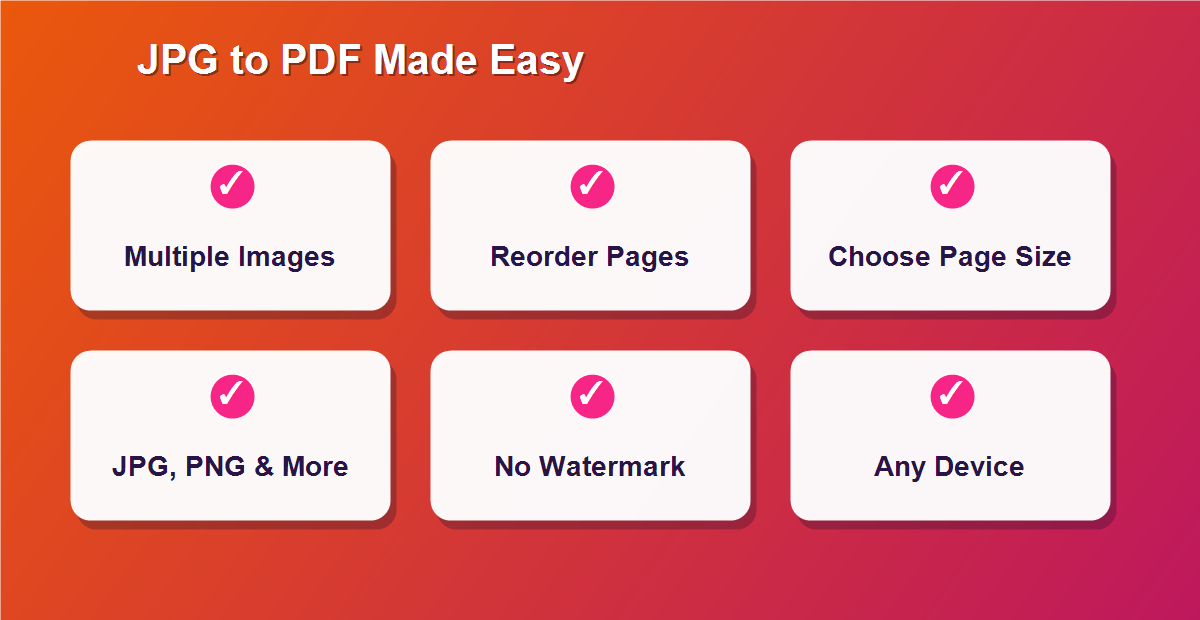
Although it is called a JPG to PDF converter, the tool handles far more than JPG files. You can convert JPG, JPEG, PNG, and other common image formats into a PDF, and you can mix formats within the same document. This flexibility means you never have to worry about whether a particular picture will work – if it is a standard image, you can add it to your PDF and it will appear exactly as it looks on your screen.
Combine Multiple Images Into One PDF
One of the most useful features is combining many images into a single PDF. Instead of sending five separate photos, you upload them all, arrange them in the right order, and download one neat file. This is perfect for multi-page documents you have photographed, a set of receipts for an expense claim, or a collection of images that belong together. Each image becomes its own page, and the whole set travels as one convenient file.
Choose Page Size and Orientation
You are in control of how the finished PDF looks. Choose a standard page size such as A4 or Letter so your document prints correctly, and pick portrait or landscape to match your images. If your photos are wide, landscape keeps them from being squeezed; if they are tall, portrait fits them naturally. These simple options ensure your converted PDF looks polished rather than awkwardly cropped or stretched.
Reorder Images Before Converting
Order matters, especially for documents. Before you convert JPG to PDF, drag the thumbnails into the exact sequence you want, so page one is really page one. This is essential when you have photographed a multi-page contract or a booklet out of order. A few seconds of arranging saves you from downloading a jumbled PDF and starting over, and it means the person receiving the file reads it exactly as intended.
Is It Safe and Private?
Yes. The tool does all of its work inside your browser, which means your images are read and converted right on your own device. Nothing is ever uploaded to a server, stored in the cloud, or attached to an account. For sensitive pictures – ID cards, financial documents, or personal photos – that local-only approach is exactly what you want, because the images you are converting never leave your computer in the first place.
Who Uses a JPG to PDF Converter?
All kinds of people reach for this tool. Job seekers combine scanned certificates into one PDF for an application; accountants bundle photographed receipts into a single expense file; students turn photos of handwritten notes into shareable documents; and travelers convert images of tickets and bookings into tidy PDFs. If you ever need to send images as a proper document, a JPG to PDF converter saves time and makes you look organized.
Convert JPG to PDF on Any Device
Because it runs in the browser, you can convert JPG to PDF on whatever device is nearby:
- Windows & Mac: works in Chrome, Edge, Firefox, or Safari.
- iPhone & iPad: upload photos straight from your camera roll in Safari.
- Android: convert images in Chrome with no app to install.
- Chromebook: a perfect fit, since everything runs in the browser.
How to Convert Phone Photos to PDF
Your phone is where most images start, so it is often the easiest place to make a PDF. Open the tool in your mobile browser, tap upload, and select the photos from your camera roll. Reorder them if needed, then download the finished PDF straight to your phone. This is ideal for turning snapshots of a document, whiteboard, or receipt into a clean file you can email on the spot – no computer required.
Convert Scanned Photos to a PDF Document
Many people photograph paper documents rather than using a scanner. Those photos are just JPG images, and a JPG to PDF converter turns them into a proper multi-page document in seconds. Line the images up in reading order, convert, and you have a PDF that looks and behaves like a scanned file – far more professional than sending a handful of loose photos, and much easier for the recipient to open and print.
Does Converting Reduce Image Quality?
No noticeable loss. When you convert JPG to PDF, your images are placed into the document at their original resolution, so they stay as sharp as the originals. The PDF simply wraps your pictures in a standard container; it does not re-compress them into a blur. That means text in a photographed document stays readable and details in your images remain crisp, exactly as they were before conversion.
JPG to PDF vs PDF to JPG
These two tasks are opposites, and it helps to know which you need. Converting JPG to PDF takes images and wraps them into a document – useful for combining and sharing photos. Going the other way, converting PDF to JPG turns each page of a PDF back into a separate image, which is handy for posting a page online or dropping it into a slide. Pick the direction that matches your goal.
Tips for the Best Results
- Use clear, well-lit photos so documents stay readable.
- Reorder before converting so pages are in the right sequence.
- Match orientation – portrait for tall images, landscape for wide ones.
- Crop out clutter before uploading for a tidier result.
- Choose A4 or Letter if the PDF will be printed.
Common Mistakes to Avoid
- Uploading images out of order – arrange them before converting.
- Blurry source photos – retake them for a clear PDF.
- Wrong orientation – set portrait or landscape to fit.
- Forgetting a page – check the count before downloading.
Related Free PDF Guides
Converting images is one part of working with PDFs. These free step-by-step guides pair perfectly with this one:
- Convert PDF to JPG free – go the other direction.
- Edit a PDF without Adobe Acrobat free – tweak your new PDF.
- Remove pages from a PDF free – drop any extra pages.
- Password protect a PDF online free – secure the finished file.
- Add a signature to a PDF online free – sign the document.
Frequently Asked Questions
How do I convert JPG to PDF for free?
Open the tool, upload your images, arrange them in order, and click convert to download a PDF. It is completely free with no signup.
Can I combine multiple images into one PDF?
Yes. Upload as many images as you like and they become individual pages in a single PDF.
Does it support PNG as well as JPG?
Yes. You can convert JPG, JPEG, PNG, and other common image formats, even mixed together.
Are my images uploaded anywhere?
No. Everything happens in your browser, so your photos never leave your device.
Will converting lower the image quality?
No. Your images are placed at their original resolution, so they stay as sharp as before.
Can I choose the page size?
Yes. Pick a standard size like A4 or Letter, and portrait or landscape, to suit your images.
Is there a watermark or limit?
No watermark and no artificial limits – convert as many images as you need.
Can I convert JPG to PDF on my phone?
Yes. Upload photos from your camera roll in any mobile browser and download the PDF.
Can I reorder the images?
Yes. Drag the thumbnails into the exact order you want before converting.
Will the PDF open on any device?
Yes. You get a standard PDF that opens in every reader on every device.
Convert JPG to PDF in Just Seconds
Speed is one of the best things about a browser-based converter. There is no software to launch, no account to sign into, and no upload to wait for. You open the page, add your images, and download the PDF – the whole thing is done in the time it would take to find and open a desktop program. For a task you might do several times a week, that instant convenience quickly adds up.
No Account, No Waiting, No Cost
You never have to hand over an email address or create a login to convert JPG to PDF here. There is no trial that expires, no watermark stamped on your file, and no daily limit on how many images you can convert. Just open the tool whenever you need it and get a clean PDF every time, completely free.
Convert Your JPG to PDF for Free
Turning images into a clean PDF should be quick and free – and it is. Use the free JPG to PDF tool to convert JPG to PDF in seconds, and explore more free online tools from DebugSpot.