
You do not need to pay for Adobe Acrobat to change a PDF. With the right free tool you can edit PDF without Adobe Acrobat free, directly in your web browser – add or replace text, sign, fill forms, white-out mistakes, insert images, and reorder pages. This 2026 guide shows you exactly how to edit PDF without Adobe Acrobat free, which edits are possible, and how to keep your files completely private.
Can You Really Edit a PDF Without Adobe Acrobat?
Yes – and for most tasks it is actually faster. Adobe Acrobat is built for heavy, professional workflows, but the vast majority of people simply need to fix a line of text, sign a contract, or complete a form. A browser-based editor handles all of that without a single download. Because everything runs on your device, you can edit PDF without Adobe Acrobat free and keep sensitive documents off the cloud entirely. There is no installation, no account, and no monthly fee standing between you and a quick edit.
How Much Does Adobe Acrobat Cost in 2026?
Adobe Acrobat is a subscription, not a one-time purchase. As of 2026, Acrobat Standard starts at around .99/month and Acrobat Pro around .99 to .99/month when billed monthly – and it keeps charging every month, whether you use it once or a hundred times. For an edit that takes thirty seconds, that is a lot to pay.
- Acrobat Pro: roughly +/month, ongoing forever.
- Free online editor: , no account, no limit on everyday edits.
That price gap is the main reason so many people look for a way to edit PDF without Adobe Acrobat free in the first place.
How to Edit PDF Without Adobe Acrobat Free (Step by Step)
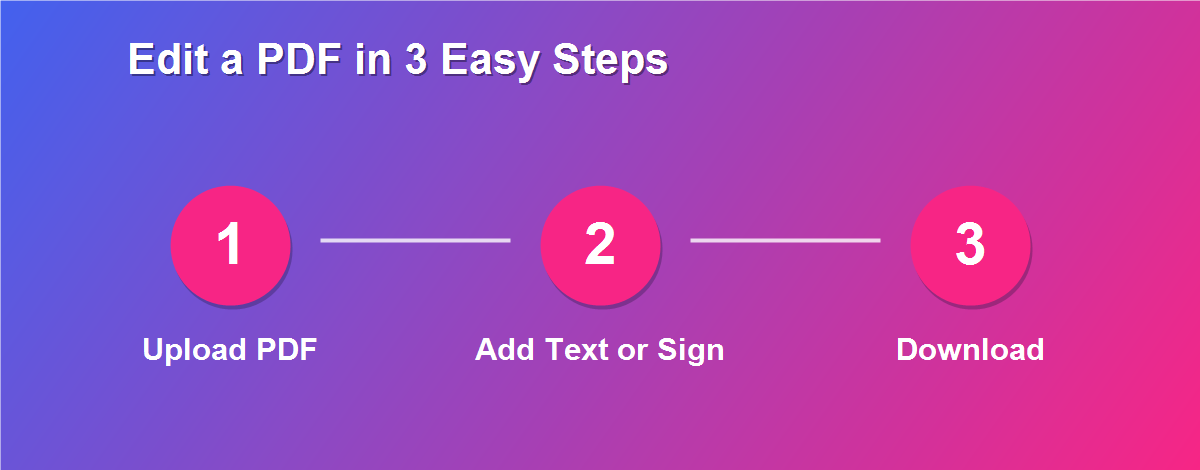
Here is the fastest way to edit PDF without Adobe Acrobat free:
- Open the editor. Go to the DebugSpot PDF Editor in any browser.
- Upload your PDF. The file loads locally and is never sent to a server.
- Pick a tool. Choose text, draw, sign, highlight, image, or white-out.
- Make your edit. Click the page to place text or objects, then drag to position them.
- Manage pages. Rotate, delete, or reorder pages if you need to.
- Download. Save the finished PDF back to your device.
There is no learning curve and no menus to dig through – most edits take under a minute.
Everything You Can Do for Free
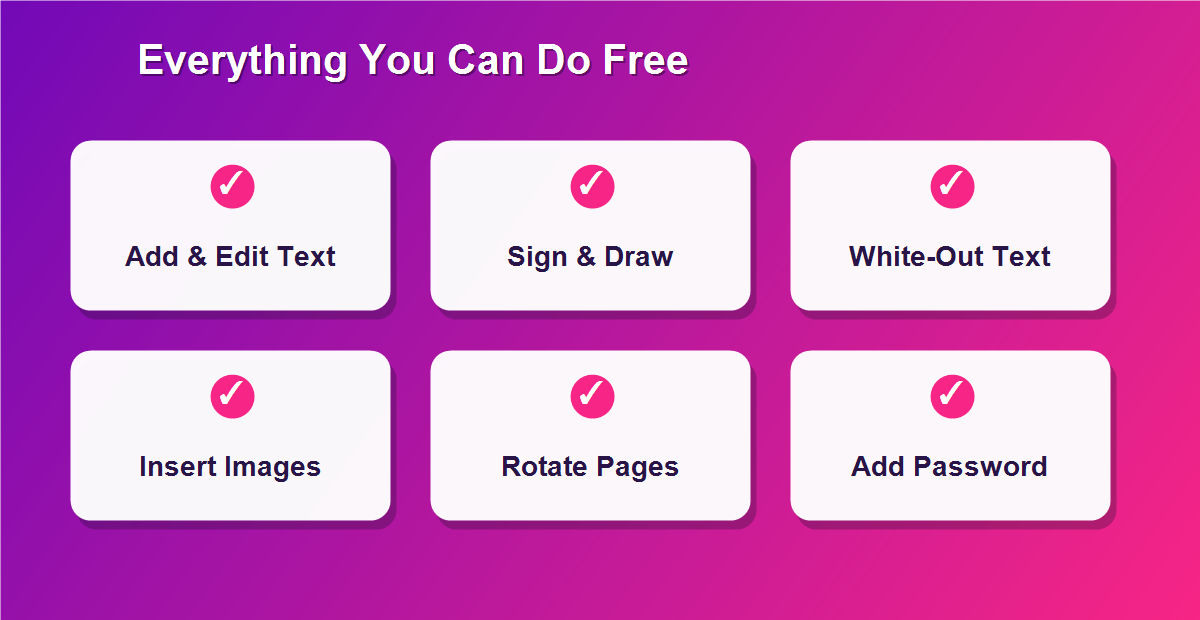
When you edit PDF without Adobe Acrobat free in this editor, you get the features people actually open Acrobat for:
- Add or edit text and match the original font.
- Draw freehand or add your signature.
- Highlight and annotate important sections.
- Insert images, logos, or stamps.
- White-out or redact sensitive information.
- Rotate, delete, and reorder pages.
- Add a password, watermark, or page numbers.
Common PDF Editing Tasks Explained
Most people arrive with one specific job in mind. Here is how the most common tasks work when you edit PDF without Adobe Acrobat free, so you know exactly what to expect before you start.
How to Edit Text in a PDF
To change existing text, use the white-out tool to cover the old words, then add new text on top with a matching font and size. On PDFs that were exported from a document, you can place new text directly where you need it. This overlay method is quick, keeps the rest of the layout intact, and works even on scanned pages where the text is really an image.
How to Add a Signature Without Acrobat
Signing is one of the most popular reasons to skip Acrobat. Select the sign tool, then draw your signature with a mouse or finger, type it in a handwriting font, or upload an image of your real signature. Place it on the signature line, resize it to fit, and download. For a full walkthrough, see our guide on how to add a signature to a PDF online free.
How to Fill a PDF Form for Free
Filling forms is effortless. Click any blank field and type your answer, add checkmarks where needed, and sign at the bottom. It works on both interactive forms with clickable fields and flat, scanned forms with no fields at all. Our step-by-step guide on how to fill a PDF form online free with no login covers every detail.
How to Redact or White-Out Sensitive Text
Need to hide an account number or personal detail before sharing? Use the white-out tool to cover it, then download the flattened file. On scanned documents the covered content is genuinely gone. Learn more in our guide on how to white out text on a PDF free.
The Most Common PDF Edits People Make
Most people do not need advanced tools – they need to finish one small task quickly:
- Fix a typo in a contract or resume before sending it.
- Sign an offer letter or agreement without printing.
- Fill in a form such as an application, invoice, or tax document.
- Add a company logo or letterhead to a document.
- Redact private details like account numbers before sharing.
- Rotate or delete pages from a scanned file.
Adobe Acrobat vs a Free Online PDF Editor
| Feature | Adobe Acrobat Pro | DebugSpot PDF Editor |
|---|---|---|
| Price | ~+ / month | Free |
| Installation | Required | None (browser) |
| Signup / account | Required | Not required |
| Privacy | Cloud-based | Files stay in your browser |
| Works on mobile | Separate app | Any mobile browser |
| Everyday edits | Yes | Yes |
How to Edit a PDF on Any Device
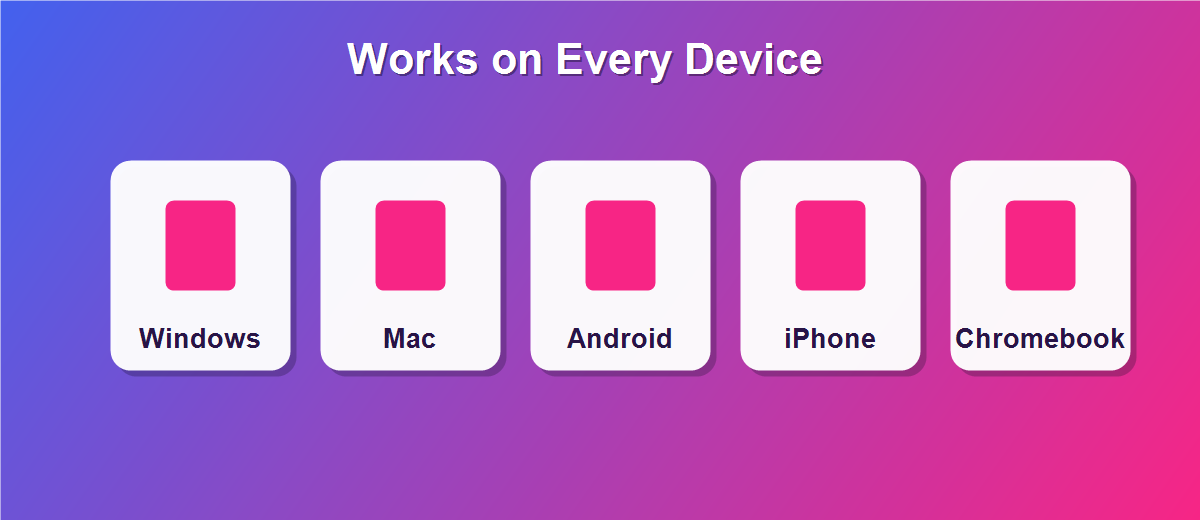
Because it runs in the browser, you can edit PDF without Adobe Acrobat free on whatever device is nearby:
- Windows & Mac: open the editor in Chrome, Edge, Firefox, or Safari.
- iPhone & iPad: edit with touch in Safari or Chrome.
- Android: works in any mobile browser, no app store needed.
- Chromebook: a perfect fit, since Chromebooks run everything in the browser.
Editing PDFs on Your Phone
You do not need a computer to make a quick change. On a phone, open the editor in your browser, upload the PDF from your files or photos, and tap the page to add text or a signature. Pinch to zoom for precise placement, then download the finished file back to your device. It is ideal for signing a contract or fixing a typo while you are away from your desk, and it means a small edit never has to wait until you are back at a laptop.
Is It Safe to Edit PDFs Online?
With DebugSpot, yes. Your file never leaves your device – all editing happens locally in your browser, so nothing is uploaded, stored, or shared. That makes it a safe way to edit PDF without Adobe Acrobat free, even for sensitive contracts, IDs, and financial forms. Many free tools quietly upload your document to their servers; a browser-based editor avoids that risk entirely, which is exactly what you want for confidential paperwork.
How Browser-Based Editing Keeps You Private
The privacy advantage is worth understanding. When a tool processes your file in the browser, the document is read, edited, and rebuilt on your own computer using JavaScript. It is never transmitted anywhere. That means there is no server copy that could be hacked, no cloud storage retaining your data, and no account tying the file to your identity. For anyone who handles client contracts, medical records, or financial statements, that local-only approach is not just convenient – it is genuinely safer than uploading to a cloud service.
Common Problems (and How to Fix Them)
- Text will not line up – zoom in for precise placement before typing.
- The font looks different – match the size and choose a similar font.
- You cannot select existing text – the PDF is scanned, so white-out the old text and type on top.
- The file is large or slow – use a desktop browser for big documents.
- An edit shifted after download – re-open the saved file; the download is flattened and final.
Free Ways to Edit a PDF Compared
There are a few free options, and each has trade-offs:
- Online PDF editor (recommended): full toolset, works on any device, nothing to install – the easiest way to edit PDF without Adobe Acrobat free.
- Built-in preview tools: Mac Preview and some browsers add basic markup, but they lack real text editing, forms, and page tools.
- Free desktop apps: powerful, but they require installation, updates, and a learning curve.
- Word or Google Docs: can open some PDFs, but the formatting often breaks badly.
When Should You Still Use Adobe Acrobat?
To be fair, Acrobat earns its price for a few heavy-duty jobs: batch-processing hundreds of files, building complex fillable forms from scratch, running advanced OCR across large archives, or meeting enterprise compliance workflows. If you do those every day, a paid tool can pay for itself. But if you mainly need to edit, sign, and share the occasional document, a free browser editor covers you completely.
Do You Need to Convert the PDF First?
No. You do not need to convert your PDF to Word or any other format to change it. Converting often scrambles the layout, fonts, and images. Editing the file directly keeps everything exactly where it belongs, which is why in-place editing is the cleaner way to edit PDF without Adobe Acrobat free.
Why a Free Editor Is Enough for Most People
Software companies want you to believe you need an expensive suite for basic tasks, but the numbers tell a different story. Surveys of everyday PDF use show that the overwhelming majority of edits are simple: adding a signature, fixing a typo, filling a form, or removing a page. A free browser editor does all of these instantly. Paying twenty dollars a month for features you touch once a year makes little sense, which is why a free editor is the smarter default for individuals, freelancers, and small teams alike.
A Quick Real-World Example
Imagine you receive an employment contract by email on a Sunday evening. In the past, you would need to print it, sign by hand, scan it, and email it back – assuming you even have a printer nearby. Instead, you open the free editor in your browser, drop your signature on the line, add the date, and download the signed PDF in under two minutes. No printer, no software, no cost. That single scenario captures why so many people now edit PDF without Adobe Acrobat free as their normal routine.
Tips to Edit PDFs Like a Pro
- Match the font when adding text so edits blend in.
- Use the white-out tool to cover old text cleanly before typing new text.
- Save your signature once and reuse it on future documents.
- Add watermarks or page numbers last, after the content is final.
- Use a desktop browser for very large or image-heavy PDFs.
Related Free PDF Guides
Editing is just one thing you can do with a PDF. These free step-by-step guides pair perfectly with this one:
- Add a signature to a PDF online free – sign documents without printing.
- Fill a PDF form online free with no login – complete any form in the browser.
- Password protect a PDF online free – lock sensitive files before sharing.
- White out text on a PDF free – hide confidential details.
- Remove pages from a PDF free – trim and tidy your documents.
Frequently Asked Questions
Can I really edit PDF without Adobe Acrobat free?
Yes. A browser-based editor handles text, signatures, forms, images, and page changes without any Adobe software or payment. There is nothing to install and no account to create.
Is it completely free?
Yes. You can make unlimited everyday edits at no cost, with no watermark added to your file.
Do I need to install anything?
No. The editor runs entirely in your browser, so there is nothing to download or update.
Will it work on my phone?
Yes. The tools are touch-friendly and work on iPhone, Android, and Chromebook browsers.
Can I edit text on a scanned PDF?
You can white-out the old text and type new text on top – a quick fix that needs no software or OCR.
Are my documents private?
Completely. Files are processed on your device and are never uploaded to a server.
Can I edit a PDF on a Mac without Acrobat?
Yes. The editor works in Safari or Chrome on macOS, with the same tools you would use on Windows.
Is there a file size limit?
You can edit typical documents freely. For very large or image-heavy PDFs, a desktop browser gives the smoothest experience.
Can I undo an edit before saving?
Yes. Your original file is never changed, so you can remove any edit or reload the original before you download.
Does the edited PDF open everywhere?
Yes. You download a standard PDF that opens in every reader on every device.
How to Edit a PDF Without Losing Formatting
One of the biggest fears people have is that editing will wreck the document layout. With an in-browser editor that does not happen, because you are working on top of the original pages rather than rebuilding them. The fonts, spacing, images, and design stay exactly where they were; you simply add your changes over the top. This is a major advantage over converting a PDF to Word to edit it, where the layout often shifts, tables break, and images move. When you edit PDF without Adobe Acrobat free using overlay tools, what you see is what you get.
Free PDF Editing for Students, Freelancers, and Businesses
The people who benefit most from free PDF editing are exactly those who cannot justify a subscription. Students fill out enrollment forms, sign permission slips, and trim study notes. Freelancers sign contracts, add logos to invoices, and tidy proposals before sending them to clients. Small businesses handle purchase orders, agreements, and scanned records every week. For all of them, paying a monthly fee for occasional edits makes no sense, and a free browser editor delivers everything they actually need. It levels the playing field, giving individuals the same core PDF tools that big companies pay for.
Does Editing a PDF Change the Original File?
No. The editor works on a copy loaded into your browser, and your original PDF on your device stays exactly as it was. Only when you click download do you get a new, edited file saved separately. This means you can experiment freely – add text, move things around, try different edits – knowing your source document is never overwritten. If you are not happy with the result, simply start again from the untouched original.
Start Editing Your PDF for Free
You do not need an expensive subscription for everyday PDF tasks. Try the free online PDF Editor now to edit PDF without Adobe Acrobat free, then explore more free online tools from DebugSpot.