
Got a PDF with pages you do not need? You can remove pages from PDF free, right in your browser, in just a few seconds. Whether it is a blank page left by a scanner, a duplicate, or a confidential section, this 2026 guide shows you how to remove pages from PDF free with no software, no signup, and 100% privacy.
What Is a Remove PDF Pages Tool?
A remove PDF pages tool is a free online utility that lets you delete one or more pages from a PDF and download a clean, trimmed file. Instead of installing heavy software or rebuilding the document from scratch, you upload your PDF, pick the pages you want gone, and save a new version in seconds. Because everything runs locally in your browser, your file is never uploaded to a server, which makes it one of the fastest and most private ways to remove pages from PDF whenever you need to tidy up a document.
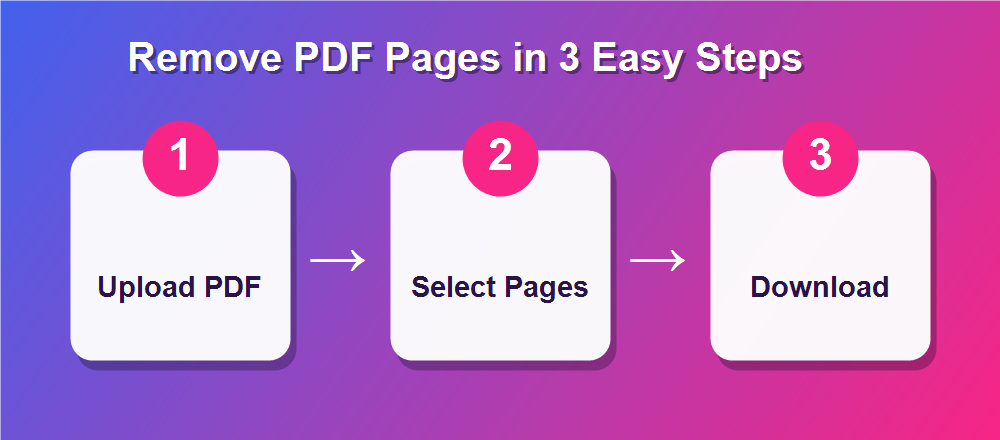
How to Remove Pages From PDF Free (Step by Step)
The whole process takes under a minute, and there is nothing to install:
- Open the DebugSpot Remove PDF Pages tool in any browser.
- Upload your PDF – it loads on your device and is never sent to a server.
- Browse the page thumbnails and click the pages you want to remove.
- Watch the live keep/remove counter so you know exactly what will stay and what will go.
- Click Remove, then download your trimmed PDF.
That is all it takes. The pages you did not select stay in their original order and quality, and the rest are gone for good.
Why Remove Pages From a PDF?
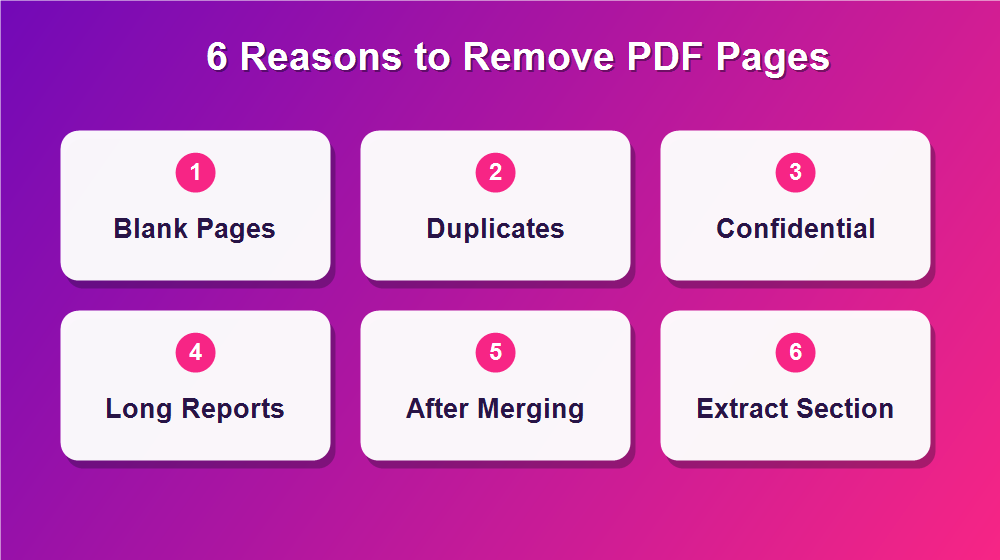
There are dozens of everyday reasons to trim a PDF, and most take only a moment. People most often remove pages from PDF to:
- Delete blank pages left behind by a scanner or printer.
- Remove duplicate pages that crept in during copying.
- Cut confidential pages before sharing a document.
- Trim a long report down to just the relevant section.
- Clean up extra pages after merging several files together.
- Extract a shorter document from a much bigger one.
Everything the Tool Can Do
This free page remover covers everything you need to tidy a PDF:
- Delete a single page or many pages at once.
- Select pages visually using clear thumbnails.
- See a live keep/remove counter as you choose.
- Keep files 100% private – nothing is uploaded.
- Download with no watermark, completely free.
- Works on any device with a browser.
Remove One Page or Multiple Pages
Whether you need to drop a single stray page or clear out a dozen, the process is the same. To remove one page, just click its thumbnail and download. To remove several, click each page you want gone – they do not have to be next to each other, so you can delete page 2, page 7, and page 15 in a single pass. The live counter keeps a running total of how many pages will remain, which makes it easy to remove pages from PDF documents of any length without losing track of what you are keeping.
Does Removing Pages Reduce File Size?
Often, yes. Every page in a PDF carries data – text, fonts, and especially images – so cutting the pages you do not need usually shrinks the file. If the pages you remove contain large scanned images or high-resolution graphics, the size drop can be significant, which makes the trimmed PDF faster to email and easier to upload. The exact saving depends on what was on those pages; deleting a mostly blank page saves less than deleting a full-colour scan. Either way, removing pages from PDF files is a simple first step whenever a document feels larger than it should be.
Is It Safe and Private?
Yes. The tool does all of its work inside your browser using a technology called pdf-lib, which means your document is opened, edited, and rebuilt right on your own device. Nothing is ever uploaded to a server, stored in the cloud, or attached to an account. For sensitive files such as contracts, medical records, and financial statements, that local-only approach is exactly what you want, because the confidential pages you are removing never leave your computer in the first place.
Who Uses a PDF Page Remover?
Trimming PDFs is something almost every profession does. Office workers remove cover pages and blank sheets before circulating documents; accountants and finance teams cut irrelevant pages from statements and reports; students and teachers trim study material down to what matters; legal and admin staff remove confidential or duplicate pages before filing; and healthcare teams clean up scanned records. If you deal with PDFs at all, being able to remove pages from PDF quickly saves time and keeps your documents looking professional.
Remove Pages vs Split vs Extract: What Is the Difference?
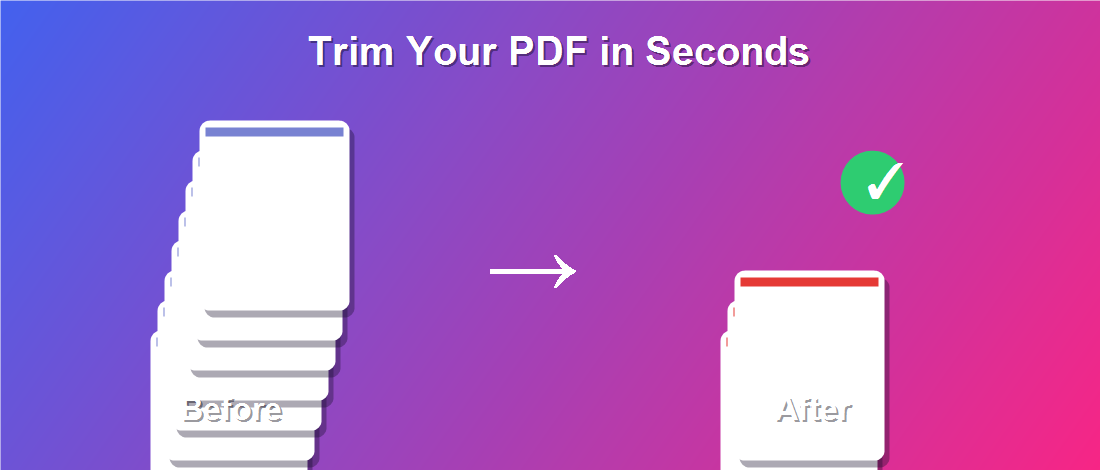
These three tasks sound similar but solve different problems. Removing pages deletes the pages you do not want and keeps the rest as one file. Splitting a PDF breaks one document into several separate files. Extracting pulls out only the pages you do want into a new document. If your goal is simply to get rid of a few unwanted pages, the remove tool is the quickest choice. If you also work across several files, you may find the merge tool and the full PDF editor handy too.
How to Remove Pages From a Password-Protected PDF
If your PDF is locked with an open password, you will need to unlock it before you can remove pages, since the tool must read the document to show you the thumbnails. Open the file with its password first, save an unlocked copy, and then load that copy into the page remover. Once you have trimmed it, you can password protect the PDF again so the final, shorter version stays secure. This keeps your workflow private from start to finish, because every step happens in your browser.
Removing Pages From Large PDFs
Big documents with hundreds of pages are exactly where a page remover shines. Instead of scrolling endlessly through a viewer, you see every page as a thumbnail and can spot the ones to cut at a glance. For very large or image-heavy files, a desktop browser gives the smoothest experience, since it has more memory to render all those thumbnails quickly. Work through the document in sections, use the live counter to track what remains, and you can trim even a massive report in a couple of minutes.
A Real Example: Cleaning Up a Scanned Report
Imagine you have scanned a 40-page report, but the scanner added a blank page after every sheet and captured two duplicate cover pages. Rebuilding the document by hand would be painful. Instead, you open the report in the page remover, glance at the thumbnails, and click every blank and duplicate page – the counter shows the total dropping fast. One click later, you download a clean PDF that is half the size and ready to share. That is the kind of everyday cleanup this tool is built for, and it is why so many people remove pages from PDF scans before sending them on.
Remove PDF Pages on Any Device
Because it runs in the browser, you can remove pages from PDF files on whatever device is nearby:
- Windows & Mac: works in Chrome, Edge, Firefox, or Safari.
- Android: open it in Chrome, with no app to install.
- iPhone & iPad: use Safari and select pages by tapping.
- Chromebook: a perfect fit, since everything runs in the browser.
What Happens to the Rest of Your PDF?
Only the pages you select are removed – everything else stays exactly as it was. The remaining pages keep their original order, text, images, and quality, and the tool rebuilds them into a single clean PDF that opens in any reader. There is no re-compression that would blur your images and no reflowing that would shift your layout. The result looks identical to the original, just shorter, which is why this is a safe way to remove pages from PDF without worrying about damaging the document.
How to Undo a Page Removal
Because the tool never changes your original file, undoing is effortless: your source PDF on your device stays untouched. If you remove a page by mistake before downloading, simply deselect it or reload the original and start again. And since the trimmed version is only saved as a brand-new file when you download, your first copy is always there to fall back on. This is exactly why keeping the original until you have checked the result is such a good habit.
Free Forever, No Account Needed
Unlike desktop apps that charge a subscription or online tools that lock downloads behind a signup, this page remover is genuinely free. There is no trial, no watermark stamped on your file, and no account to create. You can trim as often as you like, on as many documents as you like, without ever paying or handing over an email address.
Tips for Cleanly Removing PDF Pages
- Use the thumbnails to double-check each page before removing it.
- Watch the counter so you keep the right number of pages.
- Keep the original file until you have confirmed the trimmed version.
- Re-open the download to make sure the right pages are gone.
Common Mistakes to Avoid
- Removing the wrong page – always check the thumbnail, not just the page number.
- Deleting too much – the live counter helps you avoid over-trimming.
- Overwriting your only copy – keep a backup until you are sure.
- Forgetting to download – save the trimmed file before closing the tab.
Remove Pages Before Printing to Save Paper
Printing a long PDF when you only need part of it wastes paper and ink. By taking a moment to remove pages from PDF files before you print, you send only the pages that matter to the printer. This is handy for cutting cover sheets, terms-and-conditions pages, or appendices you do not need on paper. The trimmed file also makes a cleaner handout, since everyone receives exactly the pages that are relevant and nothing more.
Remove Pages vs Rearranging Them
Sometimes the problem is not that a page is unwanted, but that it is in the wrong place. Removing a page deletes it entirely, while rearranging simply changes the order. If a page belongs in the document but sits in the wrong spot, you would reorder it rather than remove it. When a page truly does not belong, though, removing it is the cleaner fix. Knowing the difference helps you decide whether to remove pages from PDF documents or simply shuffle them around.
Works With Any PDF, From Any Source
It does not matter where your PDF came from – a Word export, a scanner, a phone photo saved as PDF, an invoice from an accounting app, or a form downloaded from a government website. As long as it is a PDF, you can open it in the page remover and trim it. This universal compatibility is one reason the tool is so useful: you never have to worry about whether a particular file will work, because removing pages from PDF files behaves the same way regardless of how the document was created.
Why a Browser-Based Remover Beats Desktop Software
Desktop PDF programs can be powerful, but they are also heavy: they take up disk space, need regular updates, and often cost money for features you rarely use. A browser-based remover flips that on its head. There is nothing to install, it is always up to date, and it runs on any operating system with a browser. Most importantly, because your file is processed locally, you get desktop-level privacy without the desktop-level hassle. For a task as simple as removing a few pages, that trade-off is hard to beat.
Keep Your Documents Tidy and Organized
Removing unnecessary pages is a small habit that keeps your files organized over time. A folder full of lean, relevant PDFs is far easier to search, share, and store than one packed with bloated documents full of blank sheets and duplicates. Taking a few seconds to remove pages from PDF files as you go means your important documents stay clean, professional, and quick to work with whenever you need them.
Related Free PDF Guides
Removing pages is just one way to tidy a PDF. If you work with PDFs often, these free step-by-step guides pair perfectly with this one:
- Password protect a PDF online free – lock your trimmed file before you share it.
- Edit a scanned PDF free – fix text and details on scanned documents.
- White out text on a PDF free – hide sensitive information cleanly.
- Add a signature to a PDF online free – sign documents without printing.
Frequently Asked Questions
How do I remove pages from PDF for free?
Open the tool, upload your PDF, click the page thumbnails you want to delete, and download the trimmed file. It is completely free with no signup.
Can I remove multiple pages at once?
Yes. Select as many pages as you like, even non-consecutive ones, and remove them all in a single step.
Will removing pages lower the quality?
No. The pages you keep are untouched, so text and images stay exactly as sharp as the original.
Is my file uploaded anywhere?
No. Everything happens in your browser, so your PDF and its pages never leave your device.
Does removing pages delete them from the original file?
No. Your original PDF stays untouched on your device. The tool creates a new, trimmed file that you download separately.
Can I remove pages from a scanned PDF?
Yes. Scanned PDFs work exactly the same way – each scanned page appears as a thumbnail you can select and remove.
How many pages can I remove at once?
There is no set limit. You can remove a single page or dozens in one pass, and the live counter keeps track for you.
Do I need to install an app?
No. The tool runs entirely in your browser, so there is nothing to download, install, or update.
Is there a watermark or page limit?
No watermark and no artificial limits, so you can trim as many PDFs as you need.
Can I remove pages from PDF on my phone?
Yes. The tool is touch-friendly and works in any mobile browser on iPhone, iPad, and Android.
Remove Your PDF Pages for Free
Tidying up a PDF should not require expensive software. Use the free Remove PDF Pages tool to remove pages from PDF in seconds, and explore more free online tools from DebugSpot.