
Need to shrink a large PDF but do not want to hand it to a random website? You can compress PDF without uploading it anywhere, right on your own device. Most online compressors send your file to a server, which is a real privacy risk for contracts, IDs, and financial documents. This 2026 guide covers the 5 best free ways to compress PDF without uploading, so your file never leaves your computer.
Why Compress a PDF Without Uploading Matters
The usual way to shrink a PDF online is to upload it to a compression website, wait while it processes on their server, and download the smaller file. It works, but your document sits on a machine you do not control, even if only for a moment. When you compress PDF without uploading, that risk disappears entirely – the file is processed in your browser or on your desktop, and nothing is ever transmitted.
- Privacy: sensitive files never touch a third-party server.
- Speed: no upload wait and no download queue.
- No limits: local tools do not cap your daily usage.
- No signup: nothing to register for.
- Offline capable: many methods work with no internet at all.
How to Compress a PDF Without Uploading (Fastest Method)
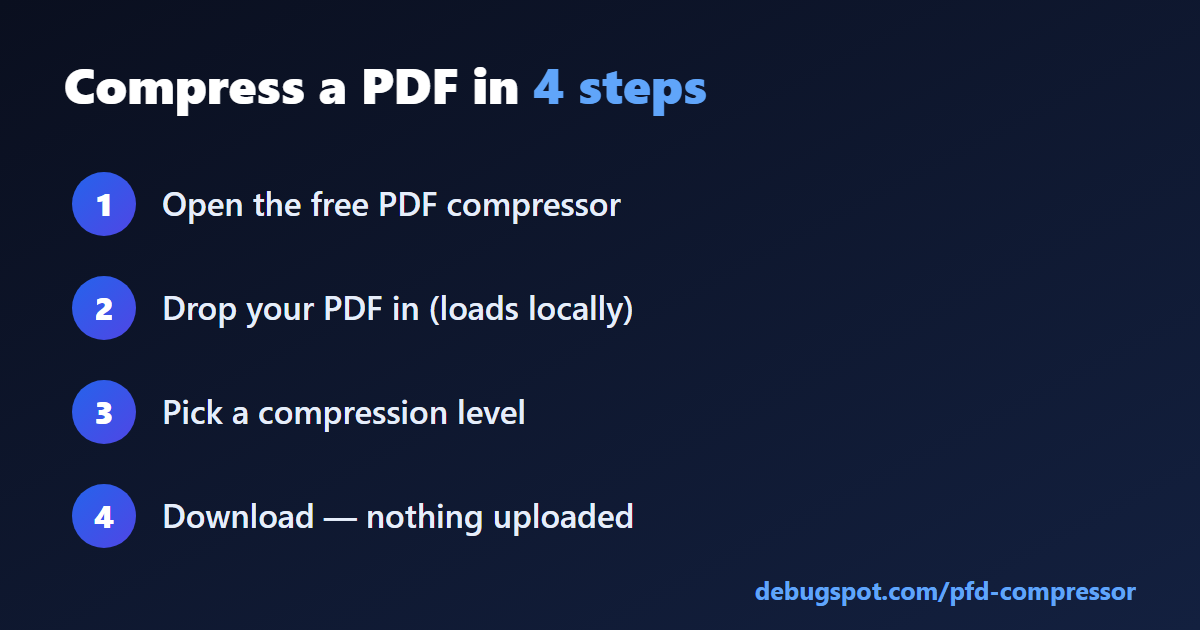
The quickest way to compress PDF without uploading is a browser-based, client-side tool that does the work on your device:
- Open a client-side PDF tool in your browser.
- Add your PDF – it loads locally and is never sent anywhere.
- Choose a compression level (low, medium, or high).
- Let it process on your device, then download the smaller file.
Because everything happens in the browser, you compress PDF without uploading and without waiting on a server. It is the simplest option for most people.
The 5 Best Free Ways to Compress a PDF Without Uploading
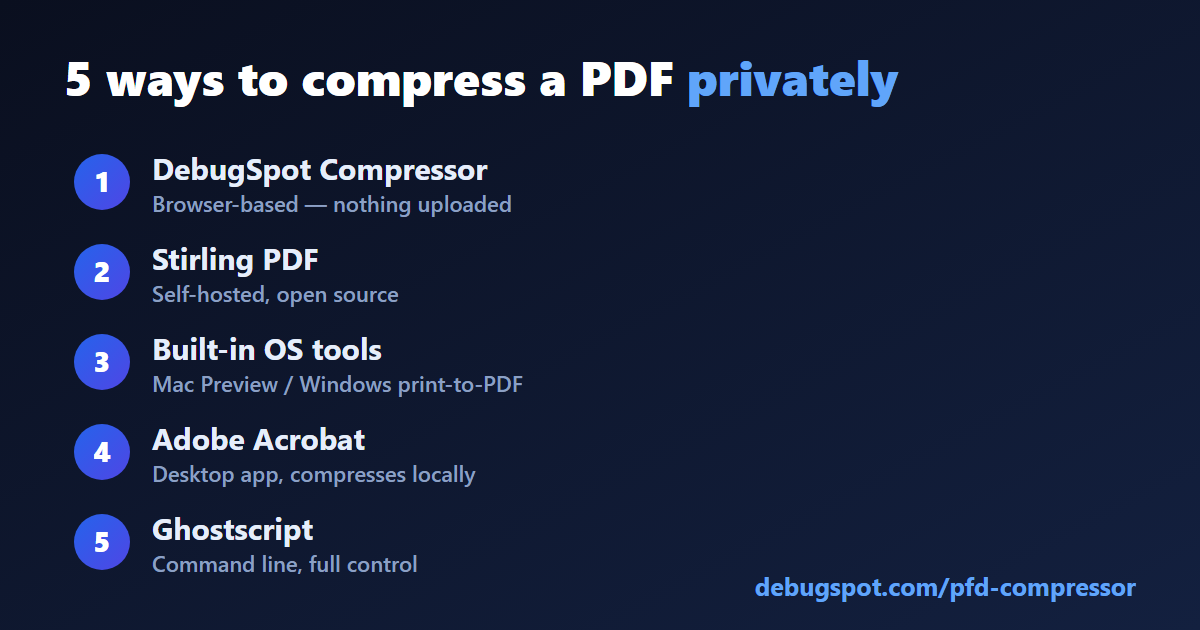
Here are the five most reliable methods to compress PDF without uploading, from easiest to most technical.
1. A Browser-Based (Client-Side) Compressor
This is the best option for most users. A client-side compressor runs entirely in your browser using JavaScript, so your PDF is read and shrunk on your own device and never uploaded. You get the convenience of an online tool with the privacy of a desktop app – no installation, no signup, and no server. For everyday files, it is the fastest way to compress PDF without uploading.
2. A Desktop PDF Application
Desktop programs process files locally by design. Adobe Acrobat has a “Reduce File Size” option, and there are free desktop tools that do the same. They are heavier to install and update, but they never upload your file, which makes them a solid choice for very large documents or batch jobs where you want everything to stay offline.
3. Mac Preview (Quartz Filter)
If you are on a Mac, Preview can shrink a PDF without any extra software. Open the file, choose File, then Export, and select the “Reduce File Size” Quartz filter before saving. It all happens on your Mac, so it is a genuine way to compress PDF without uploading. The trade-off is less control over the exact quality, but for quick jobs it is convenient and completely private.
4. Print to PDF at a Lower Quality
On Windows, the built-in “Microsoft Print to PDF” and similar print drivers can re-save a document, and some let you pick a lower quality that reduces size. It is a basic approach and results vary, but it keeps everything local. For image-light documents, re-printing to PDF can trim the file with zero uploads.
5. Compress the Images, Then Rebuild the PDF
Most large PDFs are big because of high-resolution images. If you have access to the original images, compress them first and then rebuild the PDF – for example, using a JPG to PDF tool that runs in your browser. This gives you the most control over the final size and quality, and because the images and the rebuild both happen on your device, you compress PDF without uploading at any stage.
What Makes a PDF File So Large?
Understanding why a PDF is big helps you compress it well. The biggest culprit is almost always images – high-resolution photos and scans carry a lot of data. Embedded fonts, especially many different fonts, add weight too, as does metadata and, sometimes, leftover data from previous edits. When a compressor shrinks a PDF, it mainly down-samples those large images and strips unnecessary extras, which is why image-heavy files compress the most.
How Much Can You Compress Without Losing Quality?
For a typical image-heavy PDF, you can often cut the size by 50 to 80 percent with little visible difference, because screen and email use does not need print-level resolution. Text-only PDFs are already small, so they compress less. The key is choosing the right level: a light compression keeps quality high for documents you will print, while a stronger setting maximises size reduction for files you only need to email or view on screen. Compressing PDF without uploading gives you the same range of results as any online tool, minus the privacy risk.
Compression Levels Explained
Most compressors offer a few levels, and picking the right one matters. Low compression barely touches image quality and suits documents destined for print. Medium is the sweet spot for most people – a big size drop with quality that still looks great on screen. High compression squeezes the file as small as possible, which is ideal for email attachments or upload limits where size matters more than crispness. Try medium first, and only go higher if you still need a smaller file.
Is It Safe to Compress PDFs This Way?
Yes – in fact, it is the safest way to do it. Because the file is processed on your own device, there is no upload, no server copy, and no account tying the document to you. That is a meaningful advantage over cloud compressors, where your file, however briefly, is handled by a third party. For sensitive material – bank statements, signed contracts, medical records, ID scans – compressing PDF without uploading is exactly the privacy guarantee you want.
When You Should Never Upload a PDF
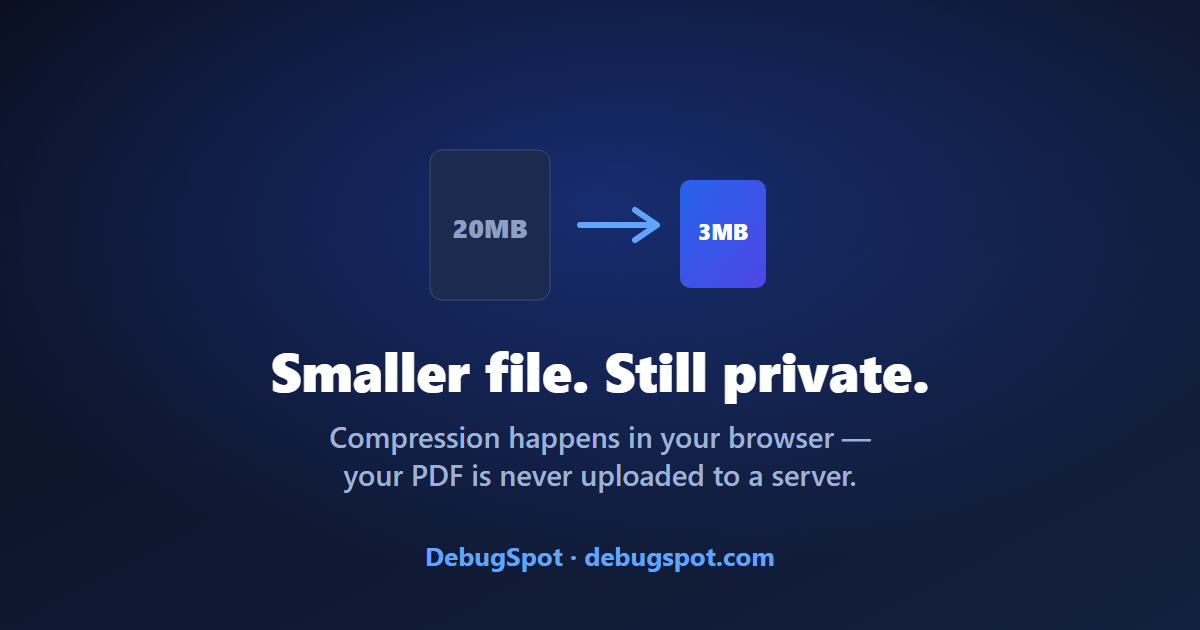
Some documents simply should not be sent to a random website. Anything containing personal identification, financial details, legal terms, health information, or client data falls into this category. In those cases, a cloud compressor is a needless risk. Choosing a method that lets you compress PDF without uploading means you can shrink the file for emailing or storage while keeping the contents completely on your own machine.
Compress a PDF on Any Device
Browser-based methods let you compress PDF without uploading on whatever device is nearby:
- Windows & Mac: in Chrome, Edge, Firefox, or Safari, or with built-in tools like Mac Preview.
- iPhone & iPad: in Safari, with no app to install.
- Android: in Chrome, entirely in the browser.
- Chromebook: a perfect fit, since everything runs in the browser.
Tips for the Best Compression Results
- Start with medium compression and only increase it if you need to.
- Keep the original until you have checked the compressed version looks right.
- For scans, a slightly lower resolution shrinks the file dramatically.
- Remove unneeded pages first – fewer pages means a smaller file.
- Re-open the result to confirm the images are still clear enough.
Common Mistakes to Avoid
- Over-compressing a document you plan to print, leaving images blurry.
- Uploading sensitive files to a cloud tool out of habit.
- Overwriting the original before checking the result.
- Ignoring page count – removing extra pages often helps more than compression alone.
Related Free PDF Guides
These free, private PDF guides from DebugSpot pair perfectly with this one:
- Remove pages from a PDF free – trim a big file down.
- Edit a PDF without Adobe Acrobat free – the full toolkit.
- Convert JPG to PDF free – build a PDF from images.
- Password protect a PDF online free – secure your file.
- Convert PDF to JPG free – turn pages into images.
Frequently Asked Questions
How do I compress a PDF without uploading it?
Use a client-side, browser-based compressor or a desktop tool. Both process the file on your own device, so it is never uploaded.
Is it really private?
Yes. With a client-side method, your PDF is read and shrunk in your browser and never sent to a server.
Will compressing reduce the quality?
At medium settings, the size drops a lot while quality stays great for screen and email. Use low compression if you plan to print.
How much smaller will the file get?
Image-heavy PDFs often shrink by 50 to 80 percent. Text-only files are already small and compress less.
Do I need to install anything?
No. A browser-based compressor needs no installation, though desktop apps are also an offline option.
Is there a file-size or daily limit?
Local tools do not impose the daily task limits that many cloud compressors do.
Can I compress a PDF on my phone?
Yes. Browser-based methods work in any mobile browser on iPhone and Android.
Why is my PDF so large?
Usually high-resolution images, plus embedded fonts and metadata. Compression mainly down-samples the images.
Is it safe for confidential documents?
Yes, and it is the recommended approach – the file stays on your device the entire time.
What is the best way to compress PDF without uploading?
For most people, a client-side browser compressor is the fastest and most private choice.
Understanding PDF Compression
Compression works by optimising the parts of a document that take up the most space. If you want the technical background, the PDF format specification explains how images, fonts, and metadata are stored – the very things a compressor down-samples and strips to shrink your file. Knowing this helps you understand why image-heavy PDFs compress so much when you compress PDF without uploading them.
The Verdict: Shrink Your PDF Privately
You do not have to trade privacy for a smaller file. The best way to compress PDF without uploading is a client-side, browser-based tool that shrinks your document on your own device – fast, free, and completely private. Try DebugSpot free PDF tools to get started, and explore more free online tools that keep your files yours.