
Got a scanned document you need to change? You can edit scanned PDF free without any software, right in your browser. This 2026 guide shows how to edit scanned PDF free – add text, white-out mistakes, sign, and annotate – even though a scan has no editable text layer to begin with.
Why Are Scanned PDFs Hard to Edit?
A scanned PDF is really just a photograph of a page saved inside a PDF wrapper. When you scan a paper document or snap a picture of it, the result is an image – there is no live, selectable text underneath. That is why your usual editor refuses to let you click into the words and change them: as far as the software is concerned, the entire page is one flat picture. To edit scanned PDF free, you therefore work on top of that image, covering what you want to remove and adding new content over it.
- No text layer: the page is an image, not selectable text.
- Fixed layout: you place new elements exactly where you need them.
- Overlay editing: white-out first, then type, draw, or stamp on top.
How to Edit a Scanned PDF Free (Step by Step)
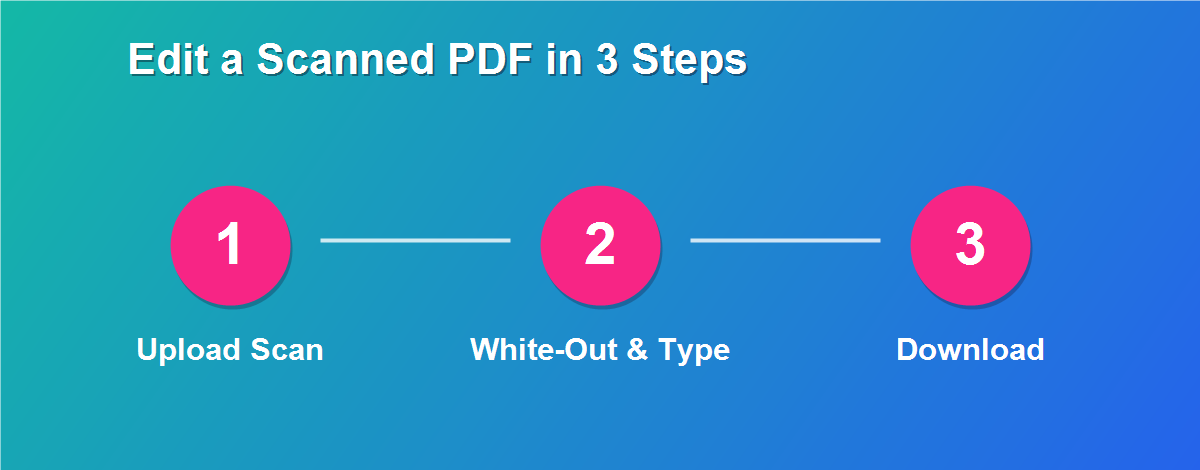
Here is the simplest way to edit scanned PDF free, from upload to download:
- Open the DebugSpot PDF Editor in your browser.
- Upload your scanned PDF – it stays on your device.
- Use the white-out / eraser tool to cover any text you want to remove.
- Add new text on top with the Text tool.
- Sign, highlight, or insert an image if needed.
- Click Download to save the edited scan.
This overlay approach works on any scan, regardless of the scanner, phone camera, or fax machine that produced it.
What You Can Change on a Scanned PDF
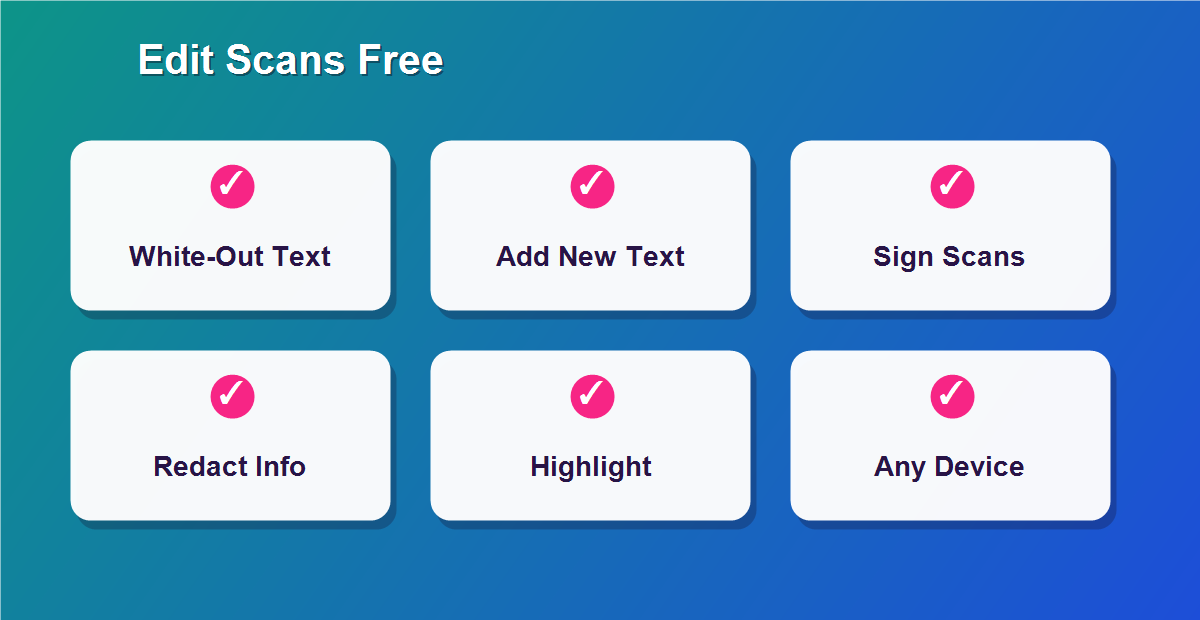
Even without a text layer, you can make almost any everyday change:
- Correct a wrong name, date, or number.
- White-out and replace outdated details.
- Fill in a scanned form by typing over the blanks.
- Add your signature to a scanned contract.
- Highlight or annotate important sections.
- Redact private information before sharing.
Scanned PDF vs Text PDF
Understanding the difference helps you pick the right approach every time:
| Scanned PDF | Text PDF | |
|---|---|---|
| Made from | A photo or scanner | A document export |
| Selectable text | No | Yes |
| How to edit | White-out + add on top | Edit text directly |
Do You Need OCR to Edit a Scanned PDF?
OCR (optical character recognition) converts a scanned image into real, selectable text. It is genuinely useful when you need to reflow entire paragraphs or copy large amounts of text out of a document. But OCR is often overkill for the quick jobs most people actually have – changing a single value, filling a field, or adding a signature. For those tasks, the overlay method is faster, more reliable, and lets you edit scanned PDF free without any conversion step that might scramble the layout.
How the Overlay Method Works
The overlay method is simple once you picture it. Think of your scan as a printed page, and the editor as a sheet of clear glass laid over the top. You place a small white rectangle over the text you want to hide – just like correction fluid – and then type your new text on the glass above it. When you download, the glass and the page are merged into one flat PDF, so the edit looks completely natural. Because you control the exact position, size, and font of every element, you can match the original document closely.
Common Reasons People Edit Scanned PDFs
Scanned documents show up everywhere, and small changes are needed constantly. People most often edit scanned PDF free to update an old address on a scanned letter, sign a scanned contract without printing it, fill a paper form that was scanned to PDF, redact account numbers or IDs before emailing, or fix a typo that a scanner or fax introduced. In each case, the overlay approach finishes the job in minutes, with no printer and no special software to buy.
How to Redact a Scanned PDF Safely
Scanned PDFs are actually ideal for redaction. On a normal text PDF, a black or white box placed over words can sometimes still be selected or copied out from underneath. On a scan there is no hidden text layer, so once you cover an area and download the flattened file, the information beneath is genuinely gone from view. To redact safely, cover the sensitive area completely, use a solid color, download the file, and then re-open it to confirm nothing shows through.
Edit Scanned PDFs on Any Device
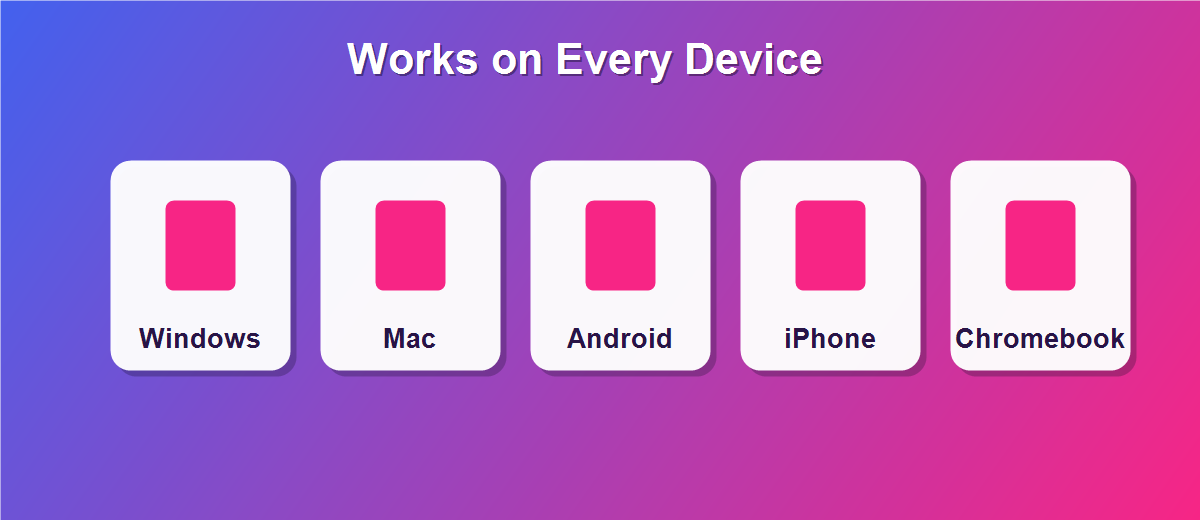
- Windows & Mac: edit in any modern browser.
- iPhone & iPad: white-out and type using touch.
- Android: works in Chrome, no app required.
- Chromebook: a great fit for browser-based editing.
Tips for Clean Scanned-PDF Edits
- Zoom in so white-out boxes line up with the text underneath.
- Match the font and size so new text blends in.
- Cover completely – make sure no old text peeks out.
- Download and re-open to confirm the result looks right.
Scanned PDFs and Everyday Paperwork
So much of daily paperwork arrives as a scan: a contract your landlord photographed, a form the doctor office emailed, a receipt you snapped for an expense report. In the past, changing any of these meant printing the page, editing by hand, and scanning it back – a slow and messy process. Being able to edit scanned PDF free in the browser replaces all of that with a few clicks, and you keep the document digital from start to finish, which means cleaner results and an easy trail you can store or resend.
Can You Turn a Scan Back Into Editable Text?
If your goal is to rewrite large sections of a document, OCR can convert the scan into editable text first – but that is a separate, heavier task. For the overwhelming majority of real jobs, you do not need it. Adjusting a figure, completing a form, adding initials, or hiding a private detail are all faster with the overlay tools, which let you edit scanned PDF free without waiting for a conversion or risking a change to the original layout.
How to Fill a Scanned Form
Filling a scanned form is one of the most common tasks of all. Because there are no interactive fields, you use the text tool to type directly onto the blank lines and boxes. Click where an answer belongs, type it, and move to the next field, zooming in for small spaces so everything lines up. Add checkmarks for tick boxes and a signature at the bottom, then download the completed form. The result looks neat and professional – far better than a form filled in by hand and re-scanned.
How to Sign a Scanned Contract
Signing a scanned contract works exactly like signing any PDF. Open the scan, choose the sign tool, and add your signature by drawing, typing, or uploading an image. Place it on the signature line, add the date beside it, and download the signed file. Because everything happens over the scanned image, there is no need to print the contract just to sign it – you finish the whole thing on screen and email it straight back.
Fixing a Typo on a Scanned Document
A single wrong character on an otherwise finished scan used to mean redoing the whole page. Now the fix takes seconds: white-out the incorrect text, then type the correct version on top in a matching font and size. Whether it is a misspelled name, a wrong date, or a transposed number, you can correct it cleanly and download a version that looks like the mistake was never there. This is one of the quickest and most satisfying uses of the overlay method.
Why Scans Look Different From Digital PDFs
It helps to understand why scans behave the way they do. A digital PDF exported from a document contains real text objects, so software can read and edit them. A scan, on the other hand, is captured as a grid of pixels – an image of the page – with no underlying text at all. That is why you cannot highlight words on a scan the way you can on a digital file, and why editing a scan always means working on top of the image rather than inside it.
Improving a Low-Quality Scan
If your scan is faint or crooked, a few habits help. Re-scan at a higher resolution when possible, keep the page flat, and use good lighting if you are photographing it with a phone. A clearer scan makes it much easier to line up your white-out boxes and new text precisely. When you cannot re-scan, zoom in generously in the editor so you can place each edit exactly where it needs to go, even on a less-than-perfect image.
Editing Scans on Your Phone
Your phone is often where scans start – you photograph a document and save it as a PDF. The good news is you can edit that scan on the same device. Open the editor in your mobile browser, upload the scanned PDF, and use touch to white-out, type, and sign. Pinch to zoom for accuracy on small text, then download the edited file. It is a completely paper-free loop: capture, edit, and share, all from your phone.
Is It Private to Edit Scans Online?
Yes. Scanned documents often contain the most sensitive information of all – IDs, signed forms, and personal records – so privacy matters. With DebugSpot, the scan is processed entirely in your browser and never uploaded to a server. Nothing is stored in the cloud or tied to an account, which means even a scanned passport or bank letter stays completely on your own device while you edit it.
Common Mistakes to Avoid
- Box too small – make sure white-out fully covers the old text.
- Mismatched font – pick a similar font and size so edits blend in.
- Assuming text is selectable – a scan is an image, so use the overlay tools.
- Forgetting to re-check – re-open the download to confirm the result.
Related Free PDF Guides
Editing scans is one part of working with PDFs. These free step-by-step guides pair perfectly with this one:
- White out text on a PDF free – the core tool for editing scans.
- Add a signature to a PDF online free – sign scanned contracts.
- Fill a PDF form online free with no login – complete scanned forms.
- Password protect a PDF online free – secure sensitive scans.
- Remove pages from a PDF free – drop blank scanned pages.
Frequently Asked Questions
Can I edit scanned PDF free without software?
Yes. You edit directly in your browser by covering old content and adding new text on top. Nothing needs to be installed and there is no fee.
Why can’t I select the text in my scan?
Because a scan is an image, not text. The overlay tools let you edit it anyway, without running OCR.
Is my scanned file private?
Completely. The document is processed in your browser and never uploaded to a server.
Can I fill a scanned form this way?
Yes. Use the text tool to type answers over the blank spaces, then add a signature if the form requires one.
Can I do this on my phone?
Yes. The tools are touch-friendly and work on iPhone, iPad, and Android browsers.
Will the edited scan open everywhere?
Yes. You download a standard PDF that opens in every reader, on every device.
Do I need OCR to fix a typo on a scan?
No. Just white-out the wrong text and type the correction on top – no OCR required.
Can I sign a scanned contract?
Yes. Add your signature over the scanned page with the sign tool and download the signed file.
Does editing reduce the scan quality?
No. Your additions sit on top of the original image, which stays exactly as sharp as before.
Can I redact sensitive info on a scan?
Yes, and scans are ideal for it – a covered area on a flattened scan is genuinely hidden.
Edit Scans From Any Source
It does not matter how your scan was made – a flatbed scanner at the office, a multifunction printer at home, a phone camera app, or an old fax machine. Every one of them produces an image-based PDF, and the editor treats them all the same way. You upload the file, work on top of the image with white-out and text, and download the result. This universal compatibility means you never have to worry about whether a particular scan will open; if it is a PDF, you can edit it.
Scanned Receipts and Expense Reports
Receipts are a classic scanning headache. They are small, easily faded, and often need a note or correction before they go into an expense report. With a browser editor you can add a typed label, highlight the total, or white-out an irrelevant line, then save a clean version for your records. Keeping tidy, annotated scans makes expense season far less painful and gives you a clear digital trail for every purchase.
Cleaning Up Old Archived Scans
Many people have folders full of old scanned documents – letters, forms, and records captured years ago. When you need to update or share one, editing it directly saves you from re-scanning the original paper, which may be long gone. Correct an outdated detail, redact something private, or add a note, and the archived scan becomes useful again in seconds. It is a practical way to keep long-term records current without touching a printer.
Why Browser Editing Beats Printing and Re-Scanning
The traditional way to change a scan was to print it, edit by hand, and scan it back in – a slow loop that degrades quality each time and needs a printer, a scanner, and a pen. Browser editing removes every one of those steps. You work directly on the digital scan, keep the original resolution, and finish in one place. The result is faster, cleaner, and completely paperless, which is exactly why so many people have abandoned the print-and-rescan routine for good.
Free Forever, With No Watermark
Editing scans should not cost anything, and here it does not. There is no subscription, no trial, and no watermark stamped across your finished document. You can edit as many scanned PDFs as you like, as often as you like, and the output is always a clean, professional file. For a task this common, free and unlimited is exactly what you want.
Edit Your Scanned PDF for Free
A scan does not have to be locked forever. Use the free online PDF Editor to edit scanned PDF free in minutes, and check out more free online tools from DebugSpot.