Table of contents
- What is OCR, and why can't you search a scanned PDF?
- When should you OCR a PDF?
- Step 1: How do you make a scanned PDF searchable?
- Step 2: How do you check and use the result?
- How do you OCR a PDF on Android, iPhone, Windows and Mac?
- A real example, start to finish
- What are the most common mistakes?
- What are the best tips for better OCR results?
- Scans you can actually use
- FAQs
To make a scanned PDF searchable, open PDFChai's OCR PDF tool, add your file, choose the language of the document and click Make PDF searchable. The searchable copy downloads automatically, and its pages look exactly the same as before.
You press Ctrl and F, type a word you can clearly see on the page, and the PDF finds nothing. You try to copy a sentence and end up selecting the whole page as a picture. That happens because a scan is a photo of paper, and a photo doesn't contain letters a computer can read.
OCR fixes that. In this guide, we'll show you how to run it, how to check the result, which language settings to use for Indian and mixed-language documents, and how to get cleaner text from your scans.
Let's get started.
Key takeaways
- OCR reads the words in each scanned page and adds them as an invisible text layer
- Your pages keep their original look, stamps and signatures included
- PDFChai reads 23 languages, including Hindi, Gujarati, Tamil, Bengali and six more Indian languages
- Straight, sharp scans at around 300 DPI give the best text
- Check the confidence score, and double-check numbers and amounts
- Recognition runs in your browser, so your scan is never uploaded
What is OCR, and why can't you search a scanned PDF?
OCR stands for optical character recognition. It looks at a picture of text, works out which letters are there, and turns them into real text that a computer can search and copy.
A scan is a picture of words
When you scan a page or photograph it with your phone, the PDF stores an image. You can read it, but to your PDF viewer it's just coloured dots. That's why search and copy don't work, and why converters like PDF to Word find nothing inside.
What PDFChai's OCR does
OCR PDF draws each scanned page at about 300 DPI, the resolution OCR engines work best at, and reads it with Tesseract, a well-known open-source OCR engine that runs right inside your browser. Every word it finds is written onto an invisible layer, placed exactly over the matching word in the scan.
The scanned images aren't changed, cropped or compressed. You see the same pages as before, but now search finds words, you can select a sentence, and other tools can read the text. Pages that the PDF displays turned sideways are handled too, so the hidden words still line up with the picture.
What OCR can't do
OCR doesn't turn the page into an editable document, because the text sits hidden behind the picture. It's also built for printed and typed text, not handwriting, and it can't rescue a blurry scan: if you can't make out a word yourself, OCR usually can't either. If you want a file you can edit, run OCR first and then convert the searchable copy with PDF to Word.
How do you know if your PDF needs OCR?
Open it and try to select a single word, or press Ctrl and F and search for something you can see. If you can't select it or the search finds nothing, the page is a scan. PDFChai also checks for you: as soon as you add a file, it tells you how many pages look scanned, or that every page already has selectable text.
When should you OCR a PDF?
You should run OCR whenever you can't select or search the text in a PDF, which almost always means it's a scan or a set of photos.
- Finding things quickly: search a 40-page scanned agreement or court order for one name, date or clause.
- Copying text: reuse a paragraph from a scanned letter or notice without retyping it.
- Converting the file: turn a scan into an editable document with PDF to Word, or pull figures out with PDF to Excel.
- Redacting by search: the Find & redact box in Redact PDF can only find account or phone numbers that exist as text.
- Building a searchable archive: desktop search and cloud drives can find words inside searchable PDFs, so old bills and certificates turn up when you need them.
- Reading aloud: screen readers need real text before they can read a document to someone.
In each case, a minute of OCR turns a flat picture into a document you can actually work with.
Step 1: How do you make a scanned PDF searchable?
Add your scan to OCR PDF, choose the language and click Make PDF searchable.
Here's how:
- Open OCR PDF in your browser.
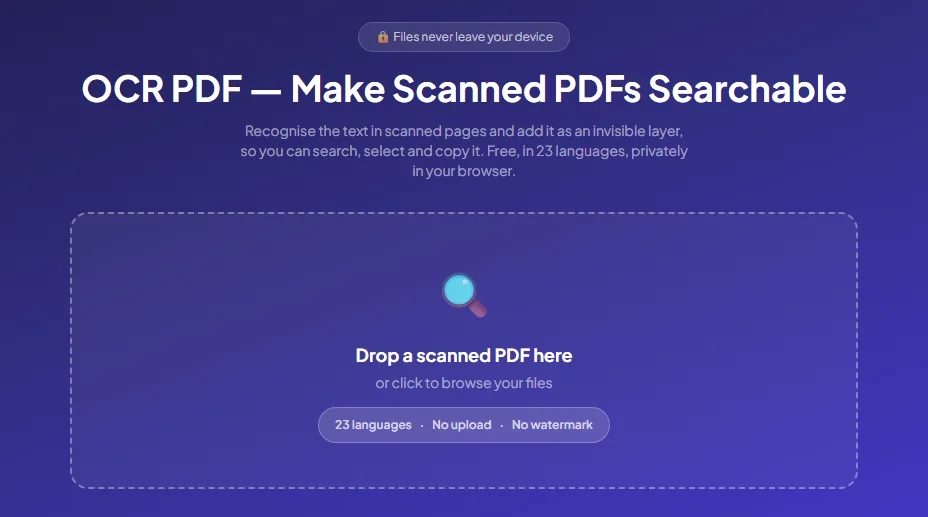
- Drop your file onto the Drop a scanned PDF here box, or click the box to browse your files.
- Wait a few seconds while the tool checks every page for existing text. It then tells you how many pages look scanned, for example "Every page looks scanned (no selectable text), so every page will be recognised." If the PDF is locked with a password, you'll see a message with a link to Unlock PDF instead.
- Choose the Language of the document from the list. PDFChai remembers your choice for next time.
- If you pick a language other than English, keep Also recognise English words ticked. It catches English names, numbers and headings on the same page. With English selected, the box is hidden because it isn't needed.
- Leave Skip pages that already have text ticked, and leave the Pages box empty to recognise every page. To do only some pages, type them in, such as 1-3, 7.
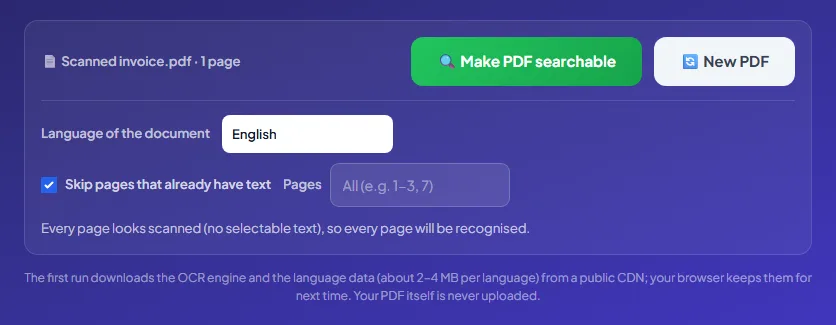
- Click Make PDF searchable. The first time, you'll see "Loading the OCR engine and language data (first time only)", then a progress bar as each page is recognised.
Tip
For a typical Indian form, such as a Gujarati or Marathi application with English labels, dates and numbers, choose the regional language and keep Also recognise English words ticked. That one setting fixes most mixed-script results.
Step 2: How do you check and use the result?
When recognition finishes, the searchable PDF downloads by itself, and a summary tells you how well it went.
Follow these steps:
- Find the downloaded file. It has "ocr-pdfchai" added to the original name, such as "Scanned invoice-ocr-pdfchai.pdf".
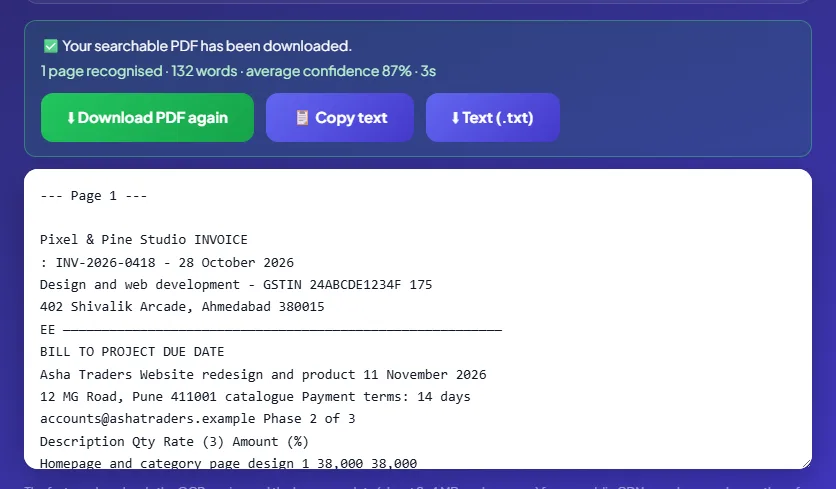
- Read the summary under Your searchable PDF has been downloaded. It shows how many pages were recognised, the number of words, the average confidence and how long it took.
- If the average confidence is below 60%, the tool adds a warning that some words may be wrong. A sharper, straighter scan usually helps more than anything else.
- Open the PDF, press Ctrl and F (Command and F on a Mac) and search for a word you can see on the page. Then select a sentence and copy it.
- Need the plain text? The box under the buttons shows everything that was read, so you can look it over first. Click Copy text to put it on your clipboard, or Text (.txt) to save it as a text file. Each page's text is labelled with its page number.
- If the download got lost or blocked, click Download PDF again.
That's it. Your scan now works like a typed document, and it still looks exactly the same.
Good to know
The first run downloads the OCR engine and the language data, about 2 to 4 MB per language. Only these tools are downloaded. Your PDF itself is never uploaded.
How do you OCR a PDF on Android, iPhone, Windows and Mac?
OCR does a lot of work on your own device, so speed depends on how powerful it is. The steps are the same everywhere.
Android
Use Chrome. Tap the box and pick your scan from the Files app or Google Drive. Recognition is slower on a phone than on a laptop, so for long files do a few pages at a time with the Pages box, and keep the tab open until it's done. The searchable PDF goes to your Downloads folder, and you can share it from the Files app on WhatsApp or by email like any other PDF.
iPhone and iPad
Use Safari or Chrome and pick the scan from the Files app. The searchable copy lands in the Downloads folder in Files; if nothing appears, tap Download PDF again. To test it, open the PDF in Files and press and hold a word. If you can select it, the text layer is there. On an older iPhone, run long scans in smaller batches with the Pages box.
Windows
Chrome, Edge and Firefox all work. On a computer with several processor cores, PDFChai reads two pages at the same time, so long scans finish faster. For a document with dozens of pages, a laptop or desktop is the better choice. Open the result in your usual PDF reader and press Ctrl and F to test it.
Mac
Use Safari, Chrome or Firefox. The searchable PDF goes to Downloads. Open it in Preview, press Command and F to search, and select a line to copy it like any other PDF. When it's ready to send, attach it to an email or share it straight from Finder.
A real example, start to finish
Asha Traders in Pune received a GST invoice from Pixel & Pine Studio in Ahmedabad, but the copy in their files is Scanned invoice.pdf, a 1-page scan with no text layer. Their accountant wants to search it, copy details into their records and convert it to Word.
She opens OCR PDF and drops the scan in. The tool shows "Scanned invoice.pdf · 1 page" and says every page looks scanned, so every page will be recognised. The invoice is in English, so she leaves the language on English and clicks Make PDF searchable.
Four seconds later, the searchable copy downloads. The summary reads: 1 page recognised, 132 words, average confidence 87%, 4s.
The text box shows what was read: the studio's name and the word INVOICE, the Ahmedabad address, the BILL TO block with Asha Traders' address in Pune, and the item lines. Two things stand out. The rupee sign in the column headings was read as other characters, and blocks that sit side by side were read straight across, so the client's address and the project name share a line.
That's normal for OCR, and it's why she checks every amount against the scan before copying it. In the PDF itself, search and selection work well, because each word sits over its picture on the page. She presses Ctrl and F, types the invoice number, INV-2026-0418, and the viewer jumps straight to it on the scanned page.
Finally, she drops the searchable copy into PDF to Word. This time, instead of "No text found in this PDF", she gets an editable document.
What are the most common mistakes?
Picking the wrong language
Recognition depends on the language data, so a Hindi letter read as English comes out as nonsense. Choose the language the page is mainly written in, and keep English on for mixed pages.
Unticking Skip pages that already have text on a mixed PDF
Pages with real text would get a second, hidden copy of every word, so searches show double results. Leave the option ticked unless the existing text on a page is clearly broken. The status line tells you how many pages look scanned, so you know which ones will be read.
Feeding in sideways or tilted pages
OCR reads upright lines best. Turn sideways pages the right way up with Rotate PDF first, and rescan badly tilted pages with Scan to PDF, which straightens them for you.
Expecting handwriting to work
OCR is built for printed and typed text. Neat block capitals sometimes come out, but joined handwriting usually doesn't. Pages where nothing readable is found are left unchanged, and the tool tells you how many there were.
Trusting numbers without checking
OCR can confuse 0 and O, 1 and l, or misread symbols like ₹. Before you copy an amount, an account number or a GSTIN, compare it with the scan.
Running a very long scan on a phone in one go
Hundreds of pages take a long time on a phone. Use the Pages box to do a batch, such as 1-20, then add the downloaded copy and run the next batch. Pages already recognised are skipped automatically.
What are the best tips for better OCR results?
What resolution should you scan at?
Around 300 DPI. PDFChai reads each page at about 300 DPI, so a 300 DPI scan gives it all the detail it can use. Much lower resolutions lose small print and the fine marks on letters, such as the matras in Hindi.
How do you take a better scan with a phone?
Use Scan to PDF. It finds the page edges, straightens the page and evens out shadows, and the Black & white filter gives the sharpest letters on printed pages. Our guide on scanning documents with your phone shows the whole process.
What if a document mixes two Indian languages?
Each run reads one main language, plus English if you tick it. If some pages are in Hindi and others in Gujarati, run the Hindi pages first using the Pages box. Then add the downloaded copy, switch to Gujarati and run the remaining pages.
Should you compress before or after OCR?
After. Compressing first lowers the resolution of the scan, which makes recognition worse. Run OCR on the original, then use Compress PDF on the searchable copy, and leave Image mode unticked so the text layer is kept. Our guide on compressing a PDF to a specific size explains which level to pick.
What does the confidence score mean?
It's the engine's own estimate of how sure it is about the words, averaged across the recognised pages. Our invoice scored 87% and read well. Below 60%, the tool warns you, and a rescan is usually worth it.
Can you OCR only some pages?
Yes. Type them in the Pages box, such as 1-3, 7. The whole PDF still downloads, with text added to just those pages. If you type a page that doesn't exist, the tool tells you how many pages the PDF has.
What about tables and invoices?
OCR reads a table row by row, so searching works fine, but copied text loses its columns, as the invoice example shows. For figures you want in a spreadsheet, run PDF to Excel on the searchable copy.
What about faded or coloured paper?
Faded print, coloured paper and stamps over the text all lower accuracy. If you still have the paper, rescan it with Scan to PDF and try the Grayscale or Black & white filter, which makes the letters stand out from the background.
Can you OCR a photo instead of a PDF?
OCR PDF takes PDF files only. Turn your photos into a PDF with Scan to PDF or JPG to PDF first, then add that file here.
What can you do with the text afterwards?
Convert the file with PDF to Word, save all the text with PDF to Text, or find and black out private details with Redact PDF. Our guide on how to convert PDF to Word picks up from here.
Scans you can actually use
A scanned PDF looks fine on screen, but it stays a picture until OCR reads it. A minute of recognition makes it searchable, copyable and ready to convert.
And because PDFChai runs the whole thing in your browser, your certificates, ID cards, invoices and medical records stay on your device.
FAQs
1. Will OCR change how my PDF looks?
No. The scanned pages stay exactly the same. Only an invisible layer of text is added on top, lined up with the words you see.
2. Which languages can it read?
23 languages: English, Hindi, Gujarati, Marathi, Bengali, Tamil, Telugu, Kannada, Malayalam, Punjabi, Urdu, Spanish, French, German, Portuguese, Italian, Dutch, Indonesian, Russian, Arabic, Chinese (Simplified), Japanese and Korean. For any of them other than English, you can also recognise English words on the same pages.
3. How accurate is OCR for Hindi and Gujarati?
On clean, straight scans of printed text, it's good, and the confidence score tells you how each run went. Choose the right language, keep English on for mixed documents, and check names and numbers. Blurry phone photos and faint photocopies are where most errors come from.
4. Is my scanned document uploaded?
No. Recognition runs in your browser. The OCR engine and language data are downloaded the first time, but your PDF and its text never leave your device.
5. Why is the first run slower?
The first time you use a language, your browser downloads the OCR engine and that language's data. Your browser keeps them, so later runs start faster.
6. Can I OCR only some pages?
Yes. Type the pages in the Pages box, such as 1-3, 7. Pages that already have text are skipped as long as Skip pages that already have text stays ticked.
7. Can OCR read handwriting?
Not reliably. It's designed for printed and typed text. Neat capitals sometimes work, but joined handwriting usually doesn't.
8. Will the searchable PDF be much bigger?
Only slightly. The text layer is small next to the scanned images, which aren't touched. If the file was already too big to upload, compress it afterwards.
9. Can I edit the text after OCR?
Not inside the PDF, because the text is an invisible layer behind the scan. To edit it, convert the searchable copy with PDF to Word, or use Copy text and paste it wherever you need it.
10. Can I OCR a password-protected PDF?
Remove the password first with Unlock PDF, using the password you know. Then run OCR on the unlocked copy.
Make your scanned PDF searchable with PDFChai in just a few clicks!
Start OCR now