Table of contents
- Why is my PDF so big, and what does compression change?
- When should you compress a PDF to a set size?
- Step 1: How do you compress a PDF?
- Step 2: How do you get it under a strict limit?
- What size can you realistically reach?
- How do you compress a PDF on Android, iPhone, Windows and Mac?
- A real example, start to finish
- What are the most common mistakes?
- What are the best tips for compressing a PDF to a set size?
- Small file, smooth upload
- FAQs
To compress a PDF to a specific size, open PDFChai's Compress PDF tool, add your file, keep the Medium level and click Compress PDF. If the new size is still over your limit, compress again with High, and tick Image mode only as a last resort.
You've filled in every field, attached your documents, and then the portal says the file must not be larger than 200 KB. Exam forms, job sites, visa applications, insurance claims and bank KYC pages all do this, and they rarely tell you how to fix it.
The good news is that most PDFs can be brought under a limit in a minute or two, once you know where the size comes from. In this guide, we'll show you how to compress a PDF step by step, what's realistic for common limits from 20 KB to 2 MB, and what to do when compression alone won't get you there.
Let's get started.
Key takeaways
- Pictures make PDFs big: scanned pages and phone photos, not typed text
- Start with Medium, then try High only if you still need a smaller file
- Image mode gives the smallest file, but the text stops being selectable
- Leave a little room under the limit, because portals count kilobytes differently
- For very small limits, remove pages, split the file or rescan in black and white
- Your PDF is compressed in your browser and never uploaded
Why is my PDF so big, and what does compression change?
Your PDF is big because of the pictures inside it. A page of typed text needs only a few kilobytes, while one page scanned in colour can take a megabyte or more, because the scanner saves every speck of the paper as part of an image.
Where the size comes from
Most heavy PDFs fall into one of these groups:
- Scanned pages: each page is one large photo of the paper, often saved at a far higher resolution than a screen needs.
- Phone photos turned into PDFs: a modern phone camera captures much more detail than a printed A4 or US Letter page needs.
- Exported reports and slides: charts, logos and background images are often embedded at full size.
What PDFChai's compressor does
Compress PDF works on those pictures. It resizes every photo and scan to a sensible resolution for the level you pick and saves it again as a lighter JPEG. It also packs data that was stored without compression and drops leftover objects from earlier edits that nothing uses any more.
Your text, links, bookmarks and form fields are left exactly as they were. That's why a compressed PDF still has sharp, searchable text even when its photos are much smaller.
What the three levels mean
- Low (Best quality): pictures are saved again at print quality, about 220 DPI.
- Medium (Balanced): pictures are resized to about 150 DPI, which looks sharp on any screen. This is the default.
- High (Smallest size): pictures drop to about 100 DPI with stronger JPEG compression.
Image mode is a separate checkbox. It turns every page into one picture, which gives the smallest file, but the text can no longer be selected or searched, and links and form fields stop working.
When should you compress a PDF to a set size?
You should compress a PDF whenever a website, email or app says the file is too big, or when you know a form has a strict limit before you start.
- Exam and admission forms: portals for entrance exams, universities and government jobs often cap each document at a few hundred kilobytes.
- Job applications: many career sites limit each upload, and a scanned degree certificate can easily be over it.
- KYC and bank uploads: address proofs, PAN cards and salary slips usually go through upload boxes with tight limits.
- Visa and immigration forms: passport scans, bank statements and letters often have to fit a per-file limit.
- Email attachments: most email services cap attachments (Gmail's limit is 25 MB), and a smaller file is quicker to send and open on mobile data.
- Insurance and reimbursement claims: hospital bills and prescriptions photographed on a phone often need shrinking before you can attach them.
In every case the fix is the same: shrink the pictures, keep the text, and check the size before you upload.
Step 1: How do you compress a PDF?
Add your file to Compress PDF, keep the Medium level and click Compress PDF.
Here's how:
- Open Compress PDF in any browser on your phone or computer.
- Drop your PDF onto the Drop your PDF here box, or click the box to choose a file. The tool takes one file at a time.
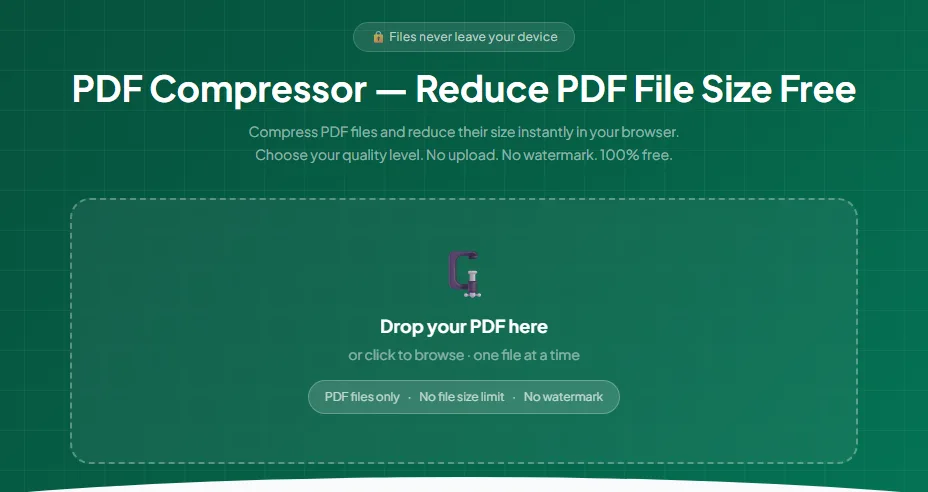
- Check the file card at the top. It shows the file name and its original size, so you know where you're starting from.
- Under Compression Level, leave Medium selected. The note under the three levels tells you what the chosen level does to your pictures.
- Leave Image mode unticked for now.
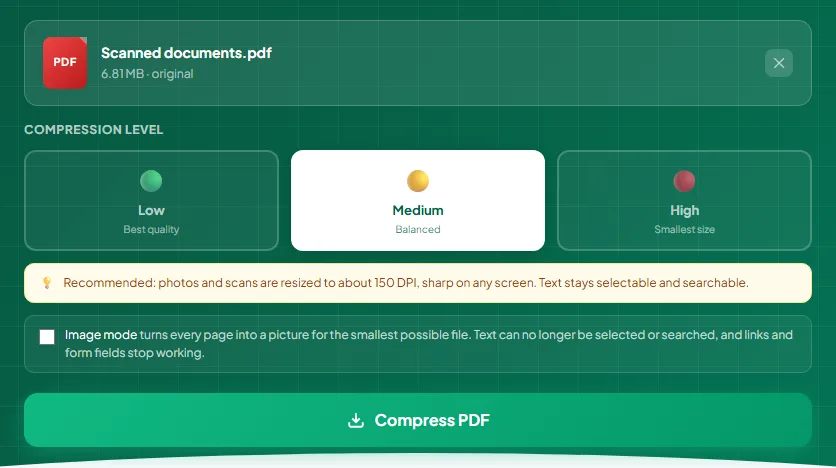
- Click Compress PDF. A progress bar shows each stage, such as "Optimising image 2 of 3", and most files finish in a few seconds.
- Read the result. Compression Complete! shows the old and new sizes as two bars, how much smaller the file is and how much space you saved.
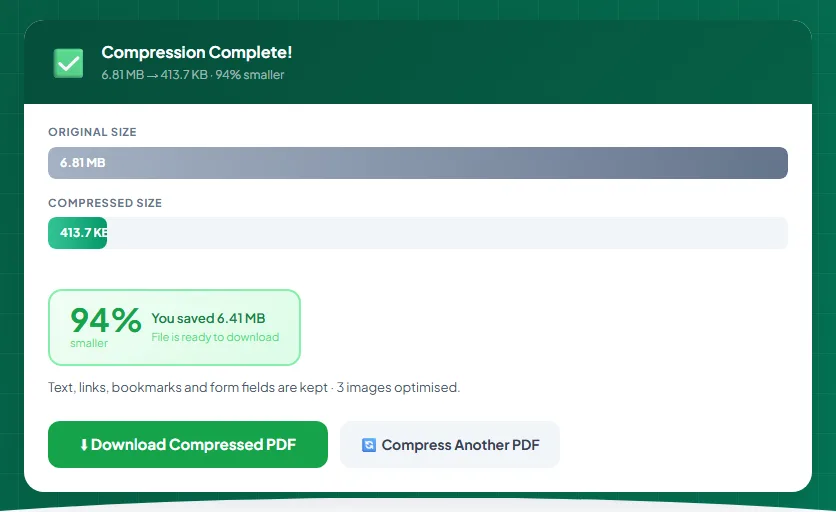
- If the new size fits your limit, click Download Compressed PDF. The file is saved with "compressed-pdfchai" added to the end of its name.
Step 2: How do you get it under a strict limit?
Compress the same file again with a stronger level, and only use Image mode if nothing else gets you there.
Follow these steps:
- Compare the new size with your limit, and leave some room. For a 200 KB limit, aim for 190 KB or less.
- Too big? Scroll up. Your file is still loaded, so click High and then Compress PDF again. You don't need to add the file a second time.
- Still too big? Tick Image mode and click Compress PDF once more. Image mode follows the level you picked, so High plus Image mode gives the smallest file of all.
- If the tool says "This PDF is already well optimised, so your original file is kept as it is", there's nothing left to squeeze at that setting. Try the next step up, or change the file itself (see the next section).
- When a result fits, click Download Compressed PDF, open the file and zoom in on the smallest print to make sure it's still readable.
- Click Compress Another PDF when you're ready for the next document.
That's it. Every time you compress, PDFChai starts again from your original file, not from the last compressed copy, so trying several levels never stacks up quality loss.
Watch out
Keep Image mode off for fillable forms and documents with links. It turns each page into a picture, so form fields, links and selectable text are lost in the compressed copy.
What size can you realistically reach?
It depends on two things: how many pages you have, and whether they're typed or scanned. Typed pages are already small, so a compressor can't take much off them. Scanned pages are big, and they shrink a lot.
To give you real numbers, here's our test file, a 3-page colour scan called Scanned documents.pdf at 6.81 MB:
- Medium: 413.7 KB, or roughly 140 KB a page.
- High: 143.4 KB, or roughly 48 KB a page.
We also have two typed one-page PDFs: a cover letter at 38.3 KB and a CV at 40.5 KB. Files like these have no photos to shrink, so their size is already close to the floor.
Use those per-page figures as a rough budget. Your scans will differ, because busy pages with colour, shadows or textured paper need more room than clean black text on white.
Under 20 KB
This is the hardest target. Limits this small are usually meant for a photo or signature, which most portals want as a JPG, not a PDF, so read the instructions again first. If it really must be a PDF, a short typed page is your best chance. For a scan, rescan the page in black and white, crop it tightly, then use High with Image mode, and accept that a busy page may still not fit.
Under 50 KB
One typed page usually fits as it is. One scanned page is possible: start with High, since our test pages averaged about 48 KB, then add Image mode if you need more. Two scanned pages under 50 KB is rarely realistic, so check whether you can upload them separately.
Under 100 KB
One scanned page at High fits comfortably in most cases. Two pages are borderline, so try High plus Image mode, or rescan in black and white. Typed documents of several pages are usually fine.
Under 200 KB
One scanned page at Medium, or about three pages at High (our 3-page test came to 143.4 KB). This is a common limit for certificates and mark sheets, and it's very reachable.
Under 500 KB
Around three scanned pages at Medium (our test file fits at 413.7 KB), or roughly ten pages at High. A typed report with a few charts usually fits with Medium.
Under 1 MB
About seven scanned pages at Medium, or around twenty at High, if they're like our test scan. Most typed documents with logos and charts fit with Low or Medium.
Under 2 MB
Comfortable for most documents. A dozen or so scanned pages fit at Medium, and long scanned booklets may need High or a split.
When should you remove pages, split or rescan instead?
When the numbers above say your file won't fit, change the file rather than the setting:
- Remove pages nobody needs: blank backs, instruction sheets and duplicates add size for nothing. Delete them with Remove Pages, then compress.
- Split when the portal takes several files: cut a long document into parts with Split PDF and compress each part on its own.
- Rescan when the source is poor: a dark, tilted colour photo is heavy and hard to read. Rescan it with Scan to PDF and pick the Black & white filter for printed pages.
How do you compress a PDF on Android, iPhone, Windows and Mac?
The tool works the same way in every modern browser, so the only differences are where your files live and how you check their size.
Android
Open the tool in Chrome and tap the box. Pick your PDF from the file picker, which can also open files from Google Drive. The compressed copy goes to your Downloads folder in the Files app, where most file managers show the size under the file name. Upload it with the portal's own upload button, or share it on WhatsApp from Files.
iPhone and iPad
Use Safari or Chrome and tap the box to pick your PDF from the Files app, from iCloud Drive or On My iPhone. When you download the result, Safari saves it to the Downloads folder in Files. Press and hold the file there and choose Get Info to see its size. Keep the tab open while a long scan is compressing.
Windows
Use Chrome, Edge or Firefox and drag the PDF from File Explorer onto the box. The compressed copy lands in your Downloads folder. For the exact size, right-click the file and choose Properties, where the Size line also shows the number of bytes. The Size column in File Explorer rounds up to the next whole KB, so it can look slightly bigger.
Mac
Use Safari, Chrome or Firefox and drag the PDF from Finder onto the box. The result goes to Downloads. Select it and press Command and I to see its size. Keep in mind that Finder counts 1 KB as 1,000 bytes while PDFChai counts 1,024, so Finder shows a slightly bigger number for the same file.
A real example, start to finish
Priya Shah, a data analyst in Bengaluru, is applying for a new role. The company's careers portal wants her academic documents as one PDF under 500 KB. Her scanner gave her Scanned documents.pdf: three colour pages, 6.81 MB.
She opens Compress PDF, drops the file in and keeps Medium. A few seconds later she sees Compression Complete! The file went from 6.81 MB to 413.7 KB, 94% smaller, and the badge says "You saved 6.41 MB". The line underneath confirms that text, links, bookmarks and form fields are kept and that 3 images were optimised, one for each scanned page.
That's under 500 KB with room to spare. She downloads it, opens it and zooms in on the small print of her mark sheet. Everything is readable, so she uploads it.
A week later, a second application asks for the same documents under 200 KB. She still has the original scan, so she adds it again, picks High and clicks Compress PDF. This time it comes to 143.4 KB, 98% smaller, and the text is still selectable because she never needed Image mode.
Her CV (40.5 KB) and cover letter (38.3 KB) are typed PDFs with no scans, so she leaves them as they are.
What are the most common mistakes?
Compressing a file that's already compressed
If you download a compressed copy and then compress that copy again, you lose picture quality twice for very little gain. Always go back to the original. Within one visit, PDFChai does this for you whenever you change the level.
Jumping straight to Image mode
Image mode makes every page a picture, so text can't be selected, links stop working and form fields disappear. Try Medium and High first, and save Image mode for the rare limit nothing else can reach.
Cutting it too close to the limit
A file that shows as 199 KB in PDFChai is 203,776 bytes, which is over a limit of 200,000 bytes. Leave about 5 to 10% of room so a difference in units can't trip you up.
Not opening the result before uploading
At High, very small print, faint stamps and light signatures can soften. Open the compressed file and zoom in on the smallest detail the reviewer needs to read.
Squeezing a long scan into a tiny limit
Twenty scanned pages won't fit into 100 KB at any readable quality. Remove pages, split the file, or check whether the portal accepts several uploads.
Uploading a locked or damaged PDF
If the PDF has a password, the tool asks you to remove it with Unlock PDF first. If it says the file may be damaged, run it through Repair PDF and compress the repaired copy.
What are the best tips for compressing a PDF to a set size?
How do you check the exact size of a PDF?
PDFChai shows the original and new sizes on the result screen. On Windows, right-click the file and choose Properties; on a Mac, select it and press Command and I. Check the file you're actually about to upload, because it's easy to pick the original by mistake.
Why do portals and PDFChai disagree about kilobytes?
PDFChai and Windows count 1 KB as 1,024 bytes, while macOS and some websites count it as 1,000 bytes. That small gap is enough to tip a borderline file over. Aiming for 90 to 95% of the limit avoids the problem completely.
Should you scan in colour or black and white?
For printed text, black and white gives the smallest file and the clearest letters. Use colour only when it matters, such as for a stamp, an ID photo or a signature in blue ink. In Scan to PDF, tap Crop & filter and choose Black & white or Grayscale.
Should you merge first or compress first?
If you need one combined file under a limit, merge first with Merge PDF, then compress once. You see the final size straight away instead of adding up several results. Our guide on how to merge PDF files walks you through it.
Does compressing keep form fields and links?
Yes, at every level, as long as Image mode is off. The result screen confirms it with the line "Text, links, bookmarks and form fields are kept". If you're sending a fillable form, leave Image mode unticked.
What about digitally signed PDFs?
Any change to a digitally signed PDF, including compression, breaks its signature check, even though the pages look the same. If someone needs to verify the signature, as with a signed certificate or an e-Aadhaar, send the original and ask whether the limit can be relaxed.
Should you rename the file before uploading?
Yes. The download is called something like "Scanned documents-compressed-pdfchai.pdf". A short, clear name such as Priya_Shah_Marksheets.pdf looks tidier, and some portals reject long names or special characters.
Can you compress a photo instead of a PDF?
Compress PDF only takes PDF files. If you have a photo of a document, turn it into a clean PDF with Scan to PDF, which crops and straightens the page, or with JPG to PDF, then compress the result.
Small file, smooth upload
Hitting an upload limit is mostly about knowing where the size comes from. Shrink the pictures first, drop the pages nobody needs, and split or rescan when the numbers just don't add up.
And because PDFChai compresses everything inside your browser, your mark sheets, ID proofs and bank statements stay on your device the whole time.
FAQs
1. Can I compress a PDF to exactly 100 KB?
No compressor can hit an exact number, because the result depends on what's inside your file. What you can do is get safely under it. Aim for about 90 to 95 KB so the portal doesn't reject it over a difference in units.
2. Why did my PDF barely get smaller?
It's probably mostly typed text, which is already small, or its pictures were compressed before. If the tool can't make the file meaningfully smaller, it keeps your original and says it's already well optimised. Try High, tick Image mode, or remove pages.
3. Does compressing a PDF reduce quality?
Only the pictures change. At Medium they still look sharp on screen, and at High they're softer but usually easy to read. Text stays crisp at every level unless you tick Image mode.
4. Is there a file size limit?
No. The upload box says "No file size limit", and the only real limit is your device's memory. Very large scans are quicker on a computer than on an older phone.
5. Can I compress several PDFs at once?
Compress PDF works on one file at a time. Download the result, click Compress Another PDF and add the next file. If they need to go up as one file, merge them first and compress once.
6. Will my text still be searchable after compressing?
Yes. Low, Medium and High only change pictures, so text stays selectable and searchable. Image mode is the exception, because it turns every page into a picture.
7. Why does the portal say my file is too big when PDFChai says it isn't?
The portal probably counts 1 KB as 1,000 bytes, while PDFChai counts 1,024. Compress a little further so the file sits 5 to 10% under the limit.
8. Can I compress a password-protected PDF?
Not directly. Remove the password with Unlock PDF using the password you know, compress the unlocked copy, then add a password again with Protect PDF if you need one.
9. Is it safe to compress ID documents online?
With PDFChai, yes. The file is compressed by your own browser and is never uploaded to a server, so your Aadhaar, PAN card or passport scan stays on your device.
Compress your PDF with PDFChai in just a few clicks!
Compress now