Table of contents
- What does merging PDF files actually do?
- When should you merge PDF files?
- Step 1: How do you add your PDFs and put them in order?
- Step 2: How do you merge them and download the file?
- How do you merge PDFs on Android, iPhone, Windows and Mac?
- A real example, start to finish
- What are the most common mistakes?
- What are the best tips for merging PDF files?
- One file, ready to send
- FAQs
To merge PDF files, open PDFChai's Merge PDF tool, add your PDFs, drag them into the right order and click Merge PDF. Then click Download Merged PDF, and you have one file that's ready to email, upload or print.
Sending five attachments when someone asked for one file never looks great. Job portals, visa applications and accounts teams usually want a single PDF, and some upload forms only have one slot, so anything you can't squeeze into it never arrives.
In this guide, we'll show you how to combine your files, get the order right on any device, and fix the small problems that trip people up: locked files, getting the order right on a phone, and a merged file that's too big to send.
Let's get started.
Key takeaways
- Merge PDF combines two or more PDFs into one file, in the order of the cards on screen
- Pages are copied as they are, so text, images and page sizes don't change
- Fillable form fields and web links keep working, but the bookmark list isn't carried over
- Unlock password-protected files first, or their pages won't come through properly
- Use Organize PDF to move single pages afterwards, and Compress PDF if the result is too big
- Your files are merged in your browser and never leave your device
What does merging PDF files actually do?
Merging takes the pages from several PDFs and puts them, one after another, into a single new PDF. Add a 1-page cover letter, a 2-page resume and a 1-page certificate, and you get one 4-page file with the pages in exactly that order.
What stays the same?
Merge PDF copies each page as it is. It doesn't redraw or re-compress anything, so typed text stays sharp and selectable, and scanned pages keep their original quality.
Each page also keeps its own size and rotation. An A4 letter and a US Letter certificate can sit in the same file without either one being stretched. Fillable form fields come across too, along with anything already typed into them, and web links on the pages keep working.
What doesn't come across?
The bookmark list, which is the clickable outline some long PDFs show in a side panel, isn't copied into the merged file. Most short documents don't have one, so you probably won't notice. If you need bookmarks, add them again in a desktop PDF editor after merging.
Password protection doesn't carry over either. A locked file has to be unlocked before Merge PDF can read its pages, so the merged file has no password unless you add one afterwards. More on that in the mistakes section below.
Why merge in your browser?
Most online mergers upload your files to a server, combine them there and send the result back. PDFChai works differently: the page loads the merging code into your browser, and your files are read and combined on your own device.
That matters when the files are an Aadhaar card, a bank statement or a signed contract. It also means there's no upload wait, so a handful of normal documents merge in a second or two, even on a phone.
The "No file size limit" label on the upload box means PDFChai doesn't cap your files or your page count. The only real limit is your device's memory, which only matters when you combine hundreds of megabytes of scans.
When should you merge PDF files?
Merge PDFs whenever several documents belong together and the person receiving them expects one file.
- Job applications: your cover letter, CV and certificates in one tidy file, in the order a recruiter reads them.
- Government and exam portals: many forms have a single slot for supporting documents, so your ID proof, address proof and mark sheets have to travel together.
- Visa and admission paperwork: embassies and universities often ask for documents in a set order, such as passport copy, then bank statements, then the invitation letter.
- Bills and expense claims: a month of GST invoices or trip receipts, merged so your accounts team gets one attachment instead of fifteen.
- Scans that came out as separate files: some scanners and scanning apps save every page as its own PDF, and merging puts the document back together.
- Reading and printing: one file is easier to print double-sided, archive or read on a tablet than a folder of loose PDFs.
One file means one upload, one attachment and no confusion about what's missing.
Step 1: How do you add your PDFs and put them in order?
Add all your PDFs to Merge PDF, then drag the cards so the file you want first sits at the top.
Here's how:
- Go to Merge PDF. You'll see a large box that says Drop PDF files here, with "or click to browse your files" underneath.
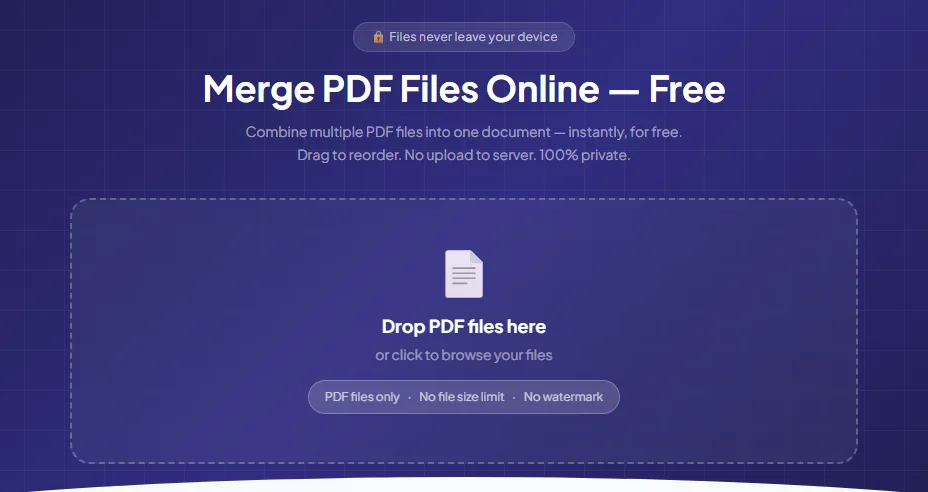
- Drag your PDFs onto the box, or click it and choose them in the file window. Hold Ctrl on Windows or Cmd on Mac and click each file to select several at once.
- Each PDF appears as a card with its name, size and page count. The bar above the cards adds everything up, so you can see how many files, pages and kilobytes you're about to combine.
- Drag a card by its ☰ handle, or click the small ▲ and ▼ arrows on the card, to move it up or down. As the hint above the cards says, files are merged top to bottom.
- Added a file by mistake? Click the red ✕ on its card to take it out.
- Forgot one? Click + Add More PDFs. New files join the bottom of the list, so move them up if they belong earlier.
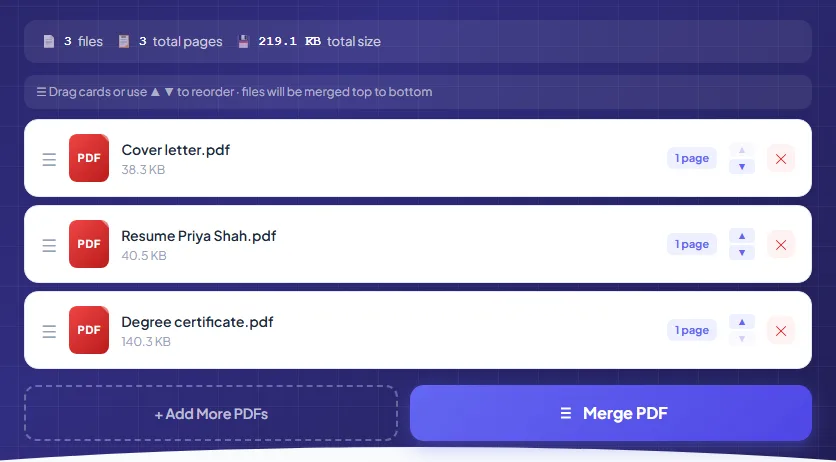
Your files are now lined up and ready to become one document.
Good to know
Merge PDF only takes PDF files. If you drop a photo or a Word document, it's skipped and a short message tells you so. Convert it first with JPG to PDF or Word to PDF, then add the new PDF to the list.
Step 2: How do you merge them and download the file?
Click Merge PDF, wait a moment, then click Download Merged PDF.
Follow these steps:
- Check the summary bar one last time. The page count should match what you expect to send.
- Click Merge PDF. The button changes to "Merging..." and a progress bar shows each file being loaded. You need at least two files, or the tool asks you to add more.
- When the green PDF Merged Successfully! box appears, read the line under it. It shows the total pages and the size of the new file.
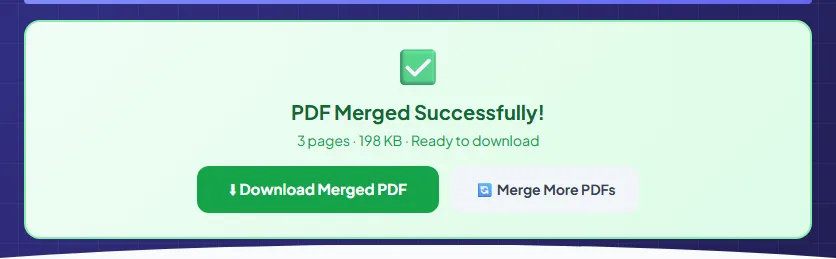
- Click Download Merged PDF. The file is named after the first file in the list, for example Cover letter-merged-pdfchai.pdf, and saved in your usual downloads folder.
- Rename it to something clear, like "Priya Shah application.pdf", before you send it.
- To start over with a new set of files, click Merge More PDFs.
That's it. No software to install, no account and no watermark, just one clean PDF.
Tip
Open the merged file and scroll through it once before you send it. It takes twenty seconds and catches the two most common problems: a page in the wrong place and a document you forgot to add.
How do you merge PDFs on Android, iPhone, Windows and Mac?
Merge PDF runs in any modern browser, so the steps are the same everywhere. What changes is how you pick the files and where the merged PDF ends up.
Android
Open Merge PDF in Chrome and tap the box. Your phone's file picker opens, and in most pickers you can long-press one PDF and then tap the others to select several. Files you received on WhatsApp or by email are usually in the Downloads folder.
Dragging cards with a finger doesn't work in every mobile browser, so use the ▲ and ▼ arrows on each card instead. Each tap moves that file one place up or down.
The merged file lands in Downloads. Open it from Chrome's download message or your Files app, then tap Share to send it on WhatsApp or Gmail.
iPhone and iPad
Open the tool in Safari and tap the box to choose PDFs from the Files app, including iCloud Drive and On My iPhone. If the picker only lets you choose one file at a time, add the rest with + Add More PDFs, in order.
When you tap Download Merged PDF, Safari usually asks whether you want to view or download the file. Choose Download, and it's saved to the Downloads folder in the Files app. From there, tap the Share button to send it by Mail, WhatsApp or AirDrop.
Windows
Use Chrome, Edge or Firefox. In the file window, hold Ctrl and click each PDF, or press Ctrl+A to select everything in the folder. You can also drag files straight from File Explorer onto the box.
The merged PDF goes to your Downloads folder. Chrome and Edge both open PDFs on their own, so you can check the pages right in the browser. To rename the file, click it once in File Explorer and press F2.
Mac
Safari, Chrome and Firefox all work. Hold Cmd to select several files in the file window, or drag them in from Finder. The merged PDF is saved to Downloads, and you can rename it by selecting it in Finder and pressing Return.
Your Mac's Preview app can also combine PDFs by dragging page thumbnails from one file's sidebar into another. Merge PDF is quicker when you have several files or want to reorder whole documents.
A real example, start to finish
Priya Shah is a data analyst in Bengaluru, applying for a new role. The company's careers page has one upload slot for her application documents, and it only takes a single PDF. She has three separate files on her laptop:
- Cover letter.pdf, 38.3 KB and 1 page
- Resume Priya Shah.pdf, 40.5 KB and 1 page
- Degree certificate.pdf, 140.3 KB and 1 page
She opens Merge PDF in Chrome, selects all three with Ctrl and drops them on the box. The summary bar reads 3 files, 3 total pages and 219.1 KB total size.
The degree certificate lands in the middle of the list, but a recruiter should read her letter and resume first. She clicks the ▼ arrow on its card once to move it to the bottom, so the order is cover letter, resume, certificate.
She clicks Merge PDF. About a second later the green box says 3 pages, 198 KB, ready to download. The new file is even a little smaller than the three originals added together.
She clicks Download Merged PDF, renames Cover letter-merged-pdfchai.pdf to "Priya Shah application.pdf" and opens it to check the order. Everything is where it should be, so she uploads it. The whole job takes under two minutes, and none of her documents ever leave her laptop.
What are the most common mistakes?
Merging in the wrong order
The final file follows the cards from top to bottom, not the order you clicked them or the dates on the files. Look at the list before you click Merge PDF, and move anything that's out of place.
Adding the same file twice
Merge PDF doesn't stop you from adding a file that's already in the list, and it's easy to do when you use + Add More PDFs. If the page count in the summary bar is higher than you expect, look for a duplicate card and remove it with ✕.
Trying to merge a locked PDF
Bank statements, payslips and e-Aadhaar downloads often come protected with a password. Merge PDF can't read the protected content, so you'll either see a message that the file couldn't be read or end up with pages that don't display properly. Remove the password first with Unlock PDF, using the password you already know.
Adding photos or Word files directly
The tool only accepts PDFs, so a JPG or a .docx is skipped. Convert them first, then add the new PDFs to the list.
Sending a file that's too large
Merging adds files together, so three 4 MB scans make a file of around 12 MB. That's too big for many upload forms and some email inboxes. Compress the merged file before you send it.
Not checking the result
A wrong page order or a missing document is easy to fix before you send the file and awkward after. Open the merged PDF and scroll through it once.
What are the best tips for merging PDF files?
What order should the documents go in?
Follow the checklist on the form or in the email, if there is one. If not, put the main document first, such as the application form or cover letter, then the supporting proof in the order it's mentioned. A reader who finds things where they expect them gets through your file faster.
How do I make the order obvious before I start?
Give your files numbered names, like "01 Cover letter.pdf", "02 Resume.pdf" and "03 Degree.pdf". The numbers make a card that's out of place easy to spot, and your folder stays in the same order as the final document.
How do I move a single page?
Merge PDF orders whole files. To move one page, such as a signature page to the end, open the merged file in Organize PDF. It shows every page, and you can move, rotate or delete pages one by one before you download.
Can I merge only some pages of a PDF?
Yes. Take out the pages you need first with Extract Pages, or drop the ones you don't want with Remove Pages. Then merge the trimmed file with the others.
What happens to my fillable forms?
Form fields and their answers are kept. If you merge two copies of the same form, though, their fields share the same names and can get mixed up. Fill each copy in Fill PDF Form, choose Flatten (answers can't be changed) and download it before merging.
How do I add photos and Word files?
Turn them into PDFs first. JPG to PDF handles photos and screenshots, Word to PDF handles .docx files, and Scan to PDF turns phone photos of paper into clean, cropped pages.
Should I add page numbers?
For anything longer than a few pages, yes. After merging, run the file through Add Page Numbers so the reader can say "see page 7" and find it straight away. It helps a lot with long application bundles and tender documents.
The merged file is too big. What now?
Run it through Compress PDF. The Medium level usually shrinks scans a lot while text stays sharp. Our guide on compressing a PDF to a specific size explains which level fits which upload limit.
Can I password-protect the merged file?
Yes. Once you're happy with the result, add a password with Protect PDF. Do it last, because a protected file has to be unlocked again before you can merge or edit it. Our guide on password-protecting a PDF walks you through it.
How do I take one document back out later?
If someone asks for just one part of your bundle, use Split PDF to pull those pages back out as a new file. Our guide on how to split a PDF shows the different ways to do it.
One file, ready to send
Merging PDFs turns a messy pile of attachments into one document that's easy to upload, easy to read and hard to lose pages from. Add your files, check the order, click Merge PDF, and you're done.
And because PDFChai merges everything inside your browser, your CV, ID proofs and bank statements stay on your own device the whole time.
FAQs
1. How many PDFs can I merge at once?
There's no fixed limit on files or pages. Dozens of ordinary documents merge in a few seconds. Very large scans use more memory, so for hundreds of big files a laptop works better than a phone, or you can merge them in batches.
2. Does merging reduce the quality of my PDFs?
No. Pages are copied as they are, without being redrawn or compressed, so text stays sharp and scans keep their resolution.
3. Will my fillable forms still work after merging?
Yes. Form fields and the answers in them are kept in the merged file. Just avoid merging two copies of the same form, because fields with the same name can get mixed up.
4. Why won't my PDF merge?
The file is usually password-protected, damaged or not really a PDF. Unlock it with Unlock PDF if you know the password, or try Repair PDF if it won't open in any viewer.
5. Can I merge PDFs with different page sizes?
Yes. Each page keeps its own size, so A4 pages, US Letter pages and wide slides can all sit in the same file. When you print it, your printer may scale some pages to fit the paper.
6. Does the merged PDF have a watermark?
No. PDFChai adds nothing to your pages: no watermark, no logo and no extra page.
7. What is the merged file called?
It's named after the first file in your list, with "-merged-pdfchai" added, for example Cover letter-merged-pdfchai.pdf. Rename it before you send it, ideally with your name and what the file contains.
8. Do I need to stay online while merging?
The page needs internet to load. After that, the merging happens in your browser, so your files never have to travel anywhere.
9. Can I change the order after merging?
Yes. Your original files aren't changed, so you can simply merge them again in a different order. To move just a page or two, open the merged file in Organize PDF instead.
10. Are my files safe when I merge them?
Yes. Your files are read and combined inside your browser and are never uploaded to a server. Close the tab and they're gone from the page.
Merge your PDF files with PDFChai in just a few clicks!
Merge now