Table of contents
- What is PDF password protection, and what does it do?
- When should you password protect a PDF?
- Step 1: How do you add a password to a PDF?
- Step 2: How do you check and send the protected PDF?
- Step 3: How do you remove a password you know?
- How do you password protect a PDF on Android, iPhone, Windows and Mac?
- A real example, start to finish
- What are the most common mistakes?
- What are the best tips for protecting a PDF?
- Locked before it leaves
- FAQs
To password protect a PDF, open PDFChai's Protect PDF tool, add your file, type a password twice and click Protect & Download. You get an AES-256 encrypted copy that nobody can open without that password.
Payslips, bank statements, Aadhaar scans and GST invoices travel by email and WhatsApp every day. Sooner or later one lands in the wrong inbox, gets forwarded once too often, or sits in the Downloads folder of a shared office computer. A password keeps the document closed in all of those cases.
In this guide, we'll show you how to lock a PDF, what the password does (and what it doesn't), how to choose and share a password that actually helps, and how to remove one from your own files when you no longer need it.
Let's get started.
Key takeaways
- Protect PDF encrypts your file with AES-256, so it can't be opened without the password
- The password decides who can open the file, not what they do after opening it
- A long passphrase beats a short, clever password
- Always send the password by a different route than the file
- Unlock PDF removes a password you know, and it never guesses one you don't
- Both tools run in your browser, so your file and password never leave your device
What is PDF password protection, and what does it do?
Password protecting a PDF encrypts it. The text, images and fonts inside the file are scrambled with a key made from your password, and a PDF reader can only turn them back into pages when someone types that password.
It's encryption, not a cover page
A protected PDF isn't a normal file with a password screen stuck in front of it. The readable document simply isn't there until the right password unlocks it. That's why it stays safe even if someone copies the file to another computer or opens it in a different app.
What AES-256 means
AES is the encryption standard used by banks, governments and secure messaging apps, and 256 is the length of the key in bits. The PDF format also has older, weaker methods, such as RC4 and 128-bit keys, but AES-256 is the strongest one it supports. PDFChai applies it with qpdf, a well-known open-source PDF engine, running right inside your browser.
Open passwords and permissions passwords
A PDF can carry two kinds of password. The open password (also called the user password) is needed just to view the file. The permissions password (the owner password) is meant to stop printing, copying or editing, but it only works when the reader app chooses to respect it.
Protect PDF sets an open password and uses the same password for the owner part. It doesn't add printing or copying limits. So once someone opens the file with the password, they can read it, print it, copy text from it and even save an unlocked copy, just like any other PDF.
What a password can't do
A password guards the whole file at once. It can't hide one account number while showing the rest, and it can't stop the person you trust from passing the password on. For the first job you need Redact PDF. For the second, you need to be careful about who gets the password.
When should you password protect a PDF?
Protect a PDF whenever it holds personal or financial details and it's about to leave your own device.
- Payslips and Form 16: salary figures, PAN and employer details going to an accountant, a landlord or a new employer.
- Bank statements: for a home loan, a visa file or a rental agreement, where the statement passes through several hands before anyone reads it.
- Invoices with bank details: a GST invoice shows your account number and IFSC, and nobody outside the deal needs to see them.
- Medical reports: test results and prescriptions shared with family members or a doctor over email.
- ID copies: Aadhaar, PAN or passport scans sent with a job application or a rental agreement.
- Files kept in the cloud or on a shared computer: a password adds a second lock on top of the account that stores them.
If a file would cause trouble in the wrong inbox, lock it before it goes.
Step 1: How do you add a password to a PDF?
Add your file to Protect PDF, type the password twice and click Protect & Download.
Here's how:
- Open Protect PDF. You'll see a box that says "Drop a PDF here", with the chips AES-256, No upload and Private underneath.
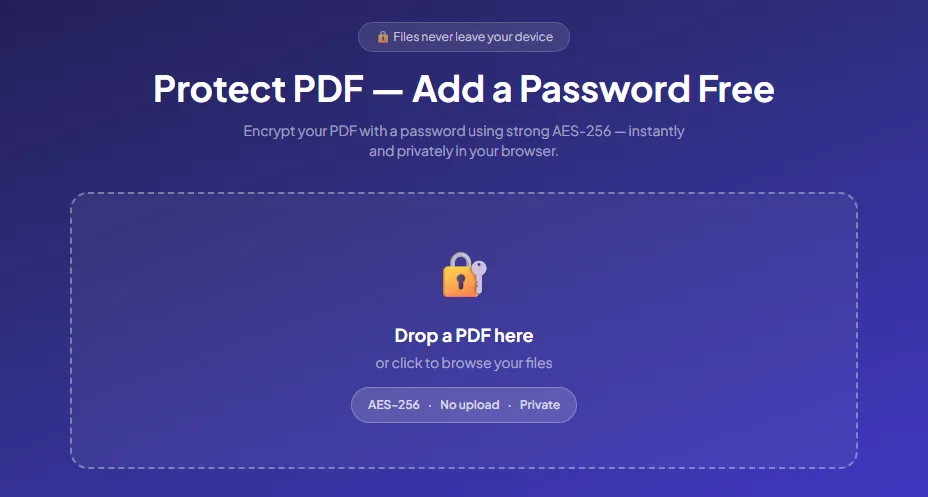
- Drag your PDF onto the box, or click the box and choose the file. The tool locks one PDF at a time.
- Type your password in the Enter a password box.
- Type it again in the Confirm password box. Both boxes show dots instead of letters, so the second box is your check against typos. Click Show next to the first box if you want to see what you typed in both, then click Hide again.
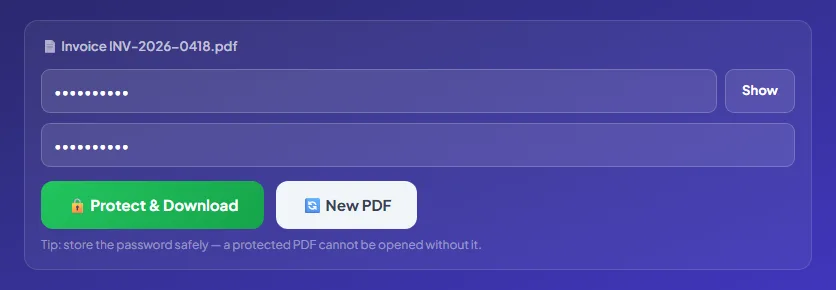
- Click Protect & Download. The button reads "Encrypting…" for a moment while the encryption engine loads, then the protected file downloads.
- Look for the green line "Your protected PDF has been downloaded." It means the encrypted copy is now in your Downloads folder.
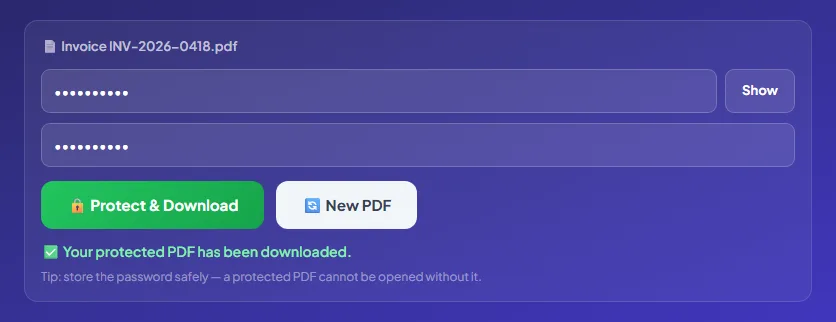
If the two passwords don't match, the tool says "Passwords do not match." and nothing is downloaded. If you leave the boxes empty, it asks you to enter a password first. If the PDF already has a password or other protection, a red message tells you to remove it first with Unlock PDF. To lock another file, click New PDF.
Good to know
The protected copy keeps your file's name with "-protected-pdfchai" added, for example Invoice INV-2026-0418-protected-pdfchai.pdf. You can shorten the name before you send it. Your original file isn't changed.
Step 2: How do you check and send the protected PDF?
Open the protected copy once, then send the file and the password by two different routes.
Follow these steps:
- Find the protected copy in your Downloads folder. It ends in "-protected-pdfchai.pdf", so you can tell it apart from the original. Rename it if you like, for example to "Payslip October 2026.pdf".
- Open it in any PDF reader. It should ask for a password before it shows a single page.
- Type your password and check that the pages look exactly like the original.
- Attach the file to your email or chat as usual.
- Send the password separately: in a phone call, by SMS, or in a different chat app from the one carrying the file.
- Keep the unprotected original somewhere safe, or save the password in a password manager.
That's it. If the file is ever forwarded or lands in the wrong place, it stays closed.
Step 3: How do you remove a password you know?
Add the protected file to Unlock PDF, type the password and download the unlocked copy.
Here's what to do:
- Open Unlock PDF and add the protected file.
- The tool checks how the file is locked. If it has an open password, a Password for this PDF box appears.
- Type the password. Click Show if you want to see what you typed.
- Click Unlock PDF.
- Click Download unlocked PDF. The new copy, which ends in "-unlocked-pdfchai.pdf", opens without a password and has no printing, copying or editing limits.
If the password is wrong, the tool tells you and the file stays locked. Passwords are case-sensitive, so check Caps Lock, your keyboard layout and any extra spaces. If a PDF only has permission limits (it opens fine but won't let you print), Unlock PDF removes them straight away without asking for anything.
Unlock PDF never guesses or cracks passwords. It's meant for your own files, or files you've been given the password for.
How do you password protect a PDF on Android, iPhone, Windows and Mac?
Protect PDF works in any modern browser, so the steps are the same everywhere. What changes is where your files live and how you share them.
Android
Open the tool in Chrome and tap the box. Android's file picker opens, and you can choose a PDF from Downloads, Google Drive or any other folder. The protected copy goes to your Downloads folder, and you can open it from Chrome's download list or the Files app.
To send it, open the file in your Files app, tap Share and pick Gmail or WhatsApp. Then send the password in a call or a separate message.
iPhone and iPad
Use Safari. When you tap the box, pick Choose File rather than Photo Library, so you can browse the Files app. Safari may ask you to confirm the download, and the protected copy lands in the Downloads folder in Files.
In Files, touch and hold the file to rename it, then use the Share button to send it by Mail or WhatsApp. Tapping the file in Files asks for the password, which is a quick way to test the lock.
Windows
Chrome, Edge and Firefox all work. Drag the PDF from File Explorer onto the box, and the protected copy appears in your Downloads folder. Open it in Edge or Adobe Acrobat Reader to check that it asks for the password, then right-click it to rename it before you attach it to an email.
Mac
Use Safari, Chrome or Firefox, and drag the file in from Finder. The protected copy goes to Downloads. Preview asks for the password when you open the file, so double-click it to test the lock. Preview can add passwords on its own too, but PDFChai gives you the same steps on every device you own.
A real example, start to finish
Rahul Mehta runs Pixel & Pine Studio, a small design studio in Ahmedabad. He's just finished a website redesign for Asha Traders in Pune, and his invoice, Invoice INV-2026-0418.pdf, comes to ₹1,04,194. At the bottom, it shows his HDFC account number, his IFSC and his phone number.
The invoice is going to a shared accounts inbox at Asha Traders, and Rahul doesn't know who reads it. So he opens Protect PDF on his laptop, drops in the invoice and types a 10-character password twice. He clicks Protect & Download, and the green line says "Your protected PDF has been downloaded."
He renames Invoice INV-2026-0418-protected-pdfchai.pdf back to "Invoice INV-2026-0418.pdf" and opens it in Edge. The password prompt appears, he types the password, and the invoice looks exactly as it did before. He emails the file, then calls the accountant at Asha Traders and reads the password out to her.
A week later, the accountant needs to upload the invoice to her accounting software, which won't accept encrypted files. She drops it into Unlock PDF, types the password and downloads the unlocked copy. The whole round trip took Rahul about two minutes, and his bank details never sat unprotected in anyone's inbox.
What are the most common mistakes?
Most problems with protected PDFs come from the password, not the encryption. Here are the ones we see most often.
Sending the password in the same email
If the file and the password travel together, anyone who gets the email gets both. Send the password by phone, SMS or a different chat app, so one leak isn't enough to open the file.
Using a password anyone could guess
Your date of birth, mobile number, PAN or company name are the first things someone would try. Many bank statements arrive locked with a password built from your name and date of birth, which stops strangers but not anyone who knows you. Pick something that isn't written on the document itself.
Losing both the password and the original
Nobody can open a properly protected PDF without its password, PDFChai included. If you delete the original and forget the password, the content is gone for good. Keep the original in a safe folder, or save the password in a password manager.
Expecting the password to stop printing or copying
Protect PDF controls who can open the file. Once someone types the password, they can print it, copy from it and save a copy without the password. If there's a detail they shouldn't see at all, remove it with Redact PDF before you protect the file.
Protecting the file before you've finished with it
PDF tools need to read a file before they can change it, so most of them can't work on an encrypted one. PDFChai's Redact PDF and PDF to PDF/A, for example, ask you to unlock the file first. Do all your editing, merging and compressing first, then add the password as the very last step.
Uploading a protected file to a portal
Many upload forms for jobs, exams and government services can't read encrypted PDFs, so they reject the file, or the person reviewing it can't open it. Portals already use a secure connection, so upload the unprotected copy there and save passwords for email and chat.
What are the best tips for protecting a PDF?
How long should my password be?
Longer is stronger. A passphrase of four random words, such as river-lamp-orbit-sugar, is far harder to guess than P@ss123 and much easier to type. For anything sensitive, aim for at least 12 characters.
Which characters should I use?
Stick to letters, numbers and the common symbols found on every keyboard. The person opening the file may be typing on a phone, and a ₹ sign or letters from another script can be hard for them to enter.
Can I use the same password for every file?
It's better not to. Use a different password for each person or each batch of documents, and never reuse your email or banking password. If one password leaks, only one set of files is exposed.
How do I share the password safely?
Use a different channel from the file. Email the PDF, then share the password in a call, by SMS or in another messaging app. For files you send to the same person every month, agree on a password once, in person or on a call.
Can I add a password while I'm editing a PDF?
Yes. If you're already working on the file in Edit PDF, click Protect in the toolbar and type a password. It's applied when you click Download, so your edits and the password are saved together.
What order should I do things in?
Finish the content first, then lock it. A typical order is to merge the files, redact anything private, compress the result if it's too big, and protect it last.
Is a password enough to hide one detail?
No. A password hides the whole file, and anyone who opens it sees everything. To remove an account number or a name for good, redact it first, then add a password. Our guide on how to redact a PDF walks you through it.
Will the file get bigger?
Encryption barely changes the size. If the PDF is too big for email in the first place, shrink the original with Compress PDF, then protect the smaller copy.
Will the password work on every device?
Yes, on any recent PDF reader. Adobe Acrobat Reader, Chrome, Edge, Firefox, Mac Preview and the usual phone PDF apps all open AES-256 files and ask for the password. Only very old PDF software may fail to open them.
How do I change the password on a PDF?
Remove the old one with Unlock PDF, then run the unlocked copy through Protect PDF with the new password. Protect PDF won't lock a file that already has a password, so this two-step order is the only way. Delete the unlocked copy afterwards if you don't need it.
Locked before it leaves
A password takes less than a minute to add, and it protects your document wherever it ends up. Choose something long, send it separately, and keep the original safe.
PDFChai encrypts your PDF right in your browser. Neither the file nor the password is ever sent anywhere, so the only people who see them are you and the person you give the password to.
FAQs
1. How secure is a password-protected PDF?
With AES-256 and a long, unique password, it's very secure. The weak point is almost always the password itself, so avoid names, dates and anything written on the document.
2. Can PDFChai remove a password I don't know?
No. Unlock PDF needs the correct password and never tries to guess or crack one. It's meant for your own files, or files you've been given the password for.
3. Does protecting a PDF change its content?
No. Pages, text, images and form fields stay the same, and only the encryption is added. Your original file stays untouched on your device.
4. Can the person I send it to print or copy it?
Yes. Protect PDF sets an open password only, without printing or copying limits. Once they open the file with the password, they can use it like any other PDF.
5. Why won't a portal accept my protected PDF?
Many upload forms can't read encrypted files, so they reject them. Upload the unprotected copy instead, since portals already use a secure connection.
6. Is my file or password uploaded anywhere?
No. Your browser downloads the encryption engine the first time you use the tool, and after that your PDF is encrypted on your own device. Neither the file nor the password is sent to a server.
7. Can I protect a PDF on my phone?
Yes. Open Protect PDF in Chrome on Android or Safari on iPhone, pick the file, set the password and save the protected copy to your Downloads.
8. Can I protect several PDFs at once?
Protect PDF handles one file at a time. If the documents belong together, combine them first with Merge PDF and protect the merged file with one password.
9. What happens if someone types the wrong password?
The PDF reader simply asks again and shows nothing. The file itself has no lockout after a number of wrong tries, which is one more reason to pick a long password that can't be guessed.
10. Is Protect PDF free?
Yes. There's no signup, no watermark and no limit on how many files you protect.
Protect your PDF with PDFChai in just a few clicks!
Protect now