Table of contents
- What is redaction, and why aren't black boxes enough?
- When should you redact a PDF?
- Step 1: How do you mark what to remove?
- Step 2: How do you remove it for good?
- How do you redact a PDF on Android, iPhone, Windows and Mac?
- A real example, start to finish
- What are the most common mistakes?
- What are the best tips for redacting a PDF?
- Gone means gone
- FAQs
To redact a PDF properly, open PDFChai's Redact PDF tool, mark what you want removed by searching for it or drawing boxes, then click Redact & download. Every page with a mark is rebuilt with the boxes burned in, so the hidden text is deleted from the file, not just covered.
Every so often, a "redacted" court filing or government report makes the news because someone copied the text under the black boxes and pasted it into a new document. The boxes were drawn on top of the words, and the words never left the file.
The same thing can happen with a bank statement you send as address proof, or an invoice you share as a sample. In this guide, we'll explain why black boxes fail, how real redaction works, and how to redact a PDF so nothing comes back.
Let's get started.
Key takeaways
- A black rectangle drawn in an editor usually leaves the text underneath, ready to be copied
- Redact PDF rebuilds each marked page as a picture, so nothing under the boxes survives
- Text outside the boxes is put back as an invisible layer, so the rest of the page stays searchable
- Find & mark finds the words you type, plus emails, phone numbers, PAN, Aadhaar and card numbers
- Scanned pages need boxes drawn by hand, or OCR first
- Your PDF is redacted in your browser and never uploaded
What is redaction, and why aren't black boxes enough?
Redaction means removing information from a document before you share it, so the reader sees everything except the parts you took out. Done properly, the removed text isn't hidden somewhere in the file. It's gone.
How a PDF stores text
A PDF page is built in layers, a bit like a stack of transparent sheets. The words are stored as real text, with every letter placed at an exact spot, and anything you draw later goes on a sheet above them. That's what lets you select, search and copy text from a PDF in the first place.
Why a black rectangle fails
When you draw a filled rectangle in a PDF editor, or add a black highlight in Word before saving as PDF, the box sits on top of the words. The words are still there underneath. Anyone who gets the file can:
- drag across the box, copy the text and paste it into Notepad
- press Ctrl+F and search for the hidden number
- move or delete the box in another PDF editor
- run the file through a text extractor or a screen reader, which ignore boxes completely
Flattening the file doesn't fix it either. Flattening merges the box into the page, but the text is still drawn underneath it and can still be selected.
How PDFChai removes the content
Redact PDF takes a different approach. Each page that has a mark is drawn as a picture at 200 dpi, the boxes are painted onto that picture, and the picture replaces the page. The original text, images and drawings of that page aren't copied into the new file, so there's nothing left under the boxes to recover.
A picture on its own can't be searched, so the tool puts the text back for everything outside the boxes, as an invisible layer lined up with the picture. You can still search and copy the rest of the page, but the letters under the boxes are never written. Pages without any marks are copied exactly as they were.
The redacted file is a brand-new document, so bookmarks, document properties (such as the author name) and attachments from the original aren't carried over either.
When should you redact a PDF?
Redact a PDF whenever someone needs most of a document but shouldn't see every detail in it.
- Bank statements as proof: hide the account number and the transactions that have nothing to do with the request.
- Aadhaar copies: hide the first eight digits when a copy is only needed as proof, the way UIDAI's masked Aadhaar does.
- CVs shared widely: remove your phone number, home address and date of birth from a CV posted in a public job group.
- Invoices used as samples: hide the client's name and your bank details before you show an old invoice to a new client.
- Legal, HR and RTI papers: remove the names and personal details of people who aren't part of the matter.
- Research and teaching: take student or interviewee names out of answer sheets, transcripts and survey forms.
Proper redaction lets you share what's needed and nothing more.
Step 1: How do you mark what to remove?
Type words or tick kinds of data, click Find & mark, then drag boxes over anything else.
Here's how:
- Open Redact PDF. You'll see a drop box with the chips Permanent, No upload and No watermark.
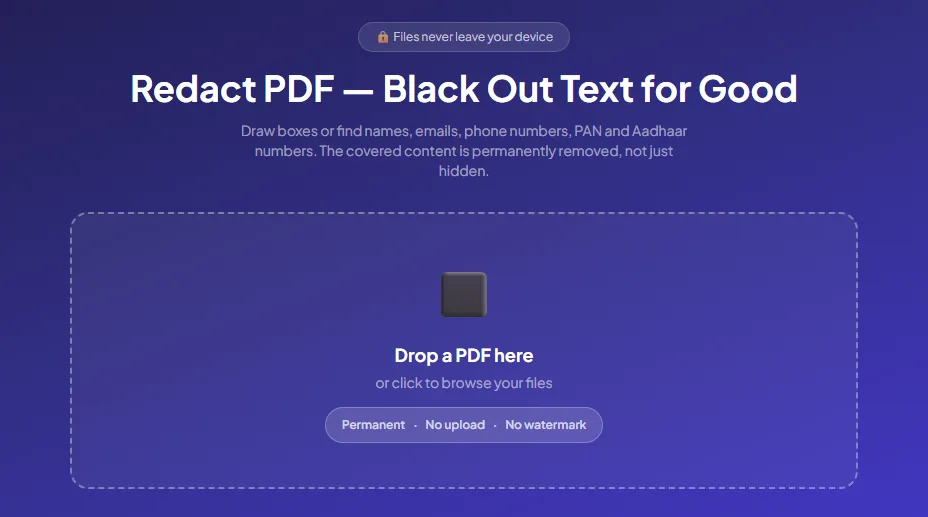
- Drop your PDF onto the box, or click it to choose the file. Every page appears below the panel, and the top line shows the file name, the page count and how many areas you've marked.
- In the Find & redact box, type the words, names or numbers you want gone, separated by commas.
- Tick any kinds of data to look for: Email addresses, Phone numbers, PAN, Aadhaar or Card numbers. Tick Match case only if capital letters matter for the words you typed.
- Click Find & mark. The tool searches every page and tells you how many matches it marked.
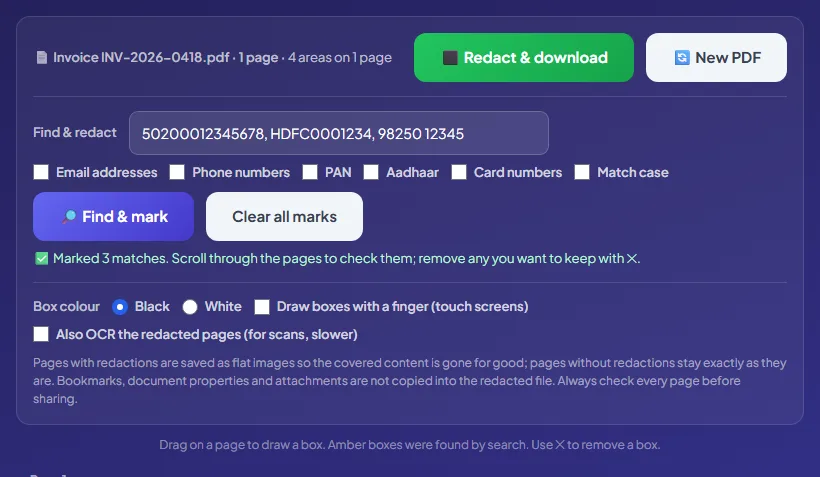
- Drag on a page to draw a box over anything search can't find, such as an address block, a signature, a photo or a stamp. On a phone or tablet, tick Draw boxes with a finger (touch screens) first, and untick it when you want to scroll again.
- Scroll through every page. Amber boxes came from the search, and boxes with a red outline are the ones you drew. Remove any box you don't want with its red ✕.
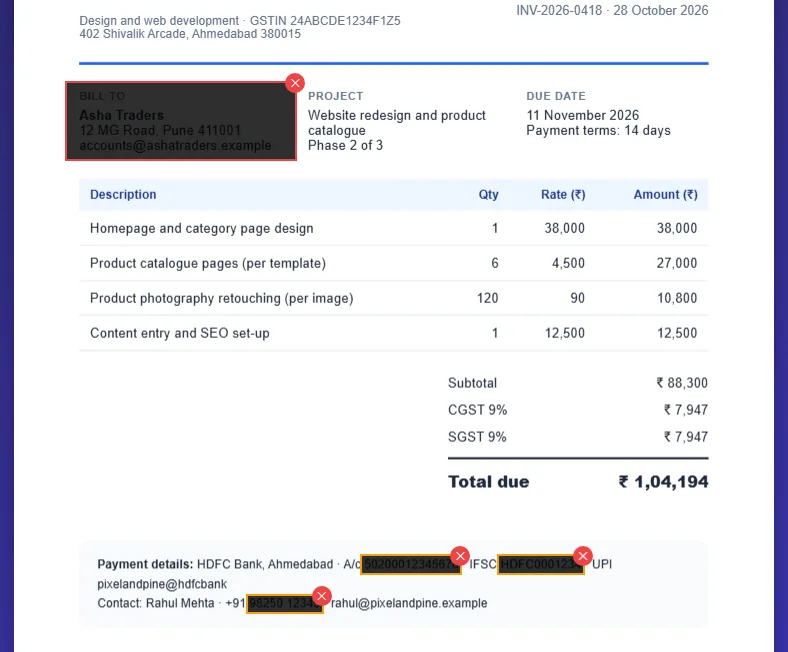
The boxes are slightly see-through on screen, so you can check what's under them. In the downloaded file, they're solid.
What does each checkbox find?
Each checkbox looks for a pattern in the text of every page. Knowing exactly what they match helps you spot what they'll miss.
- Email addresses: anything shaped like name@domain.com, including addresses with dots, plus signs or hyphens in them.
- Phone numbers: numbers with 10 to 13 digits in total, with or without a + country code, written with spaces or hyphens between the groups. So +91 98250 12345, 9825012345 and 079 2654 1234 are found, but shorter local numbers and numbers split with dots aren't.
- PAN: five capital letters, four digits and one capital letter, like ABCDE1234F, standing on its own as a word.
- Aadhaar: any 12-digit number, written as one block or as three groups of four. There's no checksum test, so another 12-digit number in that shape gets marked too.
- Card numbers: 13 to 19 digits, with or without spaces or hyphens, that pass the Luhn check every real card number passes. Most random digit strings fail it, so they aren't flagged.
The words you type are matched whatever their capitals are, unless you tick Match case. The checkboxes ignore that setting.
Step 2: How do you remove it for good?
Pick a box colour and click Redact & download. The marked pages are rebuilt and the new file downloads.
Follow these steps:
- Under Box colour, choose Black or White. Black makes it obvious that something was removed, while white blends into the page.
- If a marked page is a scan, tick Also OCR the redacted pages (for scans, slower) and choose the document's language from the list that appears. It has 16 languages, including Hindi, Gujarati, Tamil and Bengali. Skip this for normal PDFs.
- Click Redact & download. A progress bar shows each page as it's redacted.
- Your browser saves the new file with "-redacted-pdfchai" added to its name, and a green note tells you how many pages were flattened.
- Open the redacted copy, press Ctrl+F (Cmd+F on a Mac) and search for something you removed. Nothing should be found.
- Now search for a word outside the boxes. It should still be found, which shows the rest of the page kept its text.
That's it. Your original file isn't changed, so keep it somewhere private in case you need the full version again.
Watch out
Redaction can't be undone in the new file. That's the whole point, so check every page before you click Redact & download, and keep the unredacted original somewhere safe.
How do you redact a PDF on Android, iPhone, Windows and Mac?
Redact PDF runs in the browser on every device. Drawing boxes is easiest with a mouse or trackpad, but a finger works too.
Android
Open the tool in Chrome and tap the box to pick your PDF from Downloads or Google Drive. Pages scroll normally at first. To draw, tick Draw boxes with a finger (touch screens) and drag over each detail, then untick it to scroll on to the next page.
On a small screen, Find & mark is often quicker than drawing, so search first and draw only what's left. The redacted copy goes to your Downloads folder, and you can share it from the Files app.
iPhone and iPad
Use Safari. Tap the box, pick Choose File and find your PDF in the Files app. The finger drawing checkbox works the same way as on Android, and on an iPad there's plenty of room to draw accurate boxes.
The redacted copy is saved to the Downloads folder in Files. Before you send it, it's worth checking the result on a computer, or comparing it with the original in Compare PDF.
Windows
Chrome, Edge and Firefox all work. Click and drag with the mouse to draw boxes, and the redacted file lands in your Downloads folder. Open it in Edge, press Ctrl+F and search for a removed number to confirm it's gone.
Mac
Use Safari, Chrome or Firefox, and click and drag on the trackpad to draw. Open the result in Preview and use Cmd+F to check. Keep in mind that the shapes you can draw with Preview's Markup tools are annotations that sit on top of the text, so they aren't a safe way to redact.
A real example, start to finish
Rahul Mehta of Pixel & Pine Studio in Ahmedabad wants to show a new client what a finished invoice from his studio looks like. His best example is Invoice INV-2026-0418.pdf, the ₹1,04,194 invoice he sent to Asha Traders in Pune. But it shows the client's address and email, plus his own account number 50200012345678, IFSC HDFC0001234 and mobile +91 98250 12345.
He opens Redact PDF and drops in the invoice. In Find & redact, he types "50200012345678, HDFC0001234, 98250 12345" and clicks Find & mark. The tool replies "Marked 3 matches", and three amber boxes appear in the payment details at the bottom of the page.
Search can't guess which block is the client's address, so he drags a box over the whole Bill to section: Asha Traders, 12 MG Road, Pune 411001 and accounts@ashatraders.example. The top line now reads "4 areas on 1 page". The +91 in front of his mobile number sits outside its box, and he leaves it, since a country code on its own says nothing. His UPI ID and studio email stay visible on purpose, because both are on his website anyway.
He keeps the box colour on Black and clicks Redact & download. The new file, Invoice INV-2026-0418-redacted-pdfchai.pdf, opens with four solid black bars. Searching it for 50200012345678 finds nothing, while searching for "catalogue" still finds the project description. The line items and the total of ₹1,04,194 are all there, which is exactly what the new client wanted to see.
What are the most common mistakes?
Most redaction leaks come from small oversights rather than bad tools. These are the ones to watch for.
Drawing black boxes in a normal editor
A filled rectangle, a black highlight or a thick black line only covers the words. The text is still in the file for anyone to copy or search. Use a real redaction tool, and test the result with Ctrl+F.
Trusting search to find everything
Search reads the text layer, so it can't see words inside photos, logos, signatures or scanned pages. It also works one line at a time, so a name that wraps onto the next line won't match as one phrase. Always scroll through every page after Find & mark.
Forgetting the same detail elsewhere
Names and numbers repeat in headers, footers, tables, signatures and small print. Searching for the exact text catches every copy in the text layer, which is safer than drawing boxes one at a time.
Leaving a QR code or barcode
A QR code can hold the same details you've hidden in the text. GST e-invoices, for example, carry a QR code with the GSTINs, the invoice number and the amount. If those details are private, draw a box over the code too.
Using white boxes where the reader needs to know
White boxes blend into the page, so the reader may not realise anything was removed. For legal, HR and official documents, black is what people expect, and it shows clearly that the gap is deliberate.
Sending the wrong file
The redacted copy has "-redacted-pdfchai" at the end of its name. Rename it if you like, but keep the original in a separate folder so you never attach it by mistake.
What are the best tips for redacting a PDF?
Should I search first or draw first?
Search first. Clear all marks removes every box, including the ones you drew, so changing your search later means drawing again. Clicking Find & mark a second time adds another set of boxes on top of the first, which doesn't harm the result but pushes the area count up.
How do I catch numbers written in different ways?
A space in what you type matches any spacing, including none. So "98250 12345" also finds 9825012345. Hyphens aren't treated the same way, so add a second term such as 98250-12345 if the document uses them.
How do I hide only part of an Aadhaar number?
The Aadhaar checkbox covers the whole number. To leave the last four digits visible, like a masked Aadhaar, skip the checkbox and draw a box over just the first eight digits.
Does the PAN checkbox find a PAN inside a GSTIN?
No. A GSTIN has the PAN in the middle of it (characters 3 to 12), but the PAN checkbox only matches a PAN that stands alone. Type the full GSTIN into the search box if it needs to go.
What about scanned pages?
A scan is a picture with no text, so Find & mark can't search it. Draw boxes by hand, or run the file through OCR PDF first. After OCR, the page has a text layer, and Find & mark can search it like any other page. Our guide on making a scanned PDF searchable shows how.
When should I tick the OCR option?
Only when a redacted page is a scan and people need to search what's left on it. Normal pages keep their text outside the boxes automatically, and text you added earlier with OCR PDF is kept the same way.
How big should the boxes be?
Draw them a little larger than the text, so no tip of a letter peeks out at the edge. Boxes from Find & mark already include a small margin around each match.
How do I double-check that nothing was missed?
Open Compare PDF, add the original as Original and the redacted copy as Revised, and click Compare PDFs. Every removed word is shown in red and struck through, so you can read down the list and confirm it's exactly what you meant to remove.
Why is the redacted file bigger?
Each marked page becomes a 200 dpi picture, which takes more space than plain text. Pages without marks keep their size. If the file is too big to send, run it through Compress PDF.
Should I add a password too?
For sensitive files sent by email, yes. Redact first, then lock the file with Protect PDF and send the password separately. Our guide on how to password protect a PDF explains each step.
Gone means gone
Real redaction is about removing information, not hiding it. A few minutes spent marking, checking and testing with Ctrl+F means the details you took out can't find their way back.
PDFChai redacts your document inside your browser. The file is never uploaded, so the very details you're protecting never leave your device.
FAQs
1. Can redacted text be recovered?
Not from a file redacted with PDFChai. Each marked page is rebuilt as a picture with solid boxes, and the original content of that page isn't copied into the new file. There's nothing under the boxes to select, search or uncover.
2. Can I still search and copy text on redacted pages?
Yes, everywhere outside the boxes. The tool writes the remaining text back as an invisible layer, so searching and copying keep working. Only scanned pages have no text to put back, which is what the OCR option is for.
3. Does it find Indian phone numbers and Aadhaar numbers?
Yes. The Phone numbers checkbox finds 10 to 13 digit numbers, with or without +91, and the Aadhaar checkbox finds any 12-digit number written as one block or in groups of four.
4. Is it safe to redact confidential documents online?
With PDFChai, yes, because nothing goes online. The page and its libraries load in your browser, and your PDF is redacted on your own device without being uploaded.
5. Can I undo a redaction?
Not in the redacted file, which is the point. Your original isn't changed, so keep it somewhere safe in case you need the full version again.
6. What happens to links, bookmarks and form fields?
Bookmarks, document properties and attachments aren't copied into the redacted file. On pages that were flattened, links and form fields are gone too, while pages without marks keep their links.
7. Can I redact a password-protected PDF?
Not while it's locked. The tool will ask you to remove the password first, so open Unlock PDF, use the password you know, then redact the unlocked copy.
8. Does redaction remove hidden details like the author's name?
Yes. The redacted file is a fresh document, so the title, author and other properties of the original aren't carried over, and neither are attachments.
9. Can I redact photos, signatures and stamps?
Yes. Drag a box over any part of the page, and whatever is under it is removed when the page is rebuilt. This works on scanned pages too.
10. Is Redact PDF free?
Yes. There's no signup, no watermark and no limit on the number of pages.
Redact your PDF with PDFChai in just a few clicks!
Redact now