Table of contents
- What is PDF/A?
- When should you use PDF/A?
- Step 1: How do you add your PDF and choose a PDF/A version?
- Step 2: How do you convert it and check the result?
- How do you convert a PDF to PDF/A on Android, iPhone, Windows and Mac?
- A real example, start to finish
- What are the most common mistakes?
- What are the best tips for converting to PDF/A?
- Files that will still open in 2050
- FAQs
PDF/A is the version of PDF made for long-term archiving: everything needed to show the file, including its fonts and colour information, is stored inside it. To convert a PDF to PDF/A, open PDFChai's PDF to PDF/A tool, keep PDF/A-2b selected and click Convert to PDF/A.
If an upload form has ever rejected your perfectly normal PDF with "file must be PDF/A" or "fonts not embedded", you're not alone. Court e-filing systems, university thesis repositories, government portals and company archives all use this rule, because they need files that will still open correctly long after today's software is gone.
In this guide, we'll explain what PDF/A is in plain words, what the numbers and letters in names like PDF/A-2b mean, which version to choose, and how to convert your file in a couple of clicks.
Let's get started.
Key takeaways
- PDF/A is an ISO standard (ISO 19005) for PDFs that must stay readable for decades
- A PDF/A file carries its own fonts, colour profile and metadata, and can't use passwords, scripts or outside content
- The number is the part of the standard (1, 2, 3 or 4), and the letter is the level (a, b or u)
- PDF/A-2b is the right choice in almost every case, and PDF/A-3b also keeps attached files
- PDFChai makes PDF/A-1b, 2b and 3b files in your browser and lists every change it made
What is PDF/A?
PDF/A is a stricter form of PDF designed for archiving, and the "A" stands for archive. It's an international standard, ISO 19005, and its main rule is simple: everything needed to show the pages exactly as they look today must be inside the file.
Why a normal PDF isn't good enough for an archive
An ordinary PDF can lean on things outside itself. It might use a font that isn't included and expect your computer to have it. It might describe colours in a way that depends on the screen or printer, run a script when it opens, link to an outside file, or be locked with a password nobody will remember in fifteen years.
Today, all of that usually works. But an archive has to think in decades. If the font is missing on a future computer, the reader swaps in a different one and lines move. If the password is lost, the file is useless. PDF/A removes those risks by making the file self-contained.
What a PDF/A file must include
- Every font, embedded. The letter shapes travel inside the file, so the text looks the same on any computer.
- Colours with a fixed meaning. A colour profile (usually sRGB) attached to the file says exactly what each colour is.
- Metadata that identifies it. A block of XMP metadata states the PDF/A part and level, along with details such as the title, author and dates.
What PDF/A doesn't allow
- Passwords and encryption of any kind
- JavaScript, and actions that launch programs or play sound and video
- Content that lives outside the file, such as linked fonts or images
- Annotations that are hidden, never printed, or have no defined appearance
PDF/A-1 adds a few more limits on top of these, which we'll come to next.
The parts: PDF/A-1, 2, 3 and 4
The number after "PDF/A" is the part of the standard. Each part was published at a different time and is built on a different version of PDF.
- PDF/A-1 (2005) is based on PDF 1.4. It's the strictest part: no transparency, no layers, no JPEG 2000 images and no attached files.
- PDF/A-2 (2011) is based on PDF 1.7. It allows transparency, layers and JPEG 2000 images, and it lets you attach other files only if they're PDF/A files themselves.
- PDF/A-3 (2012) works like PDF/A-2, except that attachments can be any type of file, such as an XML file, a spreadsheet or a drawing. European e-invoice formats such as ZUGFeRD and Factur-X are PDF/A-3 files with the invoice data attached as XML.
- PDF/A-4 (2020) is based on PDF 2.0. It drops the old a, b and u levels and has two variants instead: PDF/A-4f for files with attachments and PDF/A-4e for engineering documents. Few portals ask for it yet.
Newer parts don't cancel older ones. A valid PDF/A-1 file stays valid forever, which is the whole idea of an archive format.
The levels: a, b and u
The letter after the number is the conformance level. It tells you how much the file promises.
- b (basic) guarantees that the pages will always look exactly the same. This is what most portals and archives need.
- u (Unicode), added in PDF/A-2, also promises that every character maps to real Unicode text, so it can be searched and copied reliably.
- a (accessible) adds a full tag structure on top: headings, reading order, alternative text for images and the document's language, so screen readers can make sense of the page.
The "a" level has to be built in the program that created the document, because the tags describe what each part of the page means. A converter can't reliably work that out after the fact.
Which ones does PDFChai make?
PDFChai's converter makes PDF/A-1b, PDF/A-2b and PDF/A-3b files. It doesn't make "a" or "u" level files, and it doesn't make PDF/A-4. The tool says this on the page too: "b" keeps the pages looking exactly the same, but it doesn't add the tags that the stricter "a" level needs.
Good to know
PDF/A isn't a security or size feature. It doesn't lock the file, hide anything or make it smaller. It only makes sure the file looks the same when someone opens it years from now.
When should you use PDF/A?
Use PDF/A whenever the place you're sending a document asks for it, or when you're storing records you'll have to open many years from now.
- Court e-filing: many court systems ask for PDF/A for pleadings, exhibits and scanned evidence, and some reject anything else at upload.
- Theses and dissertations: university libraries often want a PDF/A copy before they add your thesis to their repository.
- Government portals: public bodies keep records for decades and often ask for PDF/A when you submit documents.
- E-invoices for European buyers: ZUGFeRD and Factur-X invoices are PDF/A-3 files with the invoice data attached.
- Company records: annual reports, contracts and statements that have to be kept for audits and legal retention periods.
- Digitised archives: scanned letters, property papers and old certificates that a family, school or office wants to keep readable.
If nobody has asked for PDF/A and you're simply emailing a file, a normal PDF is perfectly fine.
Step 1: How do you add your PDF and choose a PDF/A version?
Add your PDF, keep PDF/A-2b unless you were told otherwise, and leave the picture option ticked.
Here's how:
- Open PDF to PDF/A. The drop box shows the chips PDF/A-1b · 2b · 3b, No upload and No watermark.
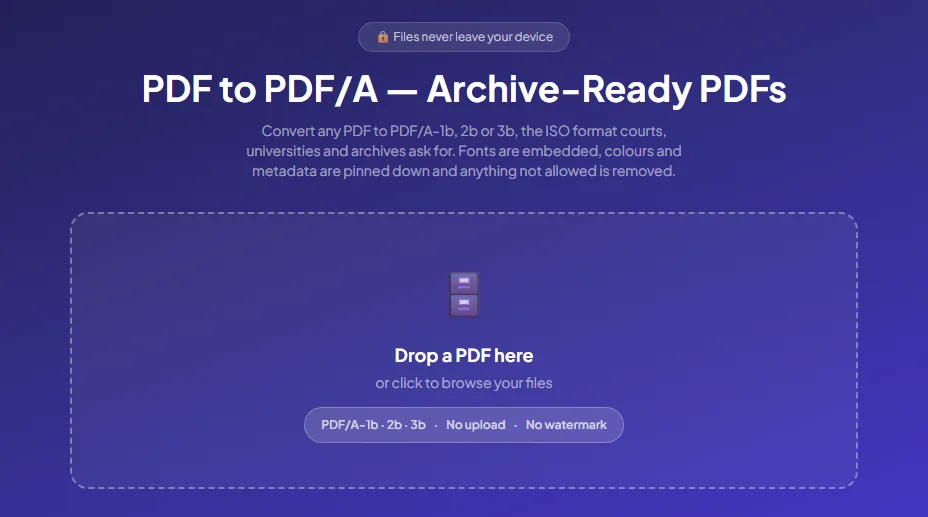
- Drop your PDF onto the box, or click it to choose the file. The panel shows the file name and size, with the Convert to PDF/A and New file buttons.
- Choose a version. PDF/A-2b is selected already and carries the Best choice tag. Pick PDF/A-1b only when PDF/A-1 is named, and PDF/A-3b when the PDF has attachments you need to keep.
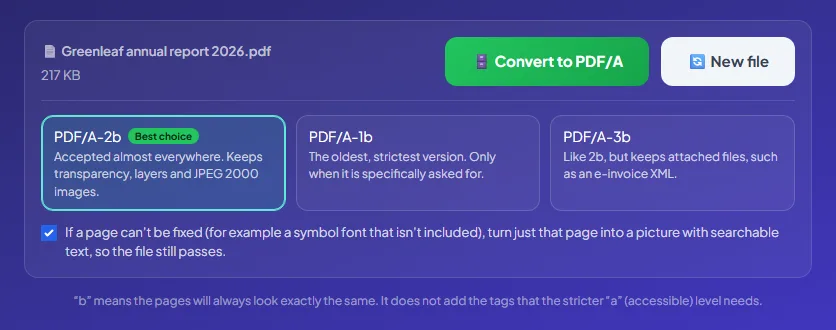
- Leave the checkbox under the cards ticked. If a page can't be fixed, for example because it uses a symbol font that isn't included, the tool turns just that page into a picture with searchable text, so the file still passes.
If you untick it, those pages are left as they are, and the list of changes warns you that some pages couldn't be made compliant.
Step 2: How do you convert it and check the result?
Click Convert to PDF/A, then read the list of changes and look over the preview.
Follow these steps:
- Click Convert to PDF/A. The button changes to "Converting…", and a progress bar walks through each stage, from checking forms and fonts to writing the PDF/A metadata.
- When it's done, the new file downloads automatically, with "-pdfa-pdfchai" added to its name. A green bar shows the version, the page count and the new size.
- Read the list under the green bar. It names every change the converter made to your file.
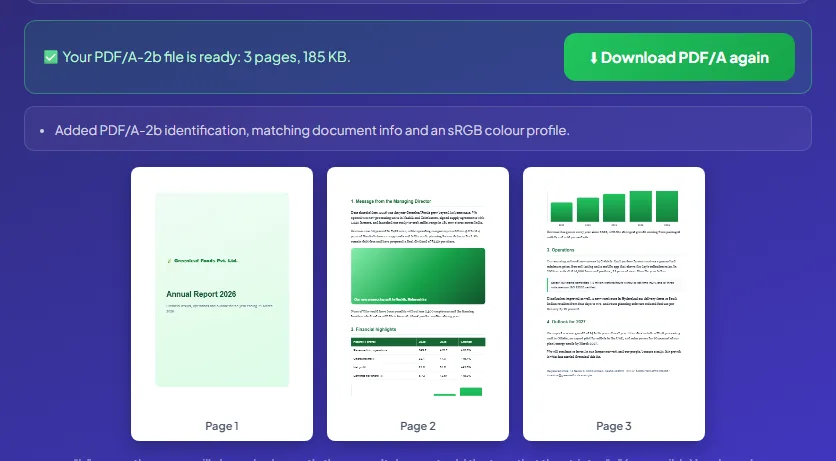
- Look over the preview, which shows up to the first four pages, to make sure everything looks right.
- If your browser blocked the download, or you saved it somewhere you can't find, click Download PDF/A again.
That's it. Your PDF/A file is ready to upload or archive.
What can the list of changes say?
Every conversion starts with a line like "Added PDF/A-2b identification, matching document info and an sRGB colour profile", using the version you picked. Depending on your file, you may also see:
- Embedded fonts: each missing font gets a look-alike with the same letter widths, such as Liberation Sans for Arial and Helvetica, Tinos for Times, Cousine for Courier, Carlito for Calibri and Caladea for Cambria. Spacing doesn't change.
- Removed JavaScript or actions that PDF/A doesn't allow.
- Removed annotations that were hidden, unprintable or not supported.
- Attachments: removed for 1b and 2b, or kept and labelled the way PDF/A-3 requires for 3b.
- A signature warning, if the PDF had a digital signature, because the converted file is a changed file and the old signature no longer checks out.
- Pages turned into pictures with searchable text, when a page couldn't be fixed any other way.
- Smaller fixes, such as a CMYK profile for print colours, a printable look for form fields, or old LZW data compressed again.
How do you convert a PDF to PDF/A on Android, iPhone, Windows and Mac?
The converter runs in any modern browser, so the steps don't change between devices. The conversion happens in your device's memory, though, so very large PDFs are best done on a laptop or desktop.
Android
Open the tool in Chrome and tap the box. The file picker lets you choose a PDF from Downloads, Google Drive or any other folder. The PDF/A copy goes to your Downloads folder, and when a portal asks for the file, you can pick it straight from Downloads in the same file picker.
iPhone and iPad
Use Safari. Tap the box and pick Choose File to browse the Files app. Safari may ask you to confirm the download, and the PDF/A copy is saved to the Downloads folder in Files. When you upload it to a portal in Safari, tap the portal's upload button, choose Choose File again and pick it from Downloads.
Windows
Chrome, Edge and Firefox all work. Drag the PDF from File Explorer onto the box, and the PDF/A copy appears in your Downloads folder. If you're starting from a Word document, Word on Windows also has a PDF/A option in the Options dialog when you save as PDF, so you can create a PDF/A file there and skip a step.
Mac
Use Safari, Chrome or Firefox, and drag the file in from Finder. The PDF/A copy goes to Downloads, and it opens in Preview like any other PDF. If you export from LibreOffice, its PDF export options include an archive (PDF/A) setting as well.
A real example, start to finish
Greenleaf Foods Pvt. Ltd. keeps its annual reports in a document archive that only accepts PDF/A. This year's file, Greenleaf annual report 2026.pdf, is 3 pages and 217 KB, with a cover page, a message from the Managing Director, a financial highlights table and a small bar chart.
The office manager opens PDF to PDF/A, drops in the report and leaves PDF/A-2b selected, because the archive's instructions just say "PDF/A". She keeps the picture option ticked and clicks Convert to PDF/A.
A few seconds later, the green bar reads "Your PDF/A-2b file is ready: 3 pages, 185 KB." The list of changes has just one line: it added the PDF/A-2b identification, matching document info and an sRGB colour profile. That tells her the report's fonts were already embedded and nothing in it broke the rules, so only the metadata and colour profile were missing.
The file even came out a little smaller, since the converter rewrites the whole file and leaves out data that nothing in it uses. She checks the three thumbnails, sees the cover, the financial table and the bar chart exactly where they should be, and uploads Greenleaf annual report 2026-pdfa-pdfchai.pdf. The archive accepts it first time.
What are the most common mistakes?
Most PDF/A problems come from picking the wrong version or converting at the wrong moment. Here's what to avoid.
Choosing PDF/A-1b when 2b would do
PDF/A-1 doesn't allow transparency, so pages with see-through effects, soft shadows or images with transparent parts get turned into pictures to make them pass. Layers are removed too, and the file can come out bigger, because the older format can't pack data as tightly. Pick 1b only when PDF/A-1 is asked for by name.
Expecting PDF/A to make a scan searchable
Converting doesn't read the words on a scanned page. If the archive or portal wants searchable text, run the file through OCR PDF first, then convert the searchable copy.
Converting a signed PDF
Any change to a digitally signed PDF breaks the signature, and converting is a change. The tool warns you when it finds one. Convert first, then sign the PDF/A copy.
Trying to convert a password-protected file
PDF/A doesn't allow encryption, so the tool asks you to remove the protection first. Use Unlock PDF with the password you know, then convert the unlocked copy.
Editing the PDF/A file afterwards
Most edits made after converting can break the standard, for example by adding text in a font that isn't embedded. Make your changes in the original, then convert it again.
Losing attachments by picking 2b
PDF/A-1b and 2b remove attached files, and the list of changes tells you when that happens. If the attachments matter, such as the XML of an e-invoice, choose PDF/A-3b instead.
What are the best tips for converting to PDF/A?
How do I know which version a portal wants?
Read the upload instructions for a name like PDF/A-1b or PDF/A-2b, and choose exactly that. If it only says "PDF/A", go with 2b. If an older system rejects a 2b file, try 1b.
Should I compress before or after converting?
Before. Run the file through Compress PDF first, then convert, so the PDF/A conversion is the last thing that touches the file. Our guide on compressing a PDF to a specific size helps when the portal has a strict limit.
How do I prepare a scanned document?
Make it searchable with OCR PDF, check the recognised text, then convert. Our guide on making a scanned PDF searchable walks through the OCR part.
What about forms?
Fill in the form before you archive it, for example with Fill PDF Form. PDF/A keeps the filled-in values exactly as they appear, and the converter gives fields without a printable look a proper appearance.
How can I check that a file really is PDF/A?
Use veraPDF, the free, open-source validator that tests a file against every PDF/A rule. Many portals run a similar check when you upload, so a file that passes veraPDF is very likely to pass theirs.
Why does Adobe Reader open my file as read-only?
Adobe Reader and Acrobat show a blue bar when a file claims to be PDF/A, and open it read-only so it isn't changed by accident. That's normal, and it's a handy sign that the PDF/A label is there.
Will my document look different?
Almost never. Lines and pages break exactly where they did, because any font that gets embedded has the same letter widths as the original. Only the fine shape of a few letters may differ slightly from the font on your computer.
Should I keep the original?
Yes. Save the PDF/A copy under its new name and keep the original too. It may hold things PDF/A strips out, such as attachments or interactive scripts you still want.
Do I need PDF/A for every document?
No. A normal PDF is fine for everyday sharing. Convert to PDF/A when a portal, court or archive asks for it, or when you're storing records you'll need for many years.
Files that will still open in 2050
PDF/A sounds technical, but the idea is simple: a file that carries everything it needs, so it opens the same way years from now. For most people, choosing 2b and clicking convert is all it takes.
PDFChai's converter was tested with veraPDF, the reference validator for PDF/A, and it runs entirely in your browser. Your document is never uploaded, so it stays on your device the whole time.
FAQs
1. Which PDF/A version should I choose?
PDF/A-2b, unless the portal names another version. Choose 1b only when PDF/A-1 is required, and 3b when you must keep attached files.
2. What's the difference between PDF/A-1b, 2b and 3b?
PDF/A-1b is the oldest and strictest, with no transparency, layers or attachments. PDF/A-2b allows transparency, layers and JPEG 2000 images. PDF/A-3b is like 2b but can also carry attached files of any type.
3. What does the "b" mean, and can PDFChai make "a" files?
"b" stands for basic: the pages are guaranteed to look the same in future. The "a" level also needs tags for screen readers, which have to be built in the program that made the document, so PDFChai makes "b" files only.
4. Is PDF/A the same as a flattened PDF?
No. Flattening merges form fields and comments into the page. PDF/A is about making the whole file self-contained, and it can still have working form fields and links.
5. Can I edit a PDF/A file?
You can, but most edits can break the standard. Make your changes to the original, then convert it to PDF/A again.
6. Does converting make the file bigger?
It depends. Embedding missing fonts adds a little, and PDF/A-1b files can be larger, but a file whose fonts are already embedded may even come out smaller, as in our example.
7. Do links, bookmarks and form fields survive?
Yes. Web links, bookmarks and filled-in form fields are kept, and only things PDF/A forbids, such as JavaScript and hidden annotations, are removed. If a page has to become a picture, its links still work, but its form fields turn into part of the picture.
8. Can I convert a password-protected PDF?
Not while it's locked, because PDF/A forbids encryption. Remove a password you know with Unlock PDF, then convert the unlocked copy.
9. Is my document uploaded during conversion?
No. PDFChai converts your file inside your browser, so it never leaves your device.
10. Is PDF to PDF/A free?
Yes. There's no signup, no watermark and no limit on files or pages.
Convert your PDF to PDF/A with PDFChai in just a few clicks!
Convert now