Table of contents
- What does it mean to split a PDF?
- When should you split a PDF?
- Step 1: How do you choose the pages?
- Step 2: How do you save them as separate files?
- How do you split a PDF on Android, iPhone, Windows and Mac?
- A real example, start to finish
- What are the most common mistakes?
- What are the best tips for splitting a PDF?
- The right pages, nothing more
- FAQs
To split a PDF, open PDFChai's Split PDF tool, add your file, type the pages you want (or click them) and click Split PDF. You can then download each new file on its own, or grab them all at once with Download All as ZIP.
Big PDFs often hold more than one document. A single scan might contain an application form, three certificates and an ID proof, while the portal wants each one in its own upload slot. Or a colleague needs pages 12 to 20 of a report, not all 80.
In this guide, we'll walk you through the three split modes, show you how to turn several page ranges into several files, and cover the small mistakes that leave you with the wrong pages.
Let's get started.
Key takeaways
- Split PDF has three modes: Page Range, Select Pages and Every Page
- Tick "Separate PDF for each range" to turn 1-3, 7-10 into two files
- Every Page mode can also cut a file into equal parts with Pages per file
- Pages come out in their original order and at their original quality
- Got several files? Download them all at once with Download All as ZIP
- Your PDF is split in your browser, so nothing is uploaded
What does it mean to split a PDF?
Splitting copies some of the pages from a PDF into one or more new PDFs. Your original file isn't changed. You simply get new, smaller files next to it.
The three ways to split
Split PDF gives you three modes, and each suits a different job.
Page Range is for when you know the page numbers. You type something like 1-3, 5, 7-10 and get those pages, either in one file or with each range as its own file.
Select Pages is for when you'd rather see the pages. It shows a thumbnail of every page, and you click the ones you want. Everything you click goes into one new PDF.
Every Page saves each page as its own PDF. With the Pages per file box, it can also cut a long file into equal chunks, such as one file for every 5 pages.
What happens to the pages?
Each page is copied exactly as it is. Typed text stays selectable, scans keep their quality and links on the page keep working. The bookmark list isn't copied, because most bookmarks would point to pages that aren't in the new file.
Split, extract or remove?
PDFChai has three tools that overlap a little. Split PDF makes one or more new files from parts of a PDF. Extract Pages is built for picking a handful of pages and saving them as one file. Remove Pages deletes the pages you don't want and keeps the rest together.
A simple rule: if you know what you want to keep, split or extract. If you know what you want to throw away, remove.
When should you split a PDF?
Split a PDF when you only need part of it, or when one file has to become several.
- Uploading documents one by one: exam and job portals often want the form, the certificates and the ID proof in separate slots.
- Sharing one section: send pages 12 to 20 of a report instead of the whole thing, so the reader lands on what matters.
- Breaking up a batch scan: an office scanner's feeder turns a stack of forms into one long PDF, and splitting gives you one file per form.
- Getting under an upload limit: two smaller parts may each fit where the whole file doesn't.
- Separating statements and payslips: a year of bank statements or salary slips in one file can become one file per month.
- Keeping private pages private: share the chapter someone asked for without the page that has your salary or bank details.
A smaller file is quicker to send, easier to name and kinder to the person who has to read it.
Step 1: How do you choose the pages?
Add your PDF, pick a split mode, then type or click the pages you want.
Here's how:
- Go to Split PDF. Drop your PDF on the box, or click the box to browse. The tool works on one file at a time.
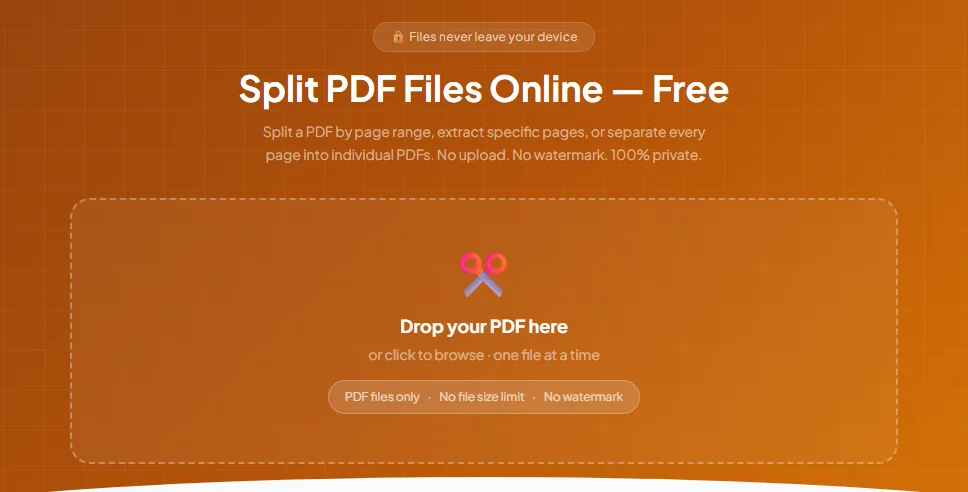
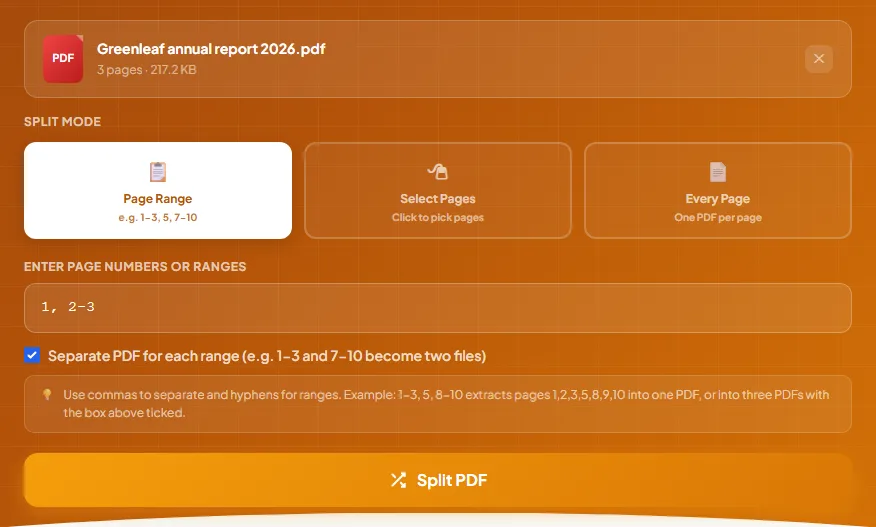
- Your file appears at the top with its page count and size, for example "3 pages · 217.2 KB". Below it are three Split Mode buttons.
- For Page Range, type the pages in the Enter Page Numbers or Ranges box. Use commas between items and a hyphen for a range, so 1-3, 5, 8-10 means pages 1, 2, 3, 5, 8, 9 and 10.
- Tick Separate PDF for each range if you want each item to become its own file. With the box ticked, "1, 2-3" gives you two files: page 1, and pages 2 and 3.
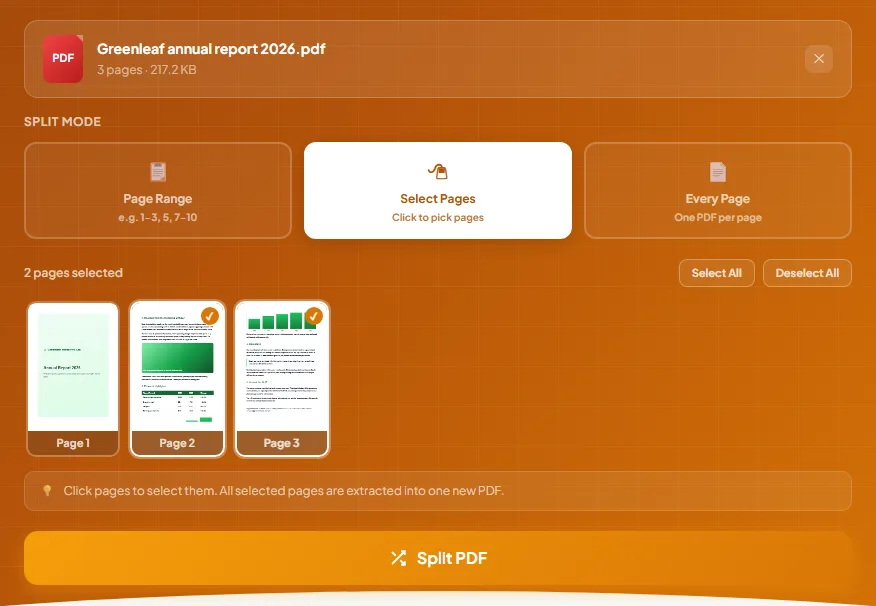
- Not sure of the page numbers? Click Select Pages. A thumbnail of every page appears, and you click the ones you want. Each chosen page gets a tick, and the count above the grid updates. Select All and Deselect All let you start from everything or nothing.
- Want every page on its own? Click Every Page. Leave Pages per file at 1 for one PDF per page, or change it to 2, 5 or 10 to cut the file into equal chunks. The line underneath tells you how many files you'll get.
Your pages are now chosen and ready to split.
Tip
Splitting a long batch scan? Flip through the thumbnails in Select Pages first and jot down the page where each document starts. Then switch to Page Range, type the ranges, such as 1-2, 3-5, 6, and tick the separate box. One click gives you every document as its own file.
Good to know
Select Pages always puts the pages you click into one new PDF. If you want separate files, switch to Page Range, type each part with commas between them, and tick Separate PDF for each range.
Step 2: How do you save them as separate files?
Click Split PDF, then download each new file or all of them together as a ZIP.
Follow these steps:
- Click Split PDF at the bottom of the panel. The button changes to "Splitting..." and a progress bar runs, which usually takes a second or two.
- The Split Complete! box appears and lists every new file with its name and size.
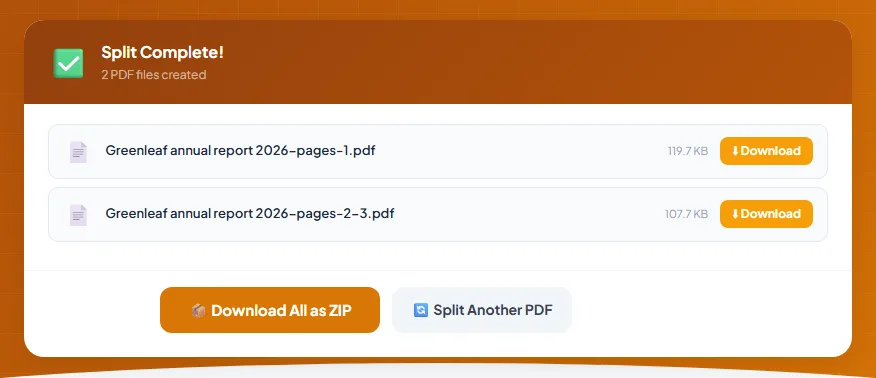
- Click Download next to a file to save just that one.
- If there's more than one file, click Download All as ZIP to get them all in a single download. The ZIP uses your PDF's name with "split-pdfchai" added at the end.
- Open each file once to check it holds the pages you expected.
- Click Split Another PDF to start over with a different file.
That's it. Each new file is named after your original plus its page numbers, so they're easy to tell apart in your downloads folder.
How do you split a PDF on Android, iPhone, Windows and Mac?
Split PDF works the same way in any modern browser. The differences are in how you pick the file and where the new PDFs land.
Android
Open Split PDF in Chrome, tap the box and pick your PDF from Downloads, WhatsApp documents or Google Drive. On a small screen, Select Pages is often the easiest mode, because you tap thumbnails instead of typing.
Each file you download goes to your Downloads folder. On a phone, tapping Download on each file is usually simpler than the ZIP, since you can open and share each PDF straight from your Downloads. If you do take the ZIP, most file manager apps, including Files by Google, can open it.
iPhone and iPad
Open the tool in Safari and choose your PDF from the Files app. When you tap a Download button, Safari usually asks whether to view or download the file. Choose Download, and it's saved to the Downloads folder in the Files app.
If you take the ZIP instead, open it in the Files app and tap it once. The Files app unpacks it into a folder with all your split PDFs inside.
Windows
Use Chrome, Edge or Firefox. You can drag the PDF straight from File Explorer onto the box. The split files and the ZIP land in your Downloads folder, and you can unpack the ZIP by right-clicking it and choosing Extract All.
Chrome and Edge open PDFs in a tab of their own, so you can click a downloaded part and check its pages without leaving the browser.
Mac
Safari, Chrome and Firefox all work. Drag your PDF in from Finder, or click the box to browse. Downloads go to your Downloads folder. Safari may unpack the ZIP for you automatically; if it doesn't, double-click the ZIP in Finder to open it.
Your Mac's Preview app can save a single page by dragging its thumbnail from the sidebar to the desktop. For ranges, or for several files in one go, Split PDF is quicker.
A real example, start to finish
Rahul works in the finance team at Greenleaf Foods Pvt. Ltd. in Nashik. He has the company's annual report as a single file, "Greenleaf annual report 2026.pdf", which is 3 pages and 217.2 KB.
Page 1 is the cover. Page 2 has the message from the managing director and the financial highlights table. Page 3 has the revenue chart, the operations update and the outlook for 2027. The printer wants the cover on its own to check the colours, and the company's bank wants only the content pages.
He opens Split PDF and drops the file on the box. In Page Range mode, he types "1, 2-3" and ticks Separate PDF for each range, because he needs two separate files.
He clicks Split PDF, and a moment later the box says "2 PDF files created". The first is "Greenleaf annual report 2026-pages-1.pdf" at 119.7 KB, and the second is "Greenleaf annual report 2026-pages-2-3.pdf" at 107.7 KB.
He clicks Download on each one, renames them "Greenleaf cover.pdf" and "Greenleaf report content.pdf" so the names are short and clear, and attaches them to two separate emails. The cover goes to the printer and the content pages go to the bank.
Notice that the two parts add up to slightly more than the original. That's normal: each new file carries its own copy of the fonts its pages use. If Rahul had only needed the content pages, he could also have clicked pages 2 and 3 in Select Pages and got a single file ending in "selected-pages".
What are the most common mistakes?
Using the printed page numbers
The number printed at the bottom of a page is often different from its position in the file. If a report has a cover and a contents page, the page printed "1" may be the third page of the PDF. Split PDF counts from the very first page of the file, so check the thumbnails in Select Pages before you type a range.
Typing ranges the tool can't read
Split PDF understands numbers, commas and plain hyphens, such as 1-3, 5. It skips anything else, including "1 to 3", spaces around the hyphen, or the long dash that Word and some phone keyboards swap in automatically. If nothing in the box makes sense, you'll see a message telling you there are no valid pages and what the last page number is.
Numbers past the end are quietly left out, too. Typing 2-50 on a 40-page file gives you pages 2 to 40, so check the page count on the file card before you rely on a range.
Expecting the typed order to change the page order
Typing "5, 1-3" still gives you pages 1, 2, 3 and then 5. Split PDF always keeps pages in their original order. To change the order, split first and then rearrange the pages in Organize PDF.
Forgetting the "Separate PDF for each range" box
Without the tick, every range you type ends up together in one file. If you wanted three files and got one, go back, tick the box and click Split PDF again. Your file is still loaded.
Expecting Select Pages to make separate files
Select Pages always gives you one PDF with all the pages you clicked. For one file per page, use Every Page, and for one file per group of pages, use Page Range with the box ticked.
Splitting a password-protected PDF
If the PDF needs a password to open, Split PDF can't read it and shows a message saying it may be corrupted or password-protected. Remove the password first with Unlock PDF, using the password you know, then split the unlocked copy.
Some PDFs open without a password but are still secured against editing, which is common with bank statements. If a split part from one of those comes out blank or garbled, run the original through Unlock PDF first and split again.
What are the best tips for splitting a PDF?
How do I cut a long file into equal parts?
Use Every Page and set Pages per file. A 50-page scan of 5-page forms with Pages per file set to 5 gives you 10 files, one per form. If the pages don't divide evenly, the last file is simply shorter.
How do I split a book or report by chapter?
Use the contents page, but remember the offset. If the contents says chapter 2 starts on page 15 and there are two unnumbered pages before page 1, chapter 2 starts at position 17 in the file. Check one thumbnail in Select Pages to confirm, then type the chapter ranges with the separate box ticked.
How do I combine pages from different parts into one file?
Type them all in the range box, such as 1-3, 10-12, and leave Separate PDF for each range unticked. You get one file with those six pages, in their original order.
How do I just delete a few pages?
Use Remove Pages instead. Click the pages you don't want, and download the rest as one file. It's quicker than working out which ranges to keep.
How do I keep a few pages as one file?
Either click them in Select Pages here, or use Extract Pages, which can also save each chosen page as a separate PDF inside a ZIP.
Can I reorder or rotate pages too?
Yes, with Organize PDF. It lets you move, rotate and delete pages one by one, and you can use it before or after splitting.
What should I name the files for a portal?
The split files keep your original name plus the page numbers, which can get long. Many upload forms prefer short names, so rename each file to something like "Degree certificate.pdf" or "ID proof.pdf" before uploading.
One part is still too big to upload. What now?
Compress just that part with Compress PDF. Our guide on compressing a PDF to a specific size explains which level fits which limit, and our tips for a PDF that's too large cover the other fixes.
How do I put the parts back together?
Use Merge PDF. Add the parts, drag them into order and click Merge PDF. Our guide on merging PDF files has the details.
Can I protect one part before sending it?
Yes. After splitting, add a password to the sensitive part with Protect PDF, and send the password by a different route, such as a phone call or a separate message.
The right pages, nothing more
Splitting a PDF means you only send what's needed. Your files are smaller, easier to name and much easier for the other person to deal with.
With PDFChai, it all happens in your own browser, so your documents stay on your device from start to finish.
FAQs
1. How do I split a PDF into two halves?
For a 40-page file, type 1-20, 21-40 in Page Range mode and tick Separate PDF for each range. Or use Every Page mode with Pages per file set to 20.
2. Does splitting change the quality of my pages?
No. Every page is copied as it is, so text stays sharp and selectable, and scanned pages keep their original resolution.
3. Why do the parts add up to more than the original file?
Each new PDF needs its own copy of the fonts and shared images its pages use. In our example, a 217.2 KB report split into files of 119.7 KB and 107.7 KB. Each part is still smaller than the whole file.
4. Why do I get a ZIP file?
Only when you click Download All as ZIP. It bundles all your split files into one download. You can still download each file on its own with its Download button.
5. Can I split a password-protected PDF?
Remove the password first with Unlock PDF, using the password you know, then split the unlocked copy.
6. Will the split files keep their links and bookmarks?
Links on the pages are kept. The bookmark list isn't copied, because most bookmarks would point to pages that aren't in the new file.
7. Can I split several PDFs at once?
Split PDF works on one file at a time. When you're done, click Split Another PDF and add the next one.
8. What are the new files called?
They take your original file name plus the pages they contain, for example "Greenleaf annual report 2026-pages-2-3.pdf". Files made in Select Pages end in "selected-pages", and Every Page files end in the page number.
9. Is there a page limit?
No fixed limit. Very long files take a little longer to show thumbnails in Select Pages, so for a big document, typing ranges in Page Range mode is quicker.
10. Is it safe to split confidential PDFs?
Yes. PDFChai splits your file inside your browser, so payslips, medical reports and contracts never leave your device.
Split your PDF with PDFChai in just a few clicks!
Split now