Table of contents
- Why is my PDF too large?
- When should you reduce a PDF's size?
- Fix 1: How do you compress the PDF?
- Fixes 2 and 3: How do you remove or split pages?
- Fixes 4 to 7: What else can you try?
- How do you make a PDF smaller on Android, iPhone, Windows and Mac?
- A real example, start to finish
- What are the most common mistakes?
- What are the best tips for getting a PDF under the limit?
- Small enough, every time
- FAQs
To fix a PDF that's too large to upload or email, run it through PDFChai's Compress PDF tool and click Compress PDF. If that's not enough, remove the pages you don't need, split the file into parts, or scan it again with smaller settings.
"The file size exceeds the maximum allowed." It always seems to appear a few minutes before a deadline, on an exam form, a job portal or a visa appointment page. Emails bounce too, with a polite note that your attachment is too big.
The good news is that almost every oversized PDF can be fixed in a few minutes, without installing anything. In this guide, we'll go through seven fixes in the order worth trying them, then cover phones and computers, a real example and the mistakes that waste the most time.
Let's get started.
Key takeaways
- Scans and photos, not text, are what make most PDFs too big
- Compress PDF fixes most files in one step, and High shrinks scans the most
- Removing or splitting pages helps when the limit is strict or the form takes several files
- Scanning smarter keeps files small from the start
- For email, a shared link beats a huge attachment
- Every fix here runs in your browser, so your documents are never uploaded
Why is my PDF too large?
Your PDF is too large because of the pictures inside it, not the text. A page of typed text takes a few kilobytes, while one colour page scanned at high resolution can take a megabyte or more.
Where does the size come from?
Scanned documents are the usual cause. Every page of a scan is a full-size photo of the paper, including the grey shadows, the paper texture and the empty margins.
Phone photos come next. A sheet of A4 at 150 DPI, which is plenty for reading on screen, is about 1,240 by 1,754 pixels. A 12-megapixel phone photo is about 4,000 by 3,000 pixels, so it carries roughly five times the detail the page needs.
Exported reports and slides can be heavy too, because designers place large photos and then shrink them on the page. The full photo is often still stored inside the file.
Finally, some PDFs carry data you never see: leftovers from earlier edits and stored page thumbnails. They add weight without adding anything to the page.
How are upload limits counted?
Limits look simple, but "200 KB" can mean 200,000 bytes or 204,800 bytes, depending on who built the form. Windows counts 1,024 bytes in a kilobyte, while a Mac's Finder counts 1,000, so the same file can show slightly different sizes on each.
That's why it pays to aim a little under the limit. Once you know where the size comes from and how it's measured, it's easy to fix.
When should you reduce a PDF's size?
Shrink a PDF whenever a form, inbox or app rejects it, or when you know the person receiving it is on a slow connection.
- Exam and recruitment forms: they often set strict limits, such as 100 KB, 200 KB or 1 MB per document.
- Job portals and HR systems: CV and certificate slots usually cap files at a few megabytes.
- Email attachments: Gmail stops at 25 MB per message, and some company mail servers accept less.
- Government and visa portals: your ID proof, address proof and bank statements may each have their own limit.
- WhatsApp and mobile data: a 10 MB scan is slow to send, slow to open and eats into someone's data pack.
- Storage: years of scanned bills and statements fill up Google Drive or iCloud faster than you'd think.
If the file is going anywhere with a size limit, check its size before you hit upload.
Fix 1: How do you compress the PDF?
Add the file to Compress PDF, keep the Medium level and click Compress PDF. If it's still too big, try again with High.
Here's how:
- Go to Compress PDF and drop your PDF on the box, or click the box to browse. It works on one file at a time.
- Your file appears with its original size. Under Compression Level, choose Low (Best quality), Medium (Balanced) or High (Smallest size). Medium is selected to start.
- Read the note under the buttons, because it changes with the level. Medium resizes photos and scans to about 150 DPI, and High takes them down to about 100 DPI with stronger compression. Text stays sharp and selectable at every level.
- Click Compress PDF and wait for the progress bar. Big scans take a few seconds.
- On the Compression Complete! screen, check the new size, the percentage saved and the line that says what was kept.
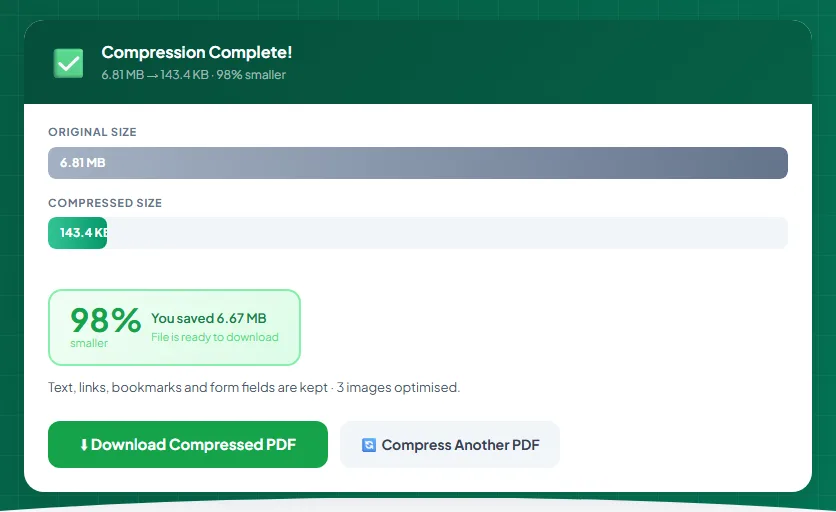
- Click Download Compressed PDF. The file is saved with "compressed-pdfchai" added to its name, so your original stays untouched.
- Still too big? Click Compress Another PDF, add your original again and pick High. As a last resort, tick Image mode.
Compression fixes most files on the first or second try. If the result screen says the PDF is already well optimised and your original is kept, the weight isn't coming from pictures, so move on to fixes 2 and 3.
Watch out
Image mode turns every page into a picture. It gives the smallest file, but text can no longer be selected or searched, and links and form fields stop working. Keep your original, and use Image mode only when High isn't enough.
Fixes 2 and 3: How do you remove or split pages?
Delete the pages nobody needs with Remove Pages, or cut the document into parts with Split PDF when the form takes more than one file.
Follow these steps:
- Open Remove Pages and add your PDF. Every page appears as a thumbnail.
- Click each page you don't need. It turns red and shows "✕ remove", and the counter at the top shows how many pages go and how many stay. Click a red page again to keep it.
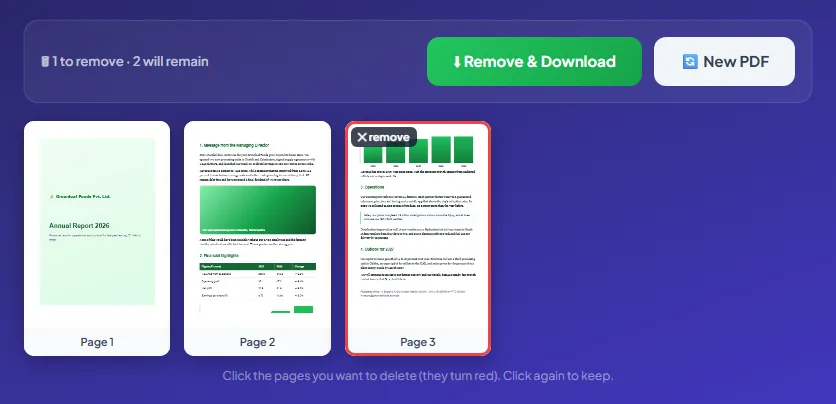
- Click Remove & Download. The trimmed PDF keeps your file's name with "-pages-removed-pdfchai" added, so you can tell it apart from the original.
- If the form accepts several files, open Split PDF instead. Choose Page Range, type the parts with commas between them, such as 1-2, 3, and tick Separate PDF for each range.
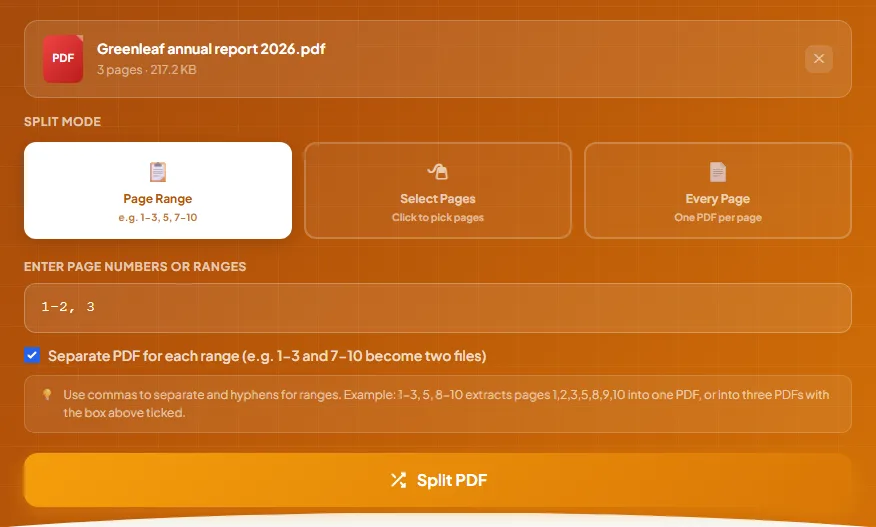
- Click Split PDF, then download each part with its Download button.
- Compress any part that's still over the limit.
That's it. Fewer pages means a smaller file, and every scanned page you remove can save hundreds of kilobytes. Blank backs, instruction pages and duplicate scans are the usual pages to cut.
Fixes 4 to 7: What else can you try?
Fix 4: Can I scan it again with better settings?
Yes, and it's often the quickest win. On a scanner, choose 150 to 200 DPI instead of 300 or 600, pick grayscale or black and white for text documents, and set the scan area to your paper size instead of the whole glass.
On a phone, Scan to PDF does the hard part for you. It crops each photo to the edges of the paper, straightens it and cleans up the background. Once you tap Create PDF, it tells you the size of the new file, so you know straight away whether it still needs compressing.
Fix 5: Can I avoid huge photos in the first place?
Yes. If a document arrived as a PDF, such as an e-Aadhaar, a bank statement or an e-ticket, upload that original file. A photo or scan of a printout is always bigger and harder to read.
When you do have to photograph paper, fill the frame with the page instead of the desk around it, or use Scan to PDF so the desk is cropped away. Some Android camera apps also let you pick a smaller picture size in their settings.
Fix 6: What about data I can't see?
Compress PDF removes leftovers from earlier edits and stored page thumbnails automatically. It also packs page data that was saved without any compression. That's why even a text-only file sometimes gets smaller, and the result line mentions "unused data removed" when it happens.
Fix 7: Should I send a link instead?
For email, often yes. Gmail allows 25 MB of attachments per message and offers a Google Drive link when you attach something bigger. Outlook's limit is usually around 20 MB. Put large files in Google Drive or OneDrive, share a link, and check the sharing setting so the other person can open it.
How do you make a PDF smaller on Android, iPhone, Windows and Mac?
Every tool in this guide runs in a normal browser, so you don't need an app. What differs is where you find your files and how you check their size.
Android
Open Compress PDF in Chrome and pick your file from Downloads, WhatsApp documents or Google Drive. The smaller copy goes to your Downloads folder. Your Files app shows each file's size, so you can confirm it's under the limit before you upload.
For a very long scan, close other tabs first. Everything happens on the phone itself, and big files need memory.
iPhone and iPad
Use Safari and choose your PDF from the Files app. When you download the result, choose Download if Safari asks, and the file lands in the Downloads folder in the Files app. To see its size, switch the Files app to list view, or long-press the file and tap Get Info.
If you're photographing paper, open Scan to PDF and tap Take a photo to use the camera straight away.
Windows
Chrome, Edge and Firefox all work. To check a file's exact size, right-click it in File Explorer and choose Properties. You'll see the size in megabytes and the exact number of bytes, which is the safest number to compare with a strict limit.
Mac
Safari, Chrome and Firefox all work. To check the size, select the file in Finder and press Cmd+I. Remember that Finder counts 1,000 bytes in a kilobyte, so a file can look a little bigger on a Mac than on Windows.
A real example, start to finish
Neha, a student in Pune, is applying for a scholarship. The portal wants her supporting documents as one PDF of no more than 200 KB. Her file, "Scanned documents.pdf", has 3 scanned pages and weighs 6.81 MB, more than thirty times the limit.
She opens Compress PDF, adds the file and leaves the level on Medium. The result is 413.7 KB, 94% smaller, with 3 images optimised. That's a huge drop, but still over 200 KB.
She clicks Compress Another PDF, adds the original again and chooses High this time. The result screen shows 6.81 MB down to 143.4 KB, 98% smaller, and "You saved 6.67 MB". The line underneath confirms that text, links, bookmarks and form fields were kept.
She downloads it, opens it to check that every page is still easy to read, and renames it "Neha scholarship documents.pdf". At 143.4 KB, it's comfortably under the limit, so it uploads on the first try. She never needed Image mode, and her documents never left her laptop.
If High hadn't been enough, her next step would have been to remove any page the portal didn't ask for, or split the file if the form had separate slots for each document.
What are the most common mistakes?
Compressing the same file again and again
Each round of compression throws away a little more detail. If the first try isn't small enough, go back to your original and compress it with a stronger level, rather than compressing the compressed copy.
Reaching for Image mode first
Image mode is the strongest option, but it turns text into pictures. On a CV, that's a real problem, because many hiring systems read the text in your file. Try Medium and High first.
Scanning at 600 DPI in colour
High settings feel safer, but they create files many times bigger than a form needs. For typed documents, 150 to 200 DPI in grayscale is sharp on screen and prints well.
Photographing a document that's already a PDF
A photo of your e-Aadhaar or offer letter is bigger, blurrier and harder to read than the PDF you downloaded. Use the original file whenever you have it.
Cutting it too close to the limit
A file of 199 KB can still be rejected by a form that counts kilobytes differently. Aim for about 5% under the limit, so around 190 KB for a 200 KB slot.
Trying to compress a locked PDF
If the file is password-protected, Compress PDF tells you to remove the password first. This can happen even with files that open normally but block printing or editing. Run them through Unlock PDF, which removes those restrictions from a file you can already open, then compress the unlocked copy.
What are the best tips for getting a PDF under the limit?
Which level should I try first?
Start with Medium. It keeps scans sharp on any screen and usually shrinks them a lot. Choose High for strict limits such as 100 KB or 200 KB, and Low when the document will be printed and quality matters more than size.
How do I hit an exact number like 100 KB?
Compress with Medium, check the result, then step up to High if needed. Our guide on compressing a PDF to a specific size shows which settings fit common limits, from 100 KB to 2 MB.
The file is under the limit but still won't upload. Why?
Some portals also check the file name and type. Rename the file using plain letters and numbers, keep it short, avoid symbols like & or #, and make sure it ends in .pdf.
Can I compress several PDFs at once?
Compress PDF works on one file at a time, which keeps it quick even on a phone. If the form wants a single file anyway, combine everything first with Merge PDF, then compress the merged file once.
Should I compress before or after merging?
After, in most cases, because you only compress once. The exception is when each document has its own limit: then compress each one separately and upload them one by one.
Which limits are most common?
They vary by form, so always read the instructions. As a rough guide, photos and signatures for exam forms are often between 20 KB and 300 KB, certificates between 200 KB and 1 MB, and CVs and government documents between 1 MB and 5 MB.
Will the compressed file still print well?
At Low, photos and scans keep about 220 DPI, which is print quality. Medium looks sharp on screen and prints fine for everyday use. High is best kept for files that will only be viewed on screen.
What if one page is the real problem?
A single colour photo or full-page scan can outweigh the rest of the file. Split that page out with Split PDF, compress it on its own with High, then put the file back together with Merge PDF.
What if the form wants one file but nothing is small enough?
Combine the fixes. Remove every page the form didn't ask for, compress the rest with High, and use Image mode only as the very last step.
Small enough, every time
An oversized PDF is almost always a picture problem. Shrink the images, drop the pages nobody needs, and split the file when the form allows it. Most of the time, Compress PDF alone does the job.
PDFChai runs every one of these tools in your browser, so your certificates, statements and ID proofs never leave your device.
FAQs
1. Will compressing my PDF make it blurry?
At Medium, documents look the same on screen and print well. Typed text never gets blurry at any level, because it isn't turned into a picture, unless you tick Image mode.
2. Why is my PDF so big when it has only a few pages?
It almost certainly contains scans or full-size photos. One colour scan can be 1 to 3 MB on its own, while a page of typed text is only a few kilobytes.
3. Why did Compress PDF give me back the same size?
That happens when the file is already well optimised, usually because it's mostly text. The tool keeps your original rather than handing back a bigger file. Try High or Image mode, or remove pages you don't need.
4. Does compressing remove my links or form fields?
No. The normal levels keep text, links, bookmarks and form fields. Only Image mode removes them, because it turns every page into a picture.
5. Does removing or splitting pages lower the quality?
No. Remove Pages and Split PDF copy the pages you keep exactly as they are, so nothing gets blurrier.
6. Can I compress a password-protected PDF?
Not directly. Remove the password first with Unlock PDF, using the password you know, then compress the unlocked copy. Add a password again afterwards if you need one.
7. How do I check the exact size of a PDF?
On Windows, right-click the file and choose Properties. On a Mac, select it and press Cmd+I. On a phone, the Files app shows the size next to the file or in its details.
8. Can I reduce PDF size on my phone?
Yes. All these tools work in Chrome on Android and Safari on iPhone, with nothing to install.
9. Is it safe to compress or split confidential PDFs online?
Yes, with PDFChai. Your files are processed in your browser and are never uploaded to a server.
Make your PDF smaller with PDFChai in just a few clicks!
Compress now