Table of contents
- What actually happens when you convert a PDF to Word?
- When should you convert a PDF to Word?
- Step 1: How do you convert a PDF to Word?
- Step 2: How do you edit the Word file and save it as a PDF again?
- What if your PDF is a scan?
- How do you convert a PDF to Word on Android, iPhone, Windows and Mac?
- A real example, start to finish
- What are the most common mistakes?
- What are the best tips for converting PDF to Word?
- Edit freely, share confidently
- FAQs
To convert a PDF to Word, open PDFChai's PDF to Word tool, add your file and click Download Word (.docx). You get an editable document that opens in Microsoft Word, Google Docs, LibreOffice or Pages, and your PDF never leaves your browser.
PDFs are made for sharing, not for editing. That's great when you send a finished file, and frustrating when all you have is the PDF of last year's CV, a rent agreement with the wrong date, or a report whose Word file disappeared with an old laptop.
Retyping is slow, and it slips new mistakes in. In this guide, we'll show you how to get your PDF into Word, what comes across and what doesn't, how to tidy up the result, and what to do when the PDF turns out to be a scan.
Let's get started.
Key takeaways
- PDF to Word turns a text-based PDF into an editable .docx file, free and without signing up
- Headings, paragraphs, bold and italic come across; the exact layout, tables, images and fonts don't
- Two options control page breaks and heading detection, and you see a preview before you download
- Scanned PDFs have no text inside, so run OCR PDF on them first
- When you finish editing, you can save the document as a PDF again
- Everything runs in your browser, so your file is never uploaded
What actually happens when you convert a PDF to Word?
A PDF doesn't store paragraphs the way Word does. It stores small runs of text, each pinned to an exact spot on the page. That's why a PDF looks the same on every screen, and also why you can't simply click into it and retype a sentence.
What PDFChai rebuilds
PDF to Word reads every run of text on every page, then puts the pieces back together:
- Paragraphs: lines that belong together are joined, so the text reflows when you type. Short lines, like an address block, keep their line breaks.
- Headings: text that's clearly larger than the body text becomes Word's Heading 1, Heading 2 or Heading 3.
- Bold and italic: words set in bold or italic fonts keep that emphasis.
- Page size: the document copies the size and orientation of the first page, such as A4 or US Letter.
The text is set in Calibri, at a size based on the body text of your PDF.
What it leaves out
The aim is editable text with a sensible structure, not a copy of every pixel. The exact layout, original fonts and images aren't carried over. Tables arrive as lines with tabs between the cells, and two-column pages become one column, with the left column placed before the right. Running headers, footers and page numbers come through as ordinary text, because to the converter they're just more words on the page.
Why scans are different
A scanned PDF is a picture of paper. There's no text inside for a converter to read, so it needs OCR (optical character recognition) first. Pages from an office photocopier's scan button, phone photos saved as a PDF and old faxes all fall into this group.
A quick way to check: open the PDF, press Ctrl and F (Command and F on a Mac) and search for a word you can clearly see. If nothing is found, it's a scan. We'll cover what to do further down.
When should you convert a PDF to Word?
Convert a PDF to Word when you need to change more than a few words, or when you want to reuse the text in a new document.
- Updating a CV or cover letter: you only have the PDF you sent last year and want to tailor it for a new role.
- Editing an agreement: a rent agreement or contract arrived as a PDF and you need to change names, dates or a clause.
- Reusing a report: last year's annual report becomes the starting point for this year's.
- Recovering a lost file: the original .docx is gone and only the exported PDF is left.
- Making a template: an old offer letter, notice or quotation can become a reusable Word template.
- Preparing a translation: translators work far faster from an editable document than from a PDF.
For a quick fix like one wrong date, though, it's faster to change the PDF directly in Edit PDF.
Step 1: How do you convert a PDF to Word?
Add your PDF to PDF to Word, check the preview and the two options, then click Download Word (.docx).
Here's how:
- Open PDF to Word in your browser.
- Drop your PDF onto the Drop a PDF here box, or click the box to browse your files.
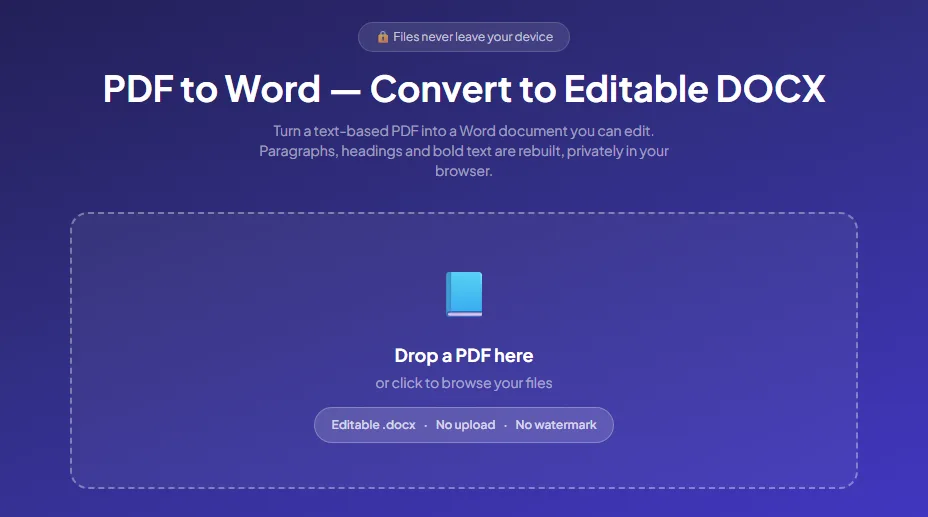
- Wait a moment while the tool reads each page. You'll see "Reading page 1 of 3" and so on, plus a Cancel button in case you picked the wrong file.
- Check the summary line. It shows the file name, the number of pages, and how many paragraphs and headings were found.
- Look at the preview. It shows how the first page will look in Word, with headings and bold text marked, and notes that all pages go into the .docx. If some pages have no text or use two columns, a short note above the preview tells you.
- Choose your options. Keep Start each PDF page on a new Word page ticked for letters and forms, and untick it for long reports so the text flows. Keep Detect headings from larger text ticked unless the preview shows headings that shouldn't be there. Unticking it updates the preview straight away.
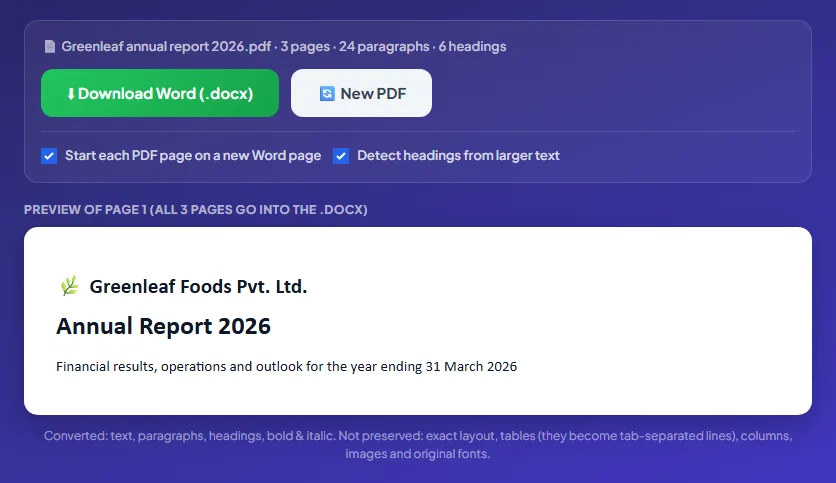
- Click Download Word (.docx). The button shows "Building .docx" for a moment, then your browser saves the Word file under your PDF's name with "-pdfchai" added, for example Greenleaf annual report 2026-pdfchai.docx.
If you see No text found in this PDF instead of a preview, your file is a scan. Skip to the section on scanned PDFs below.
Step 2: How do you edit the Word file and save it as a PDF again?
Open the .docx in your word processor, tidy up anything that didn't convert, make your changes and save it as a PDF.
Follow these steps:
- Find the .docx in your Downloads folder. It has the same name as your PDF, so it's easy to spot. Rename it if you like, for example to "Annual report 2027 draft.docx".
- Open it in Microsoft Word, LibreOffice Writer, Pages or WPS Office. For Google Docs, upload it to Google Drive and open it with Google Docs.
- Tidy up first: rebuild any tables from their tab-separated lines, put back the images you need, and fix spacing where a line breaks differently.
- Make your edits, then read the document through once from top to bottom. If you're suggesting changes to someone else's agreement, turn on Track Changes in Word's Review tab first, so they can see exactly what you changed.
- Save it as a PDF. In Word, use File, then Save As, and choose PDF as the file type. In Google Docs, use File, Download and PDF Document (.pdf). Or drop the .docx into Word to PDF.
- Open the new PDF and check that the pages break where you expect.
That's it. No retyping, no paid software, and a document you can keep updating.
Tip
Two quick clean-ups make a converted file feel finished. Delete the old page headers, footers and page numbers that came through as normal text, and search for words with a stray hyphen, such as manage-ment, where the PDF split a word across two lines.
What if your PDF is a scan?
If the tool says No text found in this PDF, the file is a scan or a set of photos, and you need to run OCR before converting.
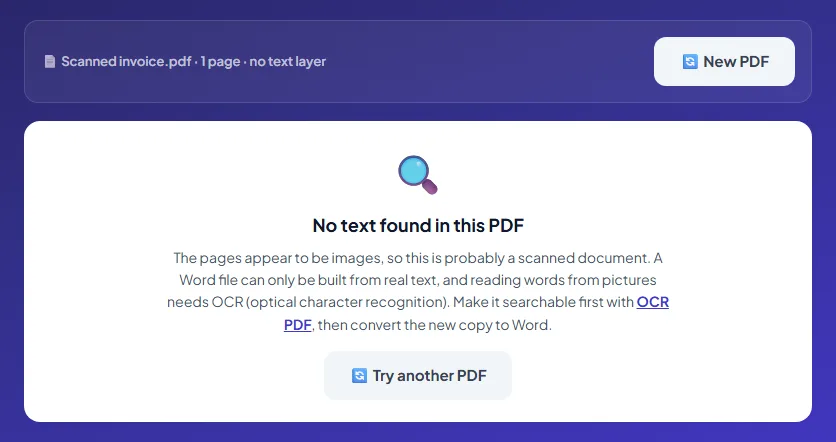
The summary line confirms it with "no text layer", and the message explains that a Word file can only be built from real text. Here's what to do:
- Click the OCR PDF link in the message, or open OCR PDF yourself.
- Add the same scan, choose the language of the document and click Make PDF searchable.
- The searchable copy downloads with "ocr-pdfchai" added to its name.
- Come back to PDF to Word, click Try another PDF and add the searchable copy.
Expect plainer formatting from a scan. OCR gives the converter the words and where they sit, but not bold or italic fonts, so you may need to restyle a few headings yourself.
If only some pages are scans, the tool still converts the rest and tells you how many pages had no selectable text. Those pages stay empty in Word until you run OCR on them too. Our guide on how to make a scanned PDF searchable covers this in detail.
How do you convert a PDF to Word on Android, iPhone, Windows and Mac?
The converter works in any modern browser, so the main difference is which app you use to edit the result.
Android
Open the tool in Chrome, tap the box and pick the PDF from your files or Google Drive. The .docx is saved to your Downloads folder. Open it with the Microsoft Word app or the Google Docs app, both of which can edit Word files, and share it from the Files app when you're done.
iPhone and iPad
In Safari, tap the box and choose the PDF from the Files app. When you download, the .docx goes to the Downloads folder in Files. Tap it for a quick look, or open it in Word, Pages or Google Docs to edit it.
Windows
Use Chrome, Edge or Firefox and drag the PDF from File Explorer onto the box. The .docx lands in Downloads and opens in Word with a double-click. No Word on this PC? Word for the web, free with a Microsoft account, or LibreOffice Writer opens it too. Recent desktop versions of Word can also open a PDF directly, so PDFChai is most handy when Word isn't installed, or when you're on a shared or office computer.
Mac
Use Safari, Chrome or Firefox and drag the PDF from Finder onto the box. The .docx goes to Downloads. Open it in Word for Mac, or in Pages, which is free on every Mac and opens Word files. In Pages, File, Export To and PDF turns it back into a PDF.
A real example, start to finish
The finance team at Greenleaf Foods Pvt. Ltd. needs to start next year's annual report. The only copy of this year's is Greenleaf annual report 2026.pdf, a 3-page file of about 217 KB. The Word original went missing with an old laptop.
Meera from the team opens PDF to Word and drops the report in. A moment later the summary reads: 3 pages, 24 paragraphs, 6 headings. The preview of page 1 shows the company name, "Annual Report 2026" as a big heading, and the line about financial results for the year ending 31 March 2026 as normal text.
Each page of the report starts a new section, so she keeps both options ticked and clicks Download Word (.docx). She renames Greenleaf annual report 2026-pdfchai.docx to "Greenleaf annual report 2027 draft.docx" and opens it in Word.
The six headings show up in Word's Navigation pane, so she can jump between sections and insert an automatic table of contents. She updates the year and the figures. Anything laid out as a table arrives as tab-separated lines, which she turns back into a table with Convert Text to Table. When the draft is approved, she saves it as a PDF and sends it round, with the editable Word file safely kept for next year.
The same week, someone in accounts drops in Scanned invoice.pdf. The summary says "1 page · no text layer" and the tool shows No text found in this PDF. They make it searchable with OCR PDF first, then convert the new copy without any trouble.
What are the most common mistakes?
Converting a scan and expecting text
A scanned PDF gives you "No text found in this PDF", because there are no letters inside, only pictures of them. Run OCR PDF first, then convert the searchable copy.
Expecting an exact copy of the page
Fonts, spacing and line breaks change, columns become one column, and images are left out. That's the price of getting text you can edit, so plan a few minutes of tidying.
Leaving heading detection on when big text isn't a heading
A certificate with a large name or a poster-style cover page can produce headings that don't belong. Untick Detect headings from larger text and check the preview again.
Forgetting about tables
Tables come through as lines with tabs between the cells. Rebuild the important ones in Word rather than retyping them.
Skipping the preview
The panel shows page 1 the way it will come out in Word before you download anything. A quick look tells you whether the headings were picked up and whether any text is missing. Ticking or unticking Detect headings from larger text updates the preview straight away, so settle it there instead of fixing a long document by hand later.
Trying to convert a locked PDF
If the PDF needs a password to open, the tool says it's password-protected and links to Unlock PDF. Remove the password you know, then convert the unlocked copy.
What are the best tips for converting PDF to Word?
How can you tell if a PDF will convert well?
Try selecting a sentence in your PDF viewer. If you can highlight individual words, the PDF has real text and will convert. Files exported from Word or Google Docs, with a simple one-column layout, give the cleanest results.
Should each PDF page start a new Word page?
For letters, forms and certificates, yes: keep Start each PDF page on a new Word page ticked so the pages stay separate. For long reports and essays, untick it so paragraphs flow naturally as you add or remove text.
How do you rebuild a table in Word?
Select the tab-separated lines and use Word's Convert Text to Table command (on Windows it's under Insert, then Table), with tabs as the separator. If your PDF is mostly tables, PDF to Excel is the better tool.
How do you get the pictures back?
Images aren't included in the .docx. Open PDF to JPG and choose Extract images to save the pictures stored in the PDF, then add them in Word with Insert and Pictures.
How do you restyle every heading at once?
Headings use Word's built-in styles, so right-click Heading 1 in the Styles gallery, choose Modify and change the font or colour. Every Heading 1 in the document updates together.
What about bullet points and numbered lists?
Each bulleted or numbered line starts its own paragraph and keeps its bullet or number as a typed character. If you want Word's automatic lists back, delete the typed bullets, select the lines and click Bullets or Numbering.
What happens with two-column pages?
When the tool spots two columns, it places the left column before the right one, so the text reads in the right order. The Word file is single-column, and you can add columns back from Word's Layout tab.
What if you only need the words?
For pasting into an email, a translator or an AI chat, PDF to Text gives you plain text straight away. PDF to Markdown keeps headings and lists in a format AI tools read well.
Can you convert just part of a long PDF?
Yes. Pull out the pages you need with Extract Pages or Split PDF, then convert the smaller file. It's quicker and leaves you less to tidy.
Can you fix a typo without converting?
Yes. For a wrong date or a missing word, open the file in Edit PDF and change it on the page. Our guide on how to edit a PDF online shows you how.
Edit freely, share confidently
Converting a PDF to Word gives you back control of your own document. You can fix mistakes, update details and reuse good writing instead of starting again from a blank page.
And since PDFChai converts the file inside your browser, your CV, contract or company report never leaves your device.
FAQs
1. Is PDF to Word free?
Yes. There's no signup and no watermark, and you can convert as many PDFs as you like.
2. Is my document uploaded anywhere?
No. Reading the PDF and building the Word file both happen inside your browser, so the document never leaves your device. That makes it a safe choice for CVs, contracts and internal reports.
3. Will the Word file look exactly like my PDF?
No. You get editable paragraphs with headings, bold and italic, but not the exact layout, original fonts, tables or images. Expect a few minutes of light formatting afterwards.
4. Can I convert a scanned PDF to Word?
Yes, in two steps. Make it searchable with OCR PDF first, then convert the searchable copy with PDF to Word.
5. Can I open the Word file in Google Docs?
Yes. Upload the .docx to Google Drive and open it with Google Docs. LibreOffice Writer, Pages and WPS Office open it too.
6. What happens to tables and images?
Table rows become lines with tabs between the cells, which you can turn back into a table in Word. Pictures, charts and logos are left out of the .docx.
7. What is the Word file called?
It keeps your PDF's name with "-pdfchai" added, so Greenleaf annual report 2026.pdf becomes Greenleaf annual report 2026-pdfchai.docx. Rename it to anything you like after downloading.
8. Can I convert a password-protected PDF?
If the PDF needs a password to open, remove it first with Unlock PDF using the password you know. Then convert the unlocked copy.
9. How do I turn the Word file back into a PDF?
Save it as a PDF from Word, Pages or Google Docs, or drop the .docx into Word to PDF, which also runs in your browser.
10. Can I convert several PDFs at once?
PDF to Word converts one file at a time. When you've downloaded the first .docx, click New PDF and add the next one. Rename each download as you go, since they all start with the same name.
Convert your PDF to Word with PDFChai in just a few clicks!
Convert now