Table of contents
- What does it mean to edit a PDF?
- When should you edit a PDF directly?
- Step 1: How do you change or add text in a PDF?
- Step 2: How do you highlight, draw, sign and add images?
- Step 3: How do you fix the pages and download the PDF?
- How do you edit a PDF on Android, iPhone, Windows and Mac?
- A real example, start to finish
- What are the most common mistakes?
- What are the best tips for editing a PDF?
- Small edits, done properly
- FAQs
To edit a PDF online, open PDFChai's Edit PDF tool, drop in your file and pick a tool from the toolbar, such as Edit Text to change existing words or Add Text to write something new. When the page looks right, click Download at the top right to save your edited PDF.
Most PDF edits are tiny. A client's name is spelled wrong, a date has moved, an invoice needs a "PAID" note, or a form wants your signature in one corner. Going back to the original Word file isn't always possible, and buying software for a two-minute fix feels silly.
In this guide, we'll walk through every tool in the editor: changing existing text, adding notes and marks, signing, inserting images, and adding, rotating or deleting pages. You'll also see a real invoice being marked as paid, from start to finish.
Let's get started.
Key takeaways
- Edit Text rewrites words that are already in the PDF, in a matching size, weight and colour
- Add Text, Highlight, Pencil, shapes, ticks and crosses let you mark up any page
- Sign and Image add a signature, logo or stamp you can drag and resize
- The Pages panel adds, rotates, duplicates, deletes and reorders pages
- Watermark, Page # and Protect apply to every page of the document at once
- Your PDF is edited inside your browser and never uploaded
What does it mean to edit a PDF?
A PDF is built to look the same on every screen and every printer. That's why it's the standard for invoices, contracts and forms, and it's also why a PDF is awkward to change. There's no flowing text like in a Word document. Each word sits at a fixed spot on the page.
So a PDF editor really does two different jobs.
Adding things on top of the page
Most edits are additions: a line of text, a highlight, a tick, a signature, a logo or a circle around a number. The editor draws these onto the page when you download, as real PDF text, lines and images. That means they stay sharp at any zoom and print cleanly.
Changing what's already there
Edit Text reads the words in the PDF. When you click some text, it covers those words with a patch in the page's background colour and puts an editable box in exactly the same place. It picks up the original size, weight and colour. For common fonts such as Arial, Times New Roman and Calibri, it uses a matching look-alike, so your change blends in.
Good to know
Edit Text and the Eraser hide words, they don't delete them. The original text is still inside the file under the patch, and someone could copy it out. To remove an account number or an ID number for good, use Redact PDF instead. The editor reminds you of this with a short note whenever you pick Edit Text or the Eraser.
This only works when the PDF contains real text. A scanned page is a photo of paper, so there are no words for Edit Text to grab. You can still add text, draw and sign on a scan. You just can't retype what's printed on it.
Everything happens in your browser. The file is read on your device, your edits are applied there, and the new PDF is saved straight to your downloads.
When should you edit a PDF directly?
Edit the PDF directly when the change is small and the rest of the layout has to stay exactly as it is.
- Fixing a detail: a misspelled name, an old phone number, a wrong date or a typo in a heading.
- Marking an invoice: writing "PAID", ticking the total and noting the payment date for your records.
- Reviewing a document: highlights, arrows and short comments for a colleague or a client.
- Signing paperwork: an offer letter, a rental agreement or a vendor form that needs your signature.
- Branding a file: your logo in a corner, a "DRAFT" watermark or page numbers before you send it.
- Tidying the pages: a sideways page, a blank page at the end or a page in the wrong order.
If you need to rewrite whole paragraphs, convert the file with PDF to Word instead, edit it there and save it back as a PDF. Our guide on how to convert PDF to Word explains what carries over.
Step 1: How do you change or add text in a PDF?
Use Edit Text to change words that are already on the page, and Add Text to write something new anywhere.
Here's how:
- Go to Edit PDF and drop your PDF onto the box, or click the box to browse your files.
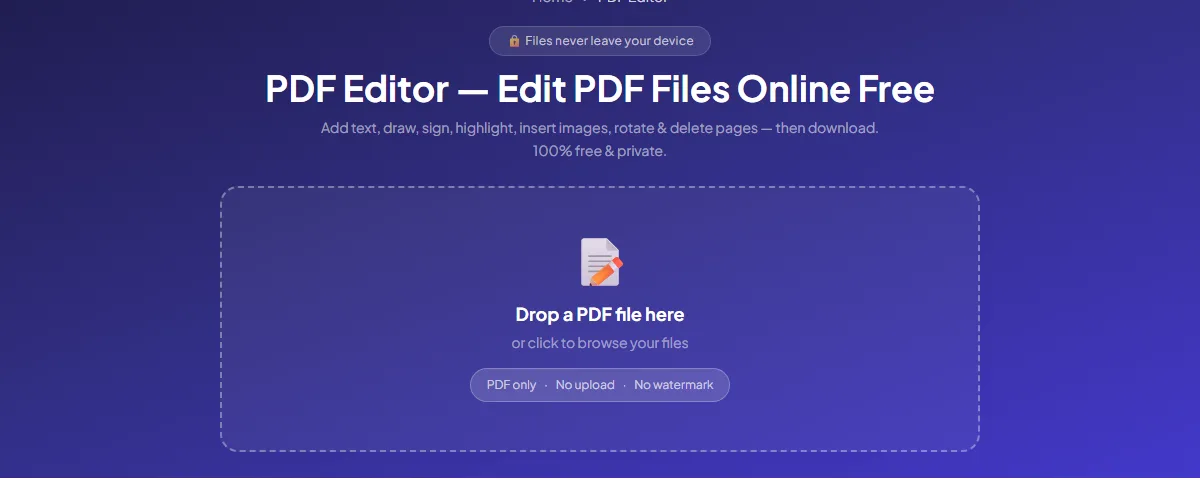
- The editor opens with your page in the middle, the toolbar across the top and the Pages panel on the left. Move is selected to begin with.
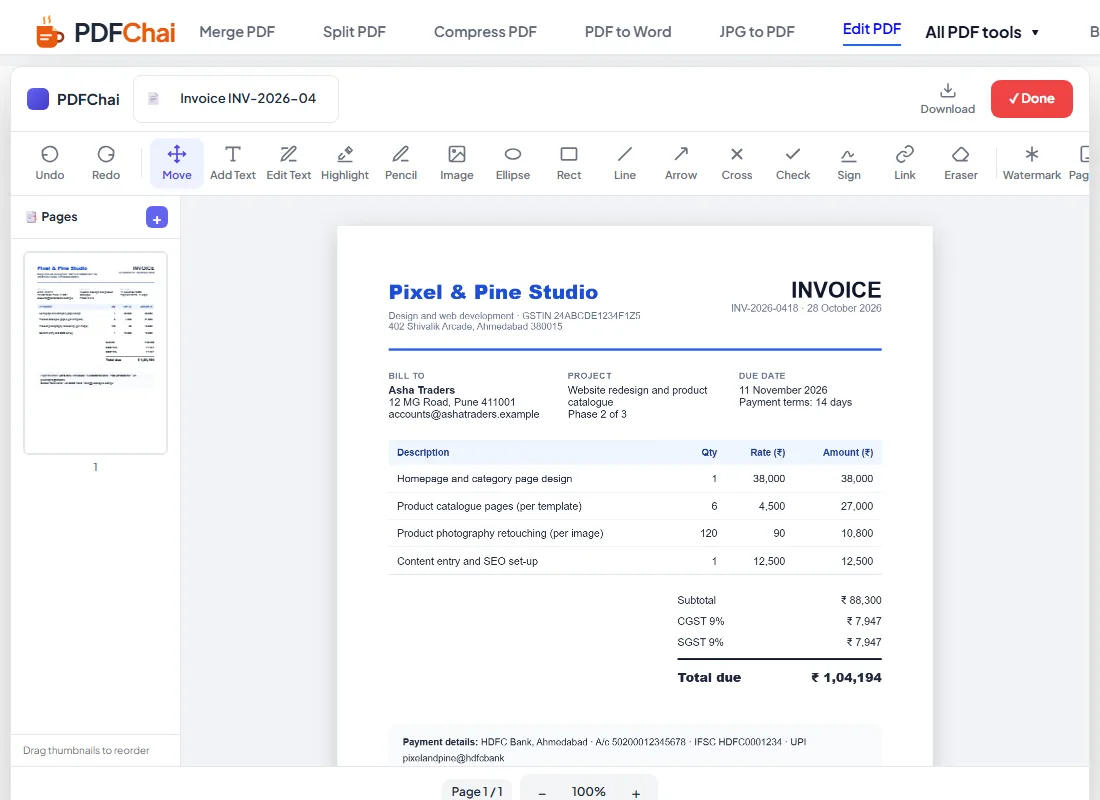
- To fix existing words, choose Edit Text and click the text. A single click opens that piece of text, and a double click opens the whole line. The old words are already selected, so just type the new ones.
- To write something new, choose Add Text and click where it should go. A box with the word "Text" appears, already selected, so you can type straight over it.
- Change the look in the options bar: Font, Font size, Weight, B, I, U and Color, with five quick colour swatches beside the colour picker.
- Switch back to Move to drag a text box into place. To remove one, select it and click the small red × on its corner.
Your text changes are in, and the rest of the page hasn't moved at all.
Step 2: How do you highlight, draw, sign and add images?
Pick a marking tool from the toolbar, then click or drag on the page.
Follow these steps:
- Highlight: drag a box over the words. It's see-through, so the text still shows, and it starts out yellow like a real highlighter pen. Pick another colour first if you want a different one.
- Pencil: draw freehand with a mouse, finger or stylus. Set the thickness with the Pen slider, and tick Marker (see-through) to draw like a highlighter pen.
- Ellipse, Rect, Line and Arrow: drag to draw the shape. Each one uses the colour and Pen thickness you've set.
- Check and Cross: click once to drop a green ✓ or a red ✕. Select one and pick another colour if you want it different.
- Sign: draw your signature in the Draw tab, or type your name in the Type tab and choose one of six handwriting styles. Click Add Signature and it lands in the middle of the page you're looking at.
- Image: choose a PNG or JPG, such as a logo or a stamp. Drag it into place and pull its corner dot to resize it.
- Link: click on the page, type the web address, then type the words readers should see. It becomes a real clickable link in the saved PDF.
That's it. Made a mistake? Undo and Redo at the left end of the toolbar step back and forward through your changes.
Step 3: How do you fix the pages and download the PDF?
Use the Pages panel for page jobs and the buttons at the end of the toolbar for whole-document extras, then click Download.
Follow these steps:
- Hover over a page thumbnail to see three small buttons. ⟳ turns the page a quarter turn clockwise, ⧉ duplicates it and 🗑 deletes it after asking you to confirm.
- Click + at the top of the Pages panel to add a blank page at the end, the same size as your first page. Drag the thumbnails to change the order.
- Click Watermark and type text such as "CONFIDENTIAL" to stamp it faintly and diagonally across every page. To remove it, click again and clear the text.
- Click Page # to number every page at the bottom centre, in the style "1 / 3". Click it again to switch numbering off.
- Click Protect and type a password if the file should only open for people who know it. The password is applied when you download.
- Check the name in the box at the top left. That's what your file will be called, so rename it now if you like.
- Click Download. The edited PDF is saved to your device.
That's it. There's no PDFChai watermark on the result, and it opens in any PDF reader.
Tip
Done isn't the same as Download. Done bakes your edits into the page and keeps you in the editor, so added items can't be moved afterwards and Undo starts fresh. Only Download saves a file to your device.
How do you edit a PDF on Android, iPhone, Windows and Mac?
The editor runs in any modern browser, so the steps are the same everywhere. What changes is where your file comes from and where the edited copy goes.
Android
Open debugspot.com/pdf-editor in Chrome and tap the upload box. The file picker shows your recent files, your Downloads and Google Drive. All the tools work with your finger, and Pencil is handy for circling a figure or signing. The saved PDF goes to your Downloads folder, and you can share it from the Files app to WhatsApp or Gmail.
On a phone screen, the Pages panel is hidden to make room for the page. Do page jobs on a tablet or computer, or tidy the pages afterwards with Organize PDF.
iPhone and iPad
Use Safari, tap the upload box and pick the PDF from the Files app. When you click Download, Safari may ask whether to download the file, so tap Download. You'll find the PDF in the Downloads folder of the Files app, ready to share by Mail or WhatsApp. Most iPads show the Pages panel. If yours doesn't, turn it sideways.
Windows
Use Chrome, Edge or Firefox. Drag the PDF from File Explorer onto the upload box, or click the box to browse. Keyboard shortcuts save time here: Ctrl+Z undoes, Ctrl+Y redoes, and Delete removes a selected image, tick or drawing. The finished file lands in your Downloads folder. In Chrome or Edge, press Ctrl+J to see it.
Mac
Safari, Chrome and Firefox all work. Use Cmd+Z to undo and Cmd+Shift+Z to redo. Downloads go to the Downloads folder in Finder, and the PDF opens in Preview. Preview can add notes and signatures too, but it can't retype the existing words the way Edit Text does.
A real example, start to finish
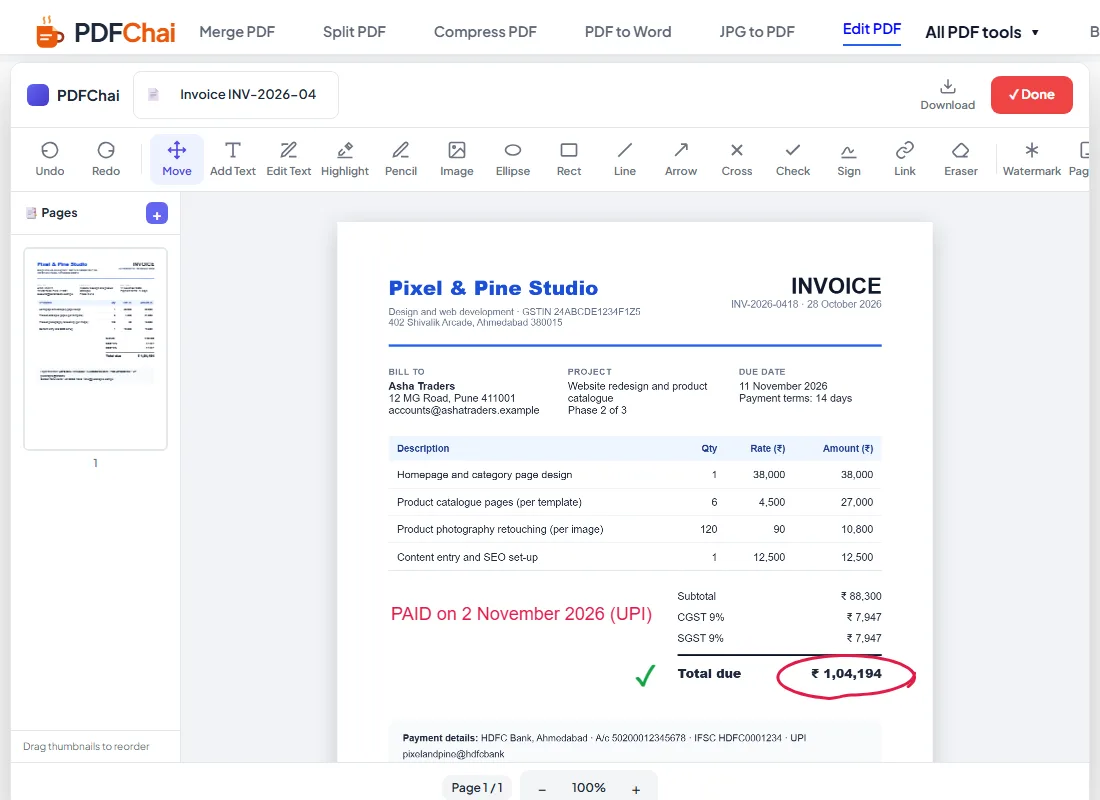
Pixel & Pine Studio is a small design studio in Ahmedabad. It sent Invoice INV-2026-0418.pdf to Asha Traders in Pune for website and catalogue work. The total was ₹1,04,194, due on 11 November 2026.
Asha Traders paid early, by UPI, on 2 November. Rahul Mehta, the studio's contact on the invoice, wanted a marked copy for the accounts file and for the client.
He opened the invoice in Edit PDF. The editor showed the single page with Move selected and "Invoice INV-2026-0418" in the name box at the top.
He chose Add Text, clicked in the empty space to the left of the totals and typed "PAID on 2 November 2026 (UPI)". The starting red suited a paid note, so he left it. With Check, he clicked once beside "Total due" to drop a green tick. Then he picked Pencil, kept the red and drew a loose circle around ₹ 1,04,194.
At 100% zoom, everything sat where it should. He added " paid" to the end of the file name in the name box and clicked Download. The invoice itself, from the GSTIN line to the bank details, looked exactly as before, with the payment note on top.
What are the most common mistakes?
Trying to edit text on a scanned page
If clicking with Edit Text does nothing, the page is probably a scan. Cover the old words with the Eraser and type the new ones with Add Text, or start from a text-based copy of the document if you have one.
Thinking the Eraser removes information
The Eraser paints over the page in a matching colour. It's great for tidying, but the hidden words are still in the file. For bank details, Aadhaar or PAN numbers, use Redact PDF. Our guide on how to redact a PDF shows the steps.
Clicking Done and closing the tab
Done doesn't save anything to your device. Always finish with Download. If you try to close the tab while edits are still on the page, your browser warns you first.
Clicking around with a drawing tool still on
Every tool stays switched on after you use it. If you click the page to "deselect" something while Add Text, Rect, Check or Cross is still active, you add a new text box, a tiny rectangle or another mark instead. Switch back to Move before you click around, and press Undo if something extra appears.
Forgetting the password you set
Protect uses strong AES-256 encryption, so there's no way back in without the password. Write it down before you download, and keep an unprotected copy somewhere safe if you might need one.
What are the best tips for editing a PDF?
How do I make new text match the old text?
Use Edit Text rather than Add Text when you're replacing words. It copies the original size, weight and colour for you. If the result looks slightly off, select the box and nudge the Font size up or down by one.
How do I change a whole line, not just one word?
Double-click the line with Edit Text. The editor joins the pieces of that line into one box you can retype. Items that sit far apart on the same line, such as table cells, stay separate.
What's the neatest way to sign?
If your mouse signature looks shaky, use the Type tab in Sign, since the handwriting styles look like real ink. For a photo of your signature on paper, Sign PDF can remove the white background, and it can copy initials onto every page.
How do I remove something I added?
Select it in Move and click the small × on its corner, or press Delete. You can also choose Eraser and click the item. This works for everything you add: text, images, signatures, ticks, pencil lines, highlights and shapes, and Undo brings it back if you change your mind.
Can I white out old text cleanly?
Yes. Choose Eraser, keep Auto match background ticked and drag over the words. It samples the colour around the brush, so it blends into tinted boxes too. Lower the Eraser size for fine work.
How do I zoom in for small details?
Use the − and + buttons at the bottom of the screen. Zooming in makes small boxes easier to hit, and everything you add keeps its exact position on the page.
Can I add a link to my website or portfolio?
Yes. Choose Link, click on the page, then type the address and the words to show. If you leave out "https://", the editor adds it for you.
What if the file gets too big after adding photos?
Large photos and logos add weight. Run the finished PDF through Compress PDF, and see our guide on how to compress a PDF to a specific size if a portal has a strict limit.
Is the editor the best way to fill in a form?
For forms, Fill PDF Form is quicker. It finds the form's own boxes, so you just click and type, and it can even make a flat form fillable.
Small edits, done properly
Editing a PDF shouldn't mean hunting for the original file or paying for a big program. A typo, a signature or a "PAID" note takes a couple of minutes, and the layout stays exactly as it was.
And because PDFChai works inside your browser, your invoices, contracts and forms never leave your device.
FAQs
1. Can I edit a PDF without Adobe Acrobat?
Yes. Edit PDF runs in any modern browser on Windows, Mac, Android, iPhone and Chromebook. There's nothing to install and no account to create.
2. Is my document uploaded when I edit it?
No. The PDF is opened and edited inside your browser, and the new file is created on your device. That makes it a safe choice for contracts, invoices and ID documents.
3. Can I change the existing text in my PDF?
Yes, with Edit Text, as long as the page has real text rather than a scan. Click a piece of text, or double-click a whole line, and type the new words.
4. Will my edited PDF have a watermark?
No. PDFChai doesn't add any watermark or branding. The only watermark will be one you add yourself with Watermark.
5. Does editing lower the quality of my PDF?
No. The original pages are copied into the new file as they are. Your text, shapes and drawings are added as real PDF content, so they stay sharp when you zoom or print.
6. Can I edit a PDF on my phone?
Yes. The page fits your screen, the toolbar scrolls sideways, and Pencil works with your finger. The Pages panel is hidden on phone screens, so use a tablet or computer to add, rotate or delete pages.
7. Can I password protect the edited PDF?
Yes. Click Protect, type a password and then download. The PDF will only open for someone who enters it. Our guide on how to password protect a PDF covers it in more detail.
8. Why does nothing happen when I click text with Edit Text?
The page is most likely a scanned image with no text inside it. You can still write on it with Add Text and cover old words with the Eraser.
9. Can I undo a change?
Yes. Use Undo and Redo in the toolbar, or Ctrl+Z and Ctrl+Y (Cmd+Z and Cmd+Shift+Z on a Mac). The Undo history starts fresh after you click Done.
Edit your PDF with PDFChai in just a few clicks!
Edit now