Table of contents
- What is a fillable PDF form, and what is a flat one?
- When do you need to fill in a PDF form?
- Step 1: How do you fill in a fillable form?
- Step 2: How do you fill in a flat form with no fields?
- Step 3: How do you make a flat form fillable?
- How do you fill in a PDF form on Android, iPhone, Windows and Mac?
- A real example, start to finish
- What are the most common mistakes?
- What are the best tips for filling PDF forms?
- Forms done in minutes
- FAQs
To fill in a PDF form online, open PDFChai's Fill PDF Form tool, drop in your form, click each highlighted field and type. If the form has no fields, click ✨ Detect fields to create them or write anywhere with Text, then click Download PDF.
Some PDF forms let you click a box and type. Others are just a picture of a paper form, and the usual advice is to print it, fill it in by hand, scan it and email it back. That's a lot of work for a one-page form, and handwriting on a scan is often hard to read.
In this guide, we'll show you how to fill in both kinds of form, how to write on a flat form in seconds, and how to turn a flat PDF into a proper fillable form that anyone can type into.
Let's get started.
Key takeaways
- A form's own fillable fields are tinted blue as soon as it opens
- Flat forms can be filled with Text, ✓, ✗, ● and 📅 Date anywhere on the page
- ✨ Detect fields finds the boxes, lines and labels of a flat form and makes them fillable
- Keep it fillable lets you change answers later, while Flatten locks them into the page
- Names and addresses in Hindi, Gujarati and other scripts are kept
- Your answers stay on your device, because nothing is uploaded
What is a fillable PDF form, and what is a flat one?
A fillable form has real fields built into the file: text boxes, check boxes, radio buttons and drop-down lists. Each field has a name, a position and a value. When you type into one, your answer is stored in that field, and any PDF reader can show it or change it later.
A flat form only looks like a form. The boxes and lines are drawn on the page, but there's nothing to click. Lots of government, bank and school forms are like this, because they were designed to be printed.
The quickest way to tell which kind you have is to open it in the tool. The message under the file name says how many fillable fields were found, or that there aren't any.
How PDFChai handles each kind
When you open a fillable form, Fill PDF Form reads every field and places a real input exactly over it. Filling it feels like filling in a web page. It handles single-line and multi-line boxes, boxes with one letter per square (common for PIN codes and account numbers), check boxes, radio buttons, drop-downs and lists.
On a flat form, you have two choices. You can write on the page with Text and place ticks, crosses, dots and dates where they belong. Or you can click ✨ Detect fields, and the tool works out where the fields should go and creates real ones.
Keep it fillable or flatten it?
When you download, you choose how the answers are saved. Keep it fillable writes them into the form's fields, so they can still be changed. Flatten (answers can't be changed) draws them permanently onto the page and removes the fields, which is what many portals and offices ask for.
Either way, the form is opened, filled and saved inside your browser. Your name, address and ID numbers never reach a server.
When do you need to fill in a PDF form?
You need it whenever someone sends you a form as a PDF and wants it back filled in. Typing is quicker than handwriting, easier to read and simple to correct.
- Job applications: application forms, joining forms and employee details sheets from HR.
- Admissions and exams: school admission forms, scholarship forms and exam registration forms.
- Bank and KYC paperwork: account opening, KYC update and nomination forms that ask for your PAN or address.
- Government forms: declarations, request letters and application formats, many of them flat PDFs.
- Work forms: expense claims, leave requests and vendor registration forms.
- Your own forms: a sign-up sheet or an order form you'd like people to fill in on screen.
A typed form also looks neater, which matters when someone has to read hundreds of them.
Step 1: How do you fill in a fillable form?
Open the form, click a highlighted field and type your answer.
Here's how:
- Go to Fill PDF Form and drop your form onto the box that says "Drop a PDF form here", or click the box to choose the file.
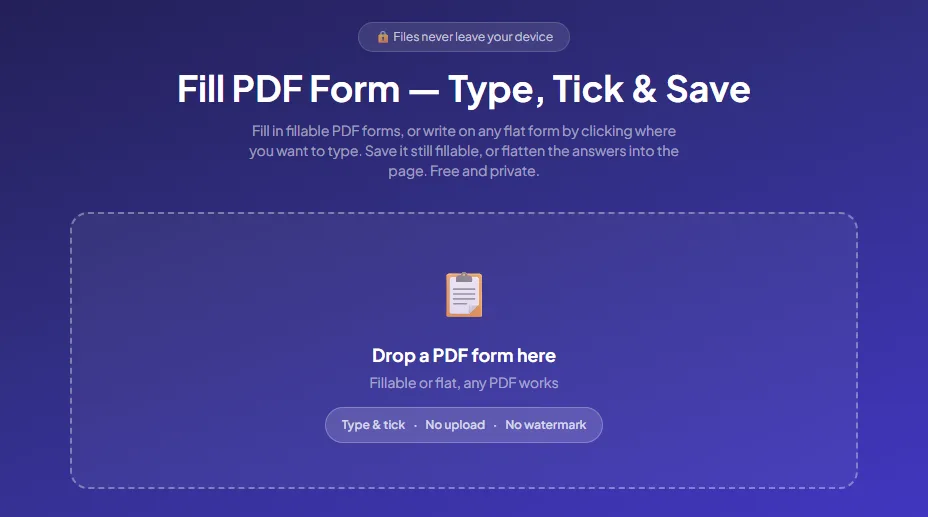
- The line under the file name tells you how many fillable fields were found, and each field is tinted blue on the page.
- Click a field and type. Click a check box to tick it, choose a radio button, or pick an answer from a drop-down list. Press Tab to jump to the next field. Faded fields are read-only, because the form's author locked them. If the same field appears twice, such as your name on page 1 and page 3, typing in one fills both.
- To see the form as it'll look on paper, untick Highlight fields. Use the − and + buttons to zoom in on small boxes.
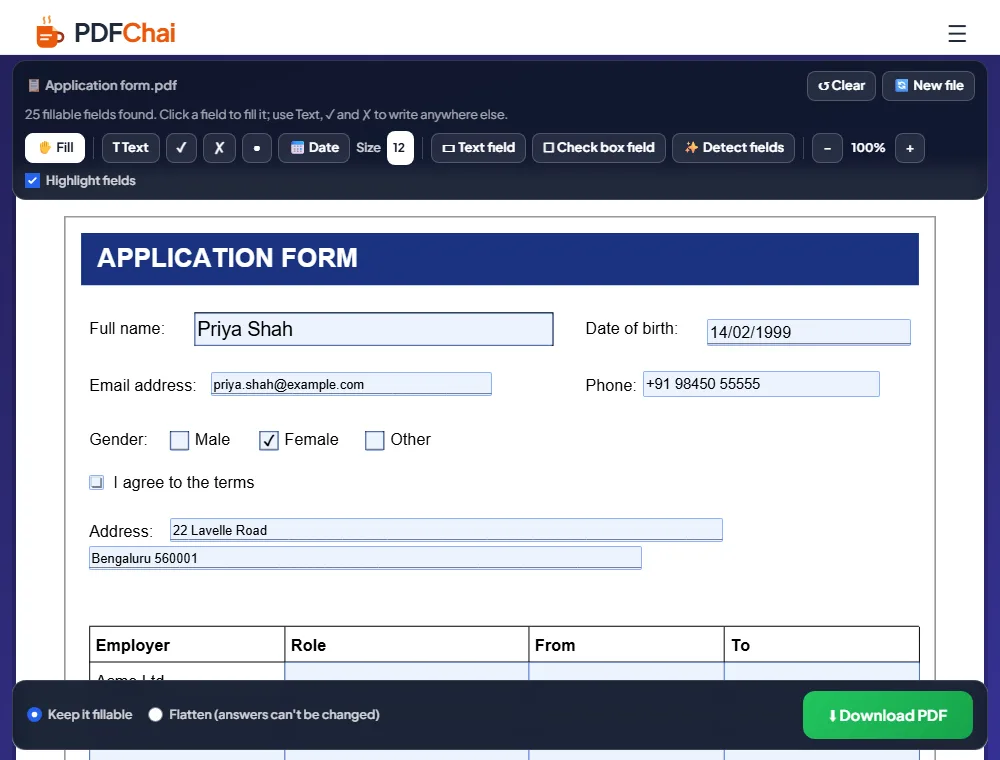
- At the bottom, choose Keep it fillable or Flatten (answers can't be changed), then click Download PDF.
Your answers are saved into the form's own fields, so they show up correctly in Adobe Reader, in browsers and in phone PDF apps.
Step 2: How do you fill in a flat form with no fields?
Choose Text or one of the marks, click on the page, and drag your answer into place.
Follow these steps:
- Open the flat form. The tool says "This PDF has no fillable fields", so you know straight away what kind it is.
- Choose Text and click where your answer should start, then type. Drag it by the ⠿ handle on its left until it sits neatly on the line. Text switches back to Fill after each answer, so choose it again for the next one.
- Choose ✓, ✗ or ● and click inside each box you want to mark. These stay switched on, so you can tick several boxes in a row.
- Choose 📅 Date and click to place today's date, written as DD/MM/YYYY. You can click into it and edit it like any other text.
- Use Size to set the size of new text and marks (from 8 to 24), or select an item and use A− and A+ in the small bar that appears above it.
- To delete something, select it and click 🗑 in that small bar, or press the Delete key.
That's it. When you download, your text and marks are drawn onto the page in black, in a clean Arial-style font.
Step 3: How do you make a flat form fillable?
Click ✨ Detect fields, check what it found, and download with Keep it fillable selected.
Follow these steps:
- Open the flat form and click ✨ Detect fields. While it works, the button shows "Looking…" and the page it's on.
- PDFChai reads each page for boxes, table cells, underlines, dotted lines, check-box symbols and labels ending in a colon with space after them. On a scanned form, it looks for straight lines in the picture instead.
- Each new field is named after the label next to it, such as "Full name" or "Date of birth". Table cells are named after their column heading.
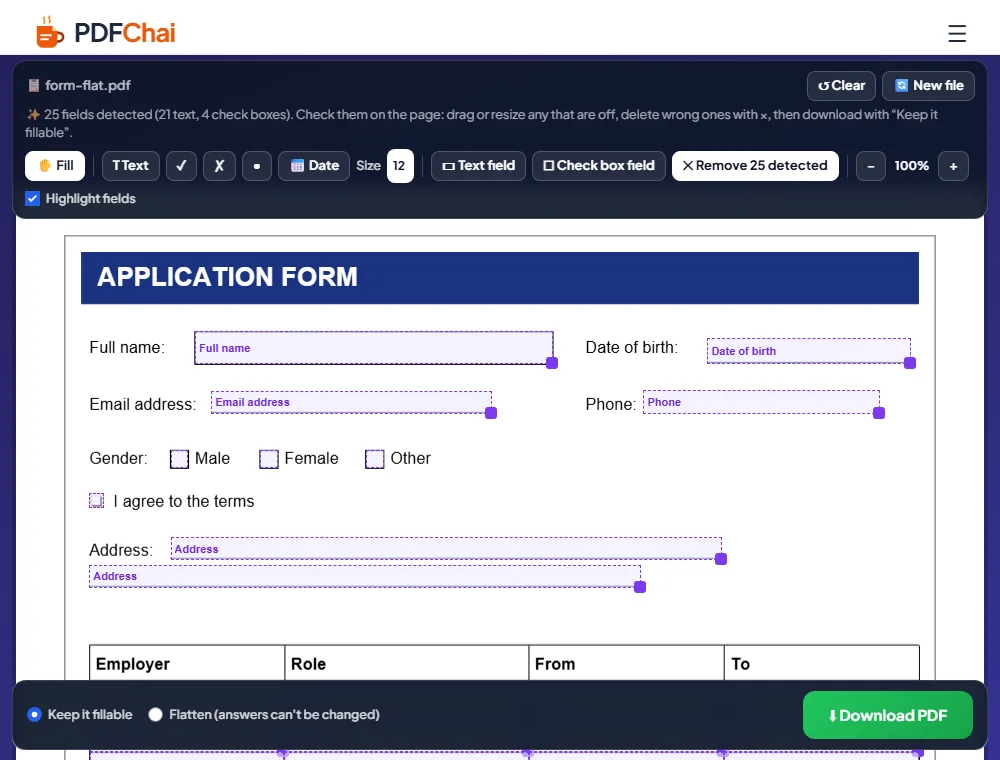
- Check every page. Drag a field that's slightly off, pull the purple square on a text field's corner to resize it, and delete a wrong one by selecting it and clicking 🗑.
- Add anything it missed with ▭ Text field or ☐ Check box field, then click on the page where the new field should go.
- Make sure Keep it fillable is selected and click Download PDF.
That's it. Anyone can now open your PDF and type straight into the boxes. Changed your mind before downloading? The button now reads ✕ Remove 25 detected (with your own count), and one click takes them all away.
Good to know
New fields are empty outlines until you download. To fill the form yourself, open the downloaded copy in Fill PDF Form again, and it'll show them as normal fillable fields.
How do you fill in a PDF form on Android, iPhone, Windows and Mac?
The tool works the same in every modern browser. Here's what's different on each device.
Android
Open debugspot.com/fill-pdf-form in Chrome and tap the upload box to pick the form from your files, Downloads or Google Drive. Tap a field to bring up the keyboard. Zoom in with + before placing ticks, since small boxes are hard to hit with a finger. The filled form is saved to your Downloads folder with "-pdfchai" added to the end of its name.
iPhone and iPad
In Safari, tap the upload box and choose the form from the Files app. If Safari asks about the download, tap Download, and the filled PDF appears in the Downloads folder in Files. From there, use the share button to send it by Mail or WhatsApp. On an iPad, the bigger screen makes table cells much easier to fill.
Windows
Use Chrome, Edge or Firefox. If the form came as an email attachment, save it to your computer first, then drag it from File Explorer onto the box. Tab moves to the next field and Shift+Tab goes back, which makes long forms quick. You'll find the result in your Downloads folder.
Mac
Safari, Chrome and Firefox all work. The downloaded form opens in Preview, and a copy you kept fillable can still be changed there or in Adobe Reader. If you flattened it, the answers are part of the page and stay as they are.
A real example, start to finish
A company was hiring a data analyst. Its HR team only had a flat version of their application form, form-flat.pdf, which candidates had been printing and scanning.
They opened it in Fill PDF Form and clicked ✨ Detect fields. The tool reported "25 fields detected (21 text, 4 check boxes)". Full name, Date of birth, Email address, Phone and both Address lines got their own fields, and the employment table's cells were named after its columns: Employer, Role, From and To. The four check boxes were Male, Female, Other and "I agree to the terms". HR checked the page, downloaded it with Keep it fillable, renamed the file Application form.pdf and sent it to candidates.
Priya Shah, a data analyst from Bengaluru, opened it the next day. The tool said "25 fillable fields found". She typed Priya Shah, 14/02/1999, priya.shah@example.com and +91 98450 55555, ticked Female, and filled in 22 Lavelle Road and Bengaluru 560001 on the two address lines. Then she filled in her work history in the table and ticked "I agree to the terms" after reading them. Before downloading, she unticked Highlight fields to see the page the way HR would.
Because this was the final copy, she chose Flatten (answers can't be changed) and clicked Download PDF. The tool saved Application form-pdfchai.pdf, and she attached it to her email with her resume and cover letter.
What are the most common mistakes?
Leaving text sitting on the line
Text lands where you click, so it can end up sitting on a line or floating above it. Zoom in and drag it by its ⠿ handle until it sits just above the line, the way handwriting would.
Flattening a form you still need to change
A flattened PDF can't be edited as a form any more. If you're not finished, download with Keep it fillable and flatten only the final copy. Keep the fillable version too, in case you need it again.
Clicking Clear or New file by accident
↺ Clear wipes every answer and mark on the form at once, and there's no undo. 🔄 New file closes the form without saving. Download a copy before you use either button.
Trusting Detect fields without checking
Detection is very good on clean, typed forms, but it can miss a box or add one where none is needed. Scroll through every page, fix what's off, and add anything missing with ▭ Text field or ☐ Check box field.
Expecting to sign inside the signature box
Signature fields show up as a dashed "Signature" box, but you can't sign them here. Fill in the form first, then add your signature with Sign PDF.
Using the wrong date format
📅 Date writes the date as DD/MM/YYYY, which suits India and the UK. A US form usually wants MM/DD/YYYY, so click into the date and retype it.
What are the best tips for filling PDF forms?
How do I line up text on a flat form?
Zoom in with +, then drag the text by its ⠿ handle so it sits just above the line. Match the size of the printed labels with Size, or with A− and A+. Size 12 suits most forms.
How do I place ticks precisely?
Zoom in first, then click right in the middle of the box. Each mark is centred on your click, and you can drag it afterwards if it's a little off.
Should I keep the form fillable or flatten it?
Keep it fillable while you're still working on it, or if someone else has to add to it. Flatten the copy you submit, so nothing can be changed or lost on the way.
Can I type in Hindi, Gujarati or another script?
Yes. Names and addresses in Hindi, Gujarati and other scripts are kept. If a PDF reader shows them wrongly in a fillable copy, download again with Flatten, and they'll be drawn exactly as you typed them.
How do I save a half-filled form?
Download it with Keep it fillable, then open that file in Fill PDF Form again later. Answers in the form's fields stay editable. Text and marks you placed with Text, ✓ or ✗ are drawn onto the page, so they're fixed once downloaded.
What is an XFA form?
Some government forms are built in an older Adobe format called XFA, which only Adobe Reader shows properly. If the tool tells you your form is XFA, you can still fill it in on the page with Text, ✓ and ✗.
What if the form is locked?
If the tool says the PDF is locked against changes or needs a password, remove the lock with Unlock PDF first, then open it here again. For a form that needs a password to open, you'll need to know that password.
My form is only on paper. What now?
Photograph it with Scan to PDF, which crops and straightens each page. Then open the PDF here and use ✨ Detect fields or Text. Our guide on how to scan documents to PDF with your phone shows how.
How do I check the form before sending it?
Untick Highlight fields to see the page without the blue tint, and scroll through every page once. After downloading, open the file in your usual PDF reader to make sure every answer shows where it should.
How do I send the form with other documents in one file?
Many portals want a single PDF. Put the filled form, your resume and your certificates together with Merge PDF. Our guide on how to merge PDF files walks you through it.
Forms done in minutes
Filling in a PDF form shouldn't involve a printer, a pen and a scanner. Fillable forms take a few clicks, flat forms take a few more, and a flat form can become a proper fillable one in seconds.
PDFChai keeps your answers private too, because the form never leaves your browser.
FAQs
1. Why are no fields highlighted on my form?
The PDF is a flat form without fillable fields. Click ✨ Detect fields to create them, or write on the page with Text and the marks.
2. Can I save a half-filled form and finish later?
Yes. Download it with Keep it fillable selected, then open that file in Fill PDF Form again whenever you're ready. Your answers will still be in the fields.
3. Is my personal information uploaded?
No. The form is opened, filled and saved inside your browser. Details like your address, phone number or PAN never leave your device.
4. How accurate is Detect fields?
On clean, typed forms it finds almost every field and names it after the label beside it. It can still miss a box or add an extra one, so give the result a quick check before you share it.
5. Can I fill in PDF forms on my phone?
Yes. It works in Chrome on Android and Safari on iPhone, and the page fits your screen. Tap a field to type, and use the zoom buttons to reach small boxes.
6. Will the filled form open in Adobe Reader?
Yes. The answers are saved in the form fields along with how they look, so they show in Adobe Reader, browsers and phone PDF apps.
7. Can I make my own PDF fillable?
Yes. Use ✨ Detect fields, or add fields yourself with ▭ Text field and ☐ Check box field. Download with Keep it fillable, and they become real form fields anyone can fill.
8. What does Flatten do?
It draws every answer permanently onto the page and removes the form fields. The PDF then prints exactly as it looks, and the answers can't be changed.
9. Is there a limit on forms or pages?
No. The tool is free, with no signup, no watermark and no limit on how many forms or pages you fill.
10. Can I write outside the fields on a fillable form?
Yes. The fillable fields work as usual, and you can also choose Text, ✓ or ✗ to add something anywhere else on the page, such as a note beside a question that has no box.
Fill in your PDF form with PDFChai in just a few clicks!
Fill now